Most PDF editors are either too stripped down or way too pricey and complicated for what you actually need.
In this Tenorshare PDNob review, we’ll talk about what Tenorshare PDNob offers. We’ll look at its features, safety, privacy, pricing, and how it actually functions, so you can figure out if it’s the right fit for you in 2026.
Part 1: Tenorshare PDNob Overview
2.1 What is Tenorshare PDNob and Who Is It For?
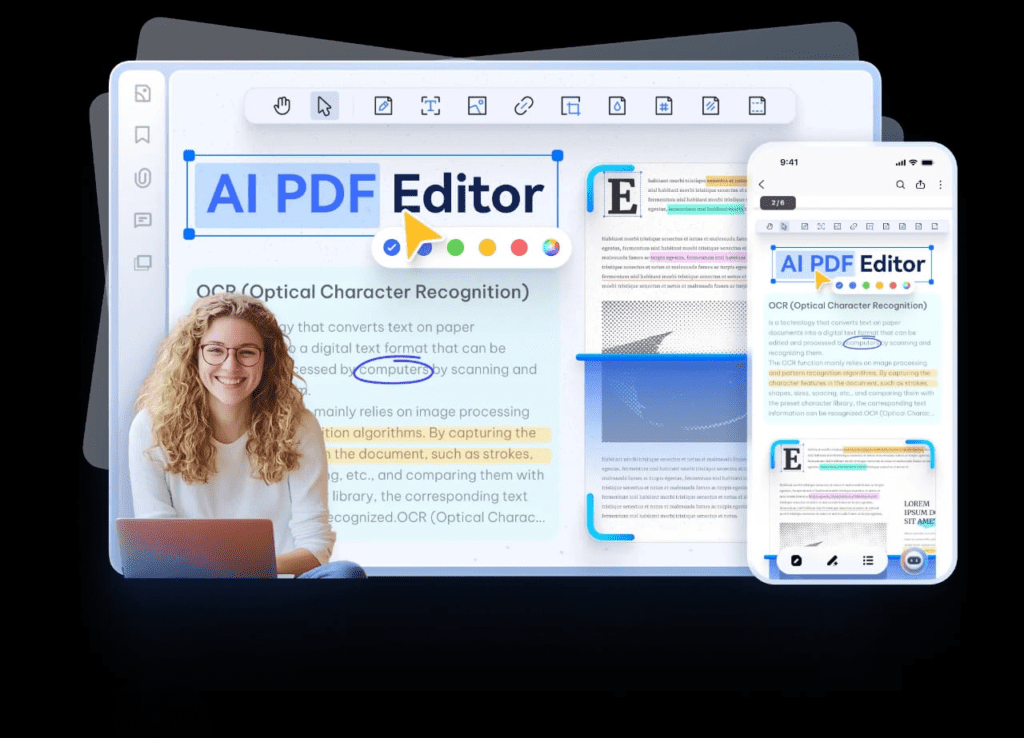
Our Tenorshare PDNob review states that it’s a desktop PDF editor for Windows and macOS that brings many tools together in one program. It is made for users who want strong editing features without complicated steps.
The software is popular for its AI-powered tools, accurate text recognition (OCR), and the ability to function offline without needing an internet connection. Tenorshare PDNob suits several types of users who need a PDF editor with a learning curve and the high cost of professional tools:
2.2 Is Tenorshare PDNob Safe to Use?
Yes. Tenorshare PDNob is quite safe to use. It mainly functions offline, so most files stay on your computer instead of being uploaded to the cloud. Your documents are only sent online if you use certain features, such as AI tools. The company also protects data with strong 256-bit encryption and TLS encryption to protect the transfer of data, and provides a detailed privacy policy. It also follows privacy standards like GDPR and the CCPA rules.
Moreover, it is CMMI Level 5 certified, showing premium development dependability, and PCI DSS certified to protect all payment transactions. Tenorshare PDNob is also ISO certified to meet international quality and security benchmarks, and complies with CPRA, keeping user data safe under California’s privacy laws. The company also deletes online files automatically, and does not store, study, or share user data with others.
2.3 PDNob All Features
Here are the main features provided by Tenorshare PDNob:
Part 3: Getting Started – A Clean, Modern Interface
Getting started with Tenorshare PDNob is simple. After downloading and installing the app, you create an account to access all features. The layout is beginner-friendly while still being efficient for regular use, and you can quickly open files from your computer or cloud storage or create a new PDF.
Part 4: Editing PDFs – Core Tools That Cover Most Needs
PDNob’s editing tools make working with PDFs feel similar to editing a Word document. They allow you to adjust font type, size, color, and alignment, as well as insert, replace, resize, or move images.
Since editing happens directly within the existing content instead of using separate text boxes, the original layout stays intact, and formatting issues are reduced. Along with tools for adding links, watermarks, and backgrounds, these features cover most needs for office documents, reports, and forms. Here’s how to edit a PDF in Tenorshare PDNob:
Step 1: Execute Tenorshare PDNob on your computer. Then, tap “Open PDF.” Click “Edit All” in the above menu to access editing options.
Step 2: Select “Edit Text” or “Edit Image” to modify text, images, or both. Click on any text or object to add, delete, or adjust content. You can resize images, rearrange layout, and change font style, size, or color using the options on the right.
Step 3: After editing is finished, head to the “File” tab. Choose “Save” to overwrite the original file or “Save As” to create a new edited PDF while keeping the original unchanged.
Part 5: OCR Features – Where PDNob Stands Out
PDNob’s OCR (Optical Character Recognition) feature is one of its strongest tools. It converts scanned documents or image-based PDFs into searchable and editable text with 99% accuracy.
The tool uses AI to improve accuracy, even on skewed, blurry, or complex documents. It also includes options to auto-crop pages, fix tilt, and remove noise. This makes it especially useful and time-saving for professionals working with old scans, contracts, or printed files.
Step 1: Tap the “OCR PDF” option in the PDNob menu. Select “Scan to Editable Text” to edit or “Scan Searchable Text in Image” to search text only.
Step 2: Choose the pages and language of your document, then click “Perform OCR.” The processed file opens automatically, and you can edit the text using the “Edit” tab.
Part 6: PDF Conversion – Practical and Accurate
PDF conversion is a core feature of PDNob and is easy to use. You can select from 30+ formats, including Word, Excel, PowerPoint, and image files. The tool is fast, supports batch processing, and is designed to keep fonts, tables, and the entire layout intact.
For regular digital PDFs, conversions are usually clean and accurate. While scanned files can first be processed with the AI OCR engine to recognize text, improving conversion results. Here’s an example of how you can convert a PDF to another format using PDNob:
Step 1: Tap “Open PDF” on the main menu to add your PDF. Then, select “Convert” from the top menu.
Step 3: Next, choose a format in which you desire to convert the PDF, like “To Word.” Select the destination to save the converted file. You can also adjust settings and quality. Hit “Convert.”
Part 6: Tenorshare PDNob More Features
Beyond the main functions, our Tenorshare PDNob review includes other helpful features as well, such as:
Part 7: Pricing: Simple Plans, Clear Value
Tenorshare PDNob provides a full-featured free trial with no time limit, and a free version with limited features. Paid plans are also a cheaper option compared to many subscription-based competitor software. Here are PDNob’s pricing plans and free options:
Free Trial Version
You can download and use Tenorshare PDNob indefinitely, but certain functions are restricted:
Subscription Plans
To remove all limitations, you need a paid license. Tenorshare PDNob uses a subscription model with different billing cycles:
Pricing Plans for Windows, Mac, and iOS (Auto-Renewal Enabled)
Final Thoughts
Our Tenorshare PDNob review establishes that it’s a well-rounded PDF editor that combines powerful features with an easy-to-use design. It includes all the crucials, like PDF editing, OCR with up to 99% accuracy, file conversion, security tools, and helpful AI features, while functioning offline to protect user privacy.
With a clean interface, flexible editing tools, and support for batch processing, it suits students, professionals, small businesses, and freelancers alike. The free trial lets users explore the software without pressure, and the paid plans offer strong value compared to many costly alternatives.