
Stop Losing Product Context at Handoff: Explain the Release with AI PPT Maker

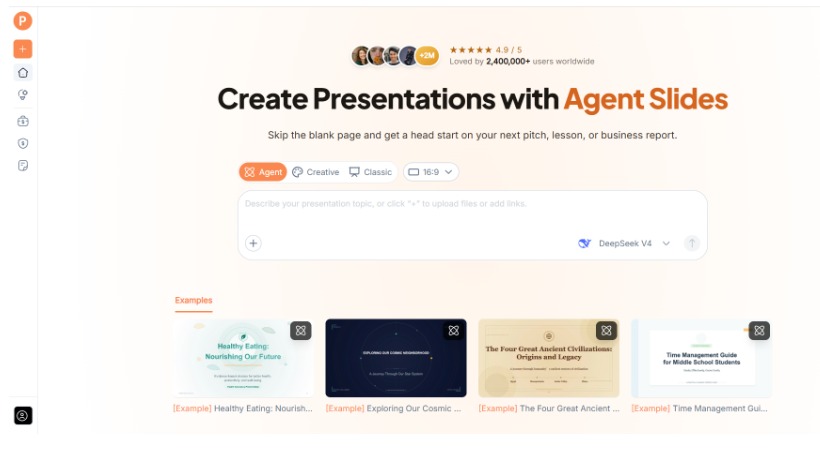
The feature is nearly ready, but the questions are multiplying. Support wants to know what customers will see. Sales asks who the feature is for. Marketing needs a clear explanation of what has changed. AI PPT Maker can help turn the product brief into a presentation draft for these internal conversations.
For product managers, a handoff presentation has a different job from a public launch announcement. It needs to help colleagues understand the release accurately enough to do their own work.
That includes the intended use, the boundaries, and the questions that remain open. A polished deck that skips those details can leave teams with conflicting explanations.
(Create presentations with AI PPT Maker)
Decide Which Handoff You Are Preparing
A technical review, a support briefing, and a commercial introduction need different levels of detail.
Choose one primary audience before building the deck. For a support session, the priority may be the customer workflow and known limitations. For a commercial briefing, it may be the intended customer and appropriate use cases.
Tell AI PPT Maker who will attend and what they should be able to explain afterward.
You can create separate drafts from the same approved source material. The underlying facts should remain consistent even when the emphasis changes.
Define the Knowledge Gap
Write down what the receiving team does not yet know.
Perhaps the name has changed, access depends on a particular condition, or an existing workflow now has an additional step.
Those details deserve explicit treatment. They may be more useful to colleagues than a broad explanation of the feature’s benefits.
AI PPT Maker can help organize the briefing when you describe the gap clearly.
Use an Approved Snapshot of the Product
Product documents change throughout development. A planning note may describe an idea that did not make it into the release.
Choose the current approved brief and label its status before adding it to AI PPT Maker.
Separate available functionality from planned work. Identify unresolved questions rather than allowing them to become statements in the presentation.
If the source materials conflict, resolve the discrepancy with the relevant owner. The slide draft should reflect the agreed position.
Keep the Release Date and Scope Visible
The audience needs to know which release the presentation describes.
Include the relevant version or date in your source notes. Check that statements about availability match the actual handoff scope.
A capability available to a limited group should not become “available to all customers” through summarization.
AI PPT Maker gives you a starting point, but the product team needs to verify each claim against the approved release information.
Explain the User’s Task Before the Feature List
A list of controls or settings may be accurate without explaining why the feature exists.
Start with the user’s task. What are they trying to accomplish? Where does the new functionality enter the workflow? What has changed compared with the previous approach?
That context helps the receiving team understand how to describe the release.
Provide AI PPT Maker with a request such as:
Create an internal handoff presentation from this approved product brief. The audience is the support team. Explain the intended user task, workflow, access conditions, known limitations, and escalation route. Keep planned functionality separate from available functionality. Do not add capabilities that are absent from the source.
The brief makes the draft’s purpose concrete.
Use Agent to Address Team-Specific Questions
Agent mode in AI PPT Maker supports follow-up conversation. You can add context when the initial draft does not address a recurring question.
For example:
Give more attention to the difference between an expected restriction and an error that should be escalated. Use only the conditions documented in the brief.
Another follow-up might ask for plainer language or a clearer explanation of a handoff between teams.
Agent exports PPTX, allowing you to continue editing in PowerPoint and add approved screenshots from the relevant product version.
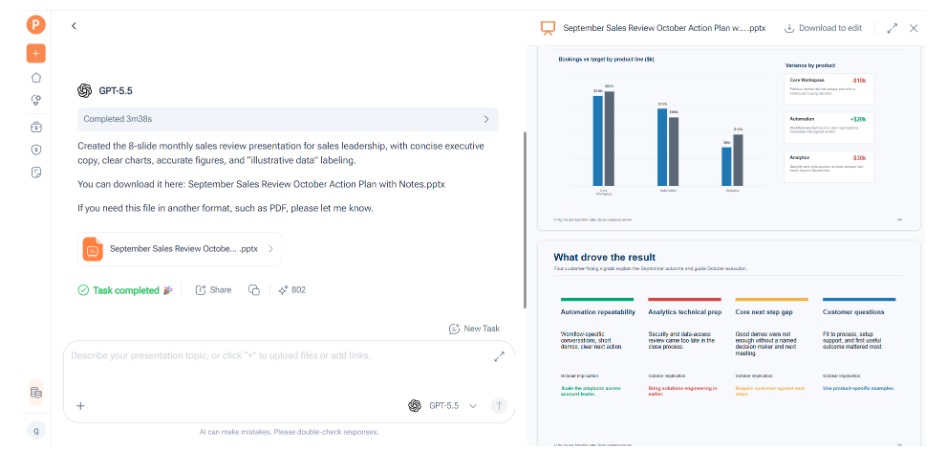
(AI PPT Maker Agent presentation preview)
Show Examples Without Inventing Behaviour
An example can help colleagues understand how the feature fits into a task.
Use a documented scenario, or label a fictional scenario as illustrative. Check that every step reflects the actual workflow.
Avoid presenting a generated interface illustration as a verified screenshot. For operational handoffs, accurate labels and visible states matter more than decorative imagery.
AI PPT Maker can help organize the explanation, while your team supplies and verifies the product evidence.
Build an Outline That Includes Boundaries
All three modes in AI PPT Maker allow outline review before generating slides.
A useful internal briefing might cover:
- Why the feature exists.
- Who it is intended for.
- The main workflow.
- Access conditions and limitations.
- Common questions.
- When and how to escalate.
- Where to find the current documentation.
Check that the limitations appear where colleagues will notice them. Burying them on a crowded final slide makes the presentation less useful.
The aim is consistent understanding across the teams receiving the handoff.
Choose a Format the Team Can Maintain
Agent and Classic support PPTX downloads in AI PPT Maker. That can suit internal decks that need wording changes and updated screenshots.
Classic also offers options including PDF and Keynote. Creative exports PNG images, which may suit finished visual pages but requires consideration of future revisions.
Keep a clear owner for the approved presentation and the source documentation. A deck can become outdated even when it was accurate at the time of delivery.
Rehearse with the Receiving Team’s Questions
Before the briefing, ask someone from the receiving team to review the draft.
Their questions may reveal missing context: an unexplained term, an unclear condition, or a support path that assumes knowledge they do not have.
Other options include PPT Maker and NoteGPT’s AI Slide Generator. For this handoff, assess the AI PPT Maker draft by how accurately colleagues can explain the release afterward.
Prepare the Next Handoff from Current Facts
AI PPT Maker can help organize approved product information into a briefing that colleagues can use. Start with a current release snapshot, define the audience, and review the outline for workflow details and boundaries. Try AI PPT Maker(https://aipptmaker.ai/) for your next internal handoff, then verify the deck with the responsible product owners. PPT Maker(https://pptmaker.io/) is another option to keep in mind as you develop your preparation workflow.







Comment