
SharePoint Task Management: Stop Chasing Updates and Start Getting Work Done

Your team is busy all day. So why do projects still miss deadlines?
Tasks are scattered across emails, spreadsheets, meetings, and chat messages. Nobody has a clear picture of what needs attention next.
For managers, this means constant follow-up. A better SharePoint task management process can change that. Teams can plan work, assign owners, and track progress in one connected place.
The Hidden Cost of Disorganized Tasks
Picture is a marketing team preparing for a product launch. The designer waits for the final copy. The writer thinks the manager approved it. The manager assumes the designer already started. Three people are working hard, but the launch still falls behind.
Sound familiar?
These problems show up across departments:
- Tasks have no clear owner.
- Deadlines disappear inside long email threads.
- Managers cannot see which projects need help.
- Teams waste time switching between apps.
- Important updates reach people too late.
It is a lack of shared visibility.
What Is SharePoint Task Management?

SharePoint task management is the process of organizing, assigning, and tracking work using SharePoint and connected Microsoft 365 tools. A SharePoint task management system gives teams a structured way to see responsibilities, deadlines, and project progress. Instead of depending on memory or manual status reports, employees can check what matters and act sooner.
For organizations already using Microsoft 365, this approach also reduces the need to introduce an entirely separate work environment.
However, a basic task list may not be enough when several teams, projects, and deadlines overlap. That is where dedicated SharePoint task management software becomes valuable.
Five Ways to Fix Common Task Problems
- Give Every Task a Clear Owner
- A task without an owner is easy to forget.
- Start by assigning one person to each task. Add a due date, priority, and clear description.
- With Task 365, teams can organize assignments and see their responsibilities through the My Tasks feature.
- The result is less guessing and fewer messages asking, “Who is handling this?”
- Make Deadlines Visible
- Deadlines should never be hidden in someone’s inbox.
- Use a shared calendar or timeline to show upcoming work.
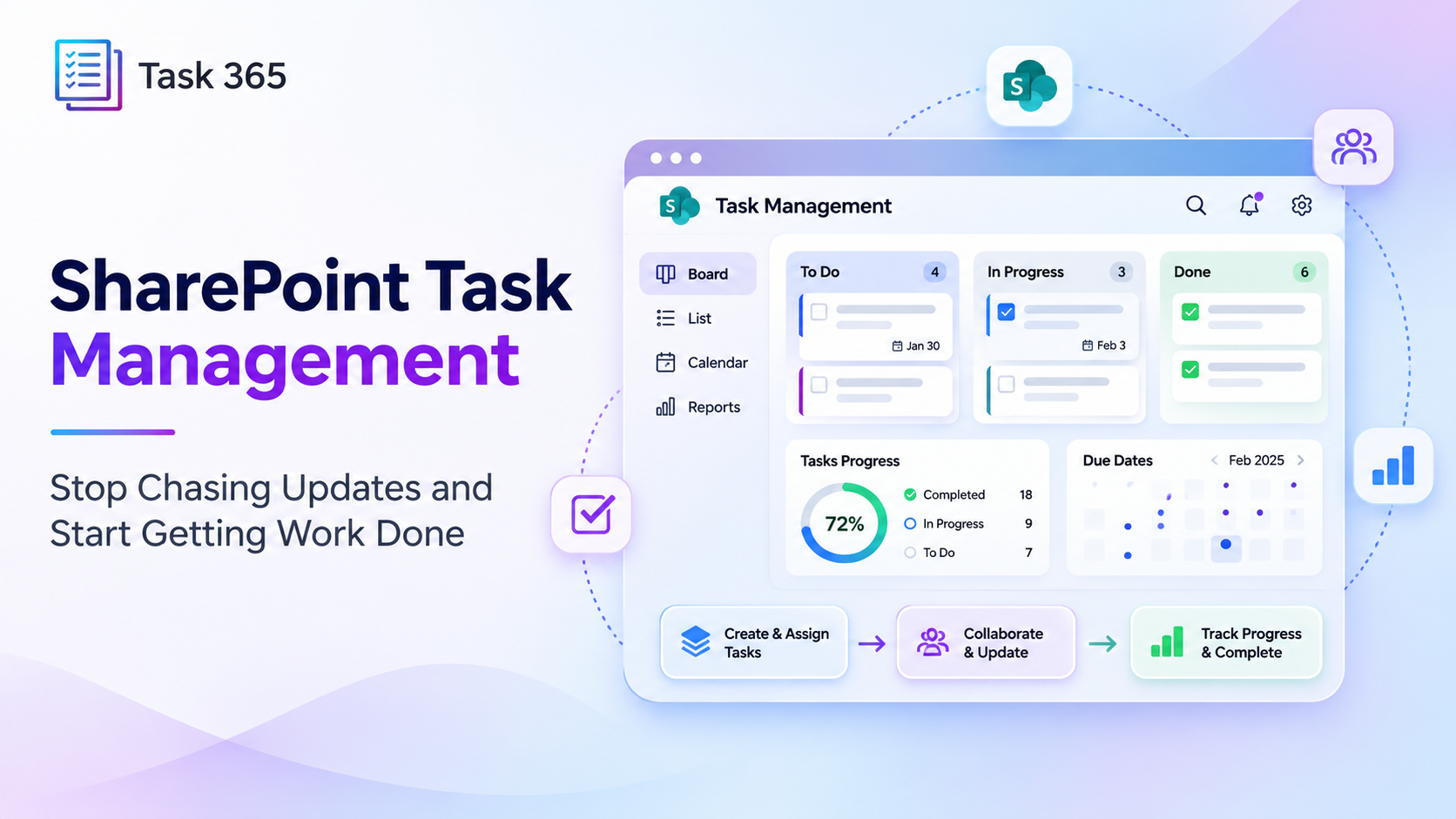
- Task 365 offers List, Board, Calendar, and Timeline views. Teams can choose the format that fits their workflow.
- A SharePoint task planner should make priorities clear without forcing employees to rebuild their schedules every morning.
- Track Multiple Projects Together
- Managing one project is challenging. Managing ten with separate spreadsheets is even harder.
- Leaders need to know which projects are moving, which are delayed, and where support is needed.
- Task 365 includes multi-project tracking, helping managers review work across projects from one screen.
- Keep Conversations Connected to Work
- A quick chat message can easily become a forgotten assignment.
- When teams use Microsoft Teams, SharePoint, Outlook, and Planner, they need a connected process for moving from discussion to action.
- Task 365 integrates with these Microsoft tools, making it easier to coordinate tasks, updates, and shared work.
- Replace Guesswork With Progress Reports
- Managers should not need to interrupt employees just to learn whether work is moving.
- Useful dashboards show task status, project progress, and areas that need attention.
- Task 365 provides reporting and performance insights so leaders can review progress and make informed decisions.
Where AI Fits into Task Management
- With AI SharePoint task management, teams can use intelligent summaries and priority support to understand work faster.
- Task 365 highlights smart task organization and AI-powered summaries. Its product page also describes Microsoft Teams and Copilot support.
- These capabilities can help employees identify important work, review key information, and spend less time sorting through updates.
- It works best when teams already follow a simple process.
Why Task 365 Makes Sense for Microsoft 365 Teams
If your organization already works in SharePoint and Teams, switching between unrelated systems can slow everyone down. Task 365 is a SharePoint task management app designed to support work inside the Microsoft 365 environment.
It brings together practical features such as:
- My Tasks for personal priorities.
- Multi-project tracking for wider visibility.
- Custom fields for organizing assignments.
- Flexible views for different work styles.
- Scheduling tools for upcoming deadlines.
- Dashboards for reviewing performance.
- Access controls for protecting information.
- Mobile access for checking work remotely.
As a SharePoint task management platform, it connects planning, collaboration, and reporting rather than treating each step as a separate activity. For teams seeking an Office 365 task management approach, that connection matters. Employees can keep using familiar Microsoft tools while gaining a clearer way to manage work.
A Simple Example: Before and After
Imagine an operations manager coordinating a new office opening.
- Before using a shared system, vendor updates arrive by email. Equipment requests to sit in spreadsheets. The facilities team tracks deadlines in personal calendars.
- When one delivery is delayed, nobody sees the impact until the next meeting.
- Now imagine the team using a shared task workflow.
- Each activity has an owner and due date. Managers review progress through a dashboard. Employees update their assigned work. Teams spot delays earlier and discuss the next step.
This example is hypothetical, but the lesson is practical, better coordination starts with visible work.
How to Choose the Right Solution
Look for a solution your team will actually use. Ask these questions before choosing a SharePoint task management tool:
- Can employees find their tasks quickly?
- Can managers track several projects?
- Does it work with existing Microsoft tools?
- Are deadlines and priorities easy to see?
- Can teams control access to sensitive work?
- Are reports simple enough to guide decisions?
A strong SharePoint task management solution should make daily work easier, not create extra administration.
Start With One Team, Then Grow
- You do not need to change every process overnight.
- Choose one project with clear deadlines. Assign owners, set priorities, and review progress each week. Ask employees what feels easier and what still causes delays.
- Once the workflow works well, expand it to other teams.
- Small improvements build trust. Clear habits create lasting results.
Ready to Spend Less Time Chasing Tasks?
Your team deserves more than endless reminders, scattered spreadsheets, and last-minute surprises. Task 365 helps Microsoft 365 teams organize assignments, connect collaboration, monitor progress, and keep important work visible.
Whether you manage a small department or several projects, the right system can make everyday work more predictable. Stop asking, “Where does this task stand?” Start giving your team a clear path forward.
Ready to see what better task management looks like?
Explore Task 365 and book a free demo to see how it could fit your workflow.






Comment