
Posters, Infographics and Menus: How to Prompt GPT Image 2 for Text-Heavy Visuals

AI image generators have produced convincing landscapes and abstract illustrations for years. The harder test is text: putting real words, numbers, and dates into an image without scrambled letters or stray characters. OpenAI released gpt-image-2 in April 2026, and text-heavy visuals were a stated focus of the launch.
What OpenAI Says gpt-image-2 Is For
According to OpenAI’s launch announcement, gpt-image-2 offers more practical text-heavy visuals and stronger structured generation, including diagrams, infographics, charts, posters, and comics. OpenAI also lists improved multilingual text rendering, more aspect ratios, and resolutions up to 2K, along with better instruction-following, detail preservation, and composition.
OpenAI’s gpt-image-2 model page calls it a state-of-the-art image generation model for fast, high-quality generation and editing. For marketers, cafe owners, and developers, the practical question is how to write prompts that put the right words in the right place.
A Prompting Pattern for In-Image Text
Readable text takes a more methodical prompt than scenery does. OpenAI’s prompting guidance suggests a consistent order: background or scene, then the subject, then key details, then constraints, and stating the intended use (poster, infographic, menu) up front.
In practice, that translates into a few habits:
- State the format clearly:Open by identifying whether the output is a poster, an infographic, a menu, or a slide.
- Quote the exact copy:Put literal strings inside quotation marks or write them in ALL CAPS. For example, write “SUMMER JAZZ” rather than asking for “a title about jazz.”
- Define typography and placement:Mention font style (such as bold sans-serif or condensed serif), color, sizing relative to the frame, and location on the canvas (top third, lower banner, centered).
- Spell out unusual words:For brand names or tricky spellings, OpenAI suggests spelling the word out letter by letter in the prompt.
- Set negative guardrails:Add rules like “render each text element exactly once” and “no extra text, no watermarks, no filler words.”
- Select the appropriate quality setting:OpenAI recommends medium or high quality for small text, dense information panels, and multi-font layouts, and high quality for dense layouts such as infographics.
Writing a Poster Prompt
A poster needs a clear hierarchy: a dominant title, supporting artwork, and a readable date or location block. Give each piece of text its own line in the prompt and say where it goes.
Here is a prompt for a fictional community event:
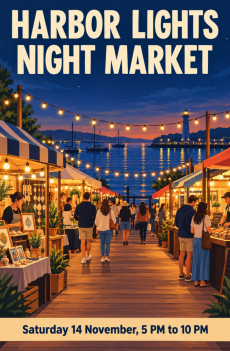
Vertical event poster (aspect ratio 2:3) for a local night market.
Background: Dark navy dusk sky over a calm harbor, with warm string lights glowing above wooden stalls.
Subject: Illustrated market scene in a clean vector style with flat colors and crisp edges.
Typography and layout:
– At the top, bold retro sans-serif headline in cream white: “HARBOR LIGHTS NIGHT MARKET”
– At the bottom, a horizontal sand-colored banner with navy text: “Saturday 14 November, 5 PM to 10 PM”
Constraints: Render the text exactly once. No other text, no random gibberish, no logos, no watermarks. High quality.
Poster prompts like the ones above put the headline in quotes and say where the typography sits on the canvas; treat them as starting points, not guarantees. A newer version, GPT Image 2.5, is also available on gpt-image.io. To try layouts like these in a browser, a GPT Image 2 generator such as gpt-image.io is one option; check the site for its current plans and credits.
Structuring an Infographic
Infographics are harder than posters because every label has to sit next to the thing it describes. A useful technique is to divide the canvas into zones: a title block, a central diagram with numbered points, and a strip at the bottom. Some community infographic prompts fix their layouts this way.
Square educational infographic, clean modern editorial style, crisp white background.
Title block at the top in dark charcoal sans-serif: “HOW A WATER FILTER WORKS”
Layout: A vertical cutaway diagram of a tabletop water filter in the center, showing four sequential layers from top to bottom.
Arrows point to each layer with clear, legible callout text in a medium sans-serif font:
– Stage 1 callout: “1. Sediment Mesh”
– Stage 2 callout: “2. Activated Carbon”
– Stage 3 callout: “3. Ion Exchange”
– Stage 4 callout: “4. Fine Mesh Filter”
A thin blue footer box at the base contains the sentence: “Water passes through each layer in order.”
Constraints: Render each label exactly as written, once only. High quality, sharp vector lines, no spelling mistakes, no extra decorative text.
When building infographics, avoid cramming long paragraphs into callouts. Short labels are also much easier to proofread.
Writing a Cafe Menu Prompt
Menus combine two hard things: aligned columns and exact prices. Prices and item names are the first things to proofread, so keep the first version short.
Vertical cafe board menu (aspect ratio 3:4), rustic minimalist aesthetic.
Background: Clean, light birch wood texture with soft natural lighting.
Header at top center in elegant serif lettering: “MORNING SPECIALS”
Directly below the header, a neat vertical list of five items with prices aligned to the right, rendered in a crisp dark-brown monoline font:
– “House Drip Coffee … $3.50”
– “Oat Milk Latte … $5.00”
– “Cold Brew Tonic … $5.50”
– “Cardamom Bun … $4.25”
– “Toasted Sourdough … $4.50”
Constraints: Exactly five items. Render prices and names precisely as written. High quality, no trailing text, no decorative icons between lines.
If you need a comprehensive 40-item dinner menu, generate only the decorative headers, margins, and layout framework, then add the dish descriptions and prices in standard layout software.
Proofreading and Iteration
OpenAI’s image generation guide lists text rendering among the current limitations: it is significantly improved, but the model can still struggle with precise text placement and clarity. The same guide notes that complex prompts may take up to two minutes.
Treat every generated image as a draft and proofread it line by line:
- Check numbers and dates first:One wrong digit in a price or date changes the meaning, so verify every one.
- Read every word, not just the headline:Small lines are where errors tend to hide.
- Adjust one variable at a time:If a word comes out wrong, OpenAI’s advice is to keep the prompt strict and iterate with small tweaks. Shorten the copy, ask for larger type, or simplify the background behind the text.
- Verify multilingual text:If you are asking for text in Spanish, Japanese, or French, have a native speaker check the accents and characters.
Whenever exact brand typography, legal disclaimers, or regulated pricing are required, the safest workflow is to generate the background illustration through gpt-image-2 and add the critical typography inside a dedicated design application.
Final Thoughts
Text-heavy images reward explicit prompts: name the format, quote the copy, and say where each line goes. Then check every word before anything is printed or published.






Comment