
IPTV Smarters Pro Explained: How the Popular Player App Works and How to Set It Up on Any Device

Internet-based television has moved from niche to mainstream. Faster broadband, cheaper streaming hardware and the growing number of screens in every home have pushed millions of viewers away from traditional set-top boxes. At the center of this shift sits a category of software that most people never think about: the IPTV player application.
Among these apps, IPTV Smarters Pro has become one of the most widely used. Here’s what it does, why it’s popular and how to set it up properly.
What an IPTV player actually does
An IPTV player is a media application, not a content provider. It doesn’t host channels, films or series. Instead, it connects to a service the user subscribes to, reads the stream data, and presents it in a clean, TV-style interface.
Most player apps support three common connection formats:
- Xtream Codes API: a username, password and server URL entered directly into the app
- M3U playlist: a link or file listing the available streams
- MAG portal: used mainly by set-top boxes such as MAG devices
Because the player and the service are separate, the choice of app mainly affects usability: how fast channels load, how readable the program guide is, and how well the app runs on a given device.
Why IPTV Smarters Pro stands out
Several factors explain the app’s popularity:
- Cross-platform availability. It runs on Android phones and TV boxes, Amazon Fire TV Stick, iPhone and iPad, Samsung and LG Smart TVs, and Windows and macOS.
- Electronic program guide (EPG). A grid view shows what’s airing now and next, much like cable.
- Catch-up and resume. Users can return to a program where they left off, and replay recent broadcasts when the service supports it.
- Multi-screen and profiles. Several user profiles and a split-screen mode suit shared households.
- Parental controls. PIN-protected categories add a layer of control for families.
Setting it up: a quick walkthrough
On Android, Android TV and Google TV: install the app from the Play Store or the device’s app store, open it, select “Login with Xtream Codes API”, and enter the details from your provider.
On Amazon Fire TV Stick: enable “Apps from Unknown Sources” under Settings > My Fire TV > Developer Options, install the Downloader app, use it to install the player, then log in.
On iPhone and iPad: download the app from the App Store and enter your credentials.
On Smart TVs: availability varies by brand and model year. Where the app isn’t in the TV’s store, a streaming stick is the easiest workaround.
For French-speaking users, detailed device-by-device guides with screenshots are available online, covering each installation step.
Getting reliable playback
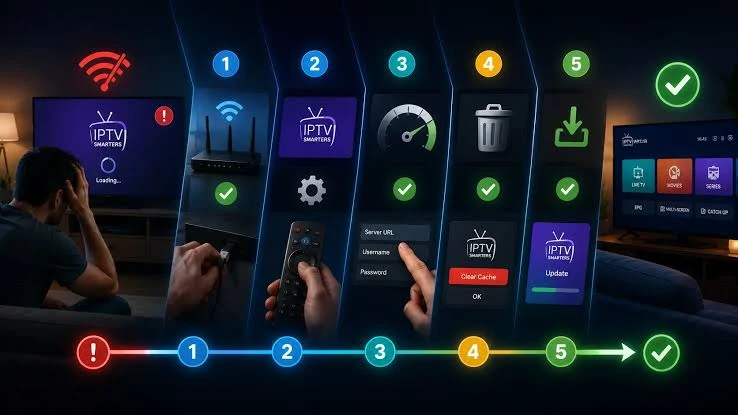
Most streaming problems come from the home network rather than the app. A few rules of thumb:
- Bandwidth: aim for at least 10 Mbps for HD and 25 Mbps for 4K.
- Connection type: wired Ethernet beats Wi-Fi. If wireless is the only option, use the 5 GHz band.
- Device health: clear the app cache regularly and restart streaming sticks every few days.
- Peak hours: close background downloads during live events.
A note on legality
Because IPTV players only display streams, their legal status is straightforward: the software is legal. What matters is the service behind it. Viewers should make sure they hold the rights to the content they watch, and choose providers with clear terms, refund policies and reachable support.
The bottom line
IPTV Smarters Pro has earned its place as a go-to player thanks to its clean interface, broad device support and features that recreate a familiar TV experience. With a stable connection and a few minutes of setup, it turns almost any screen into a full television hub. More installation tutorials can be found at iptv-smartersprofr.com.






Comment