
How to Remove Write Protection from SD Card: 6 Easy Fixes for Windows

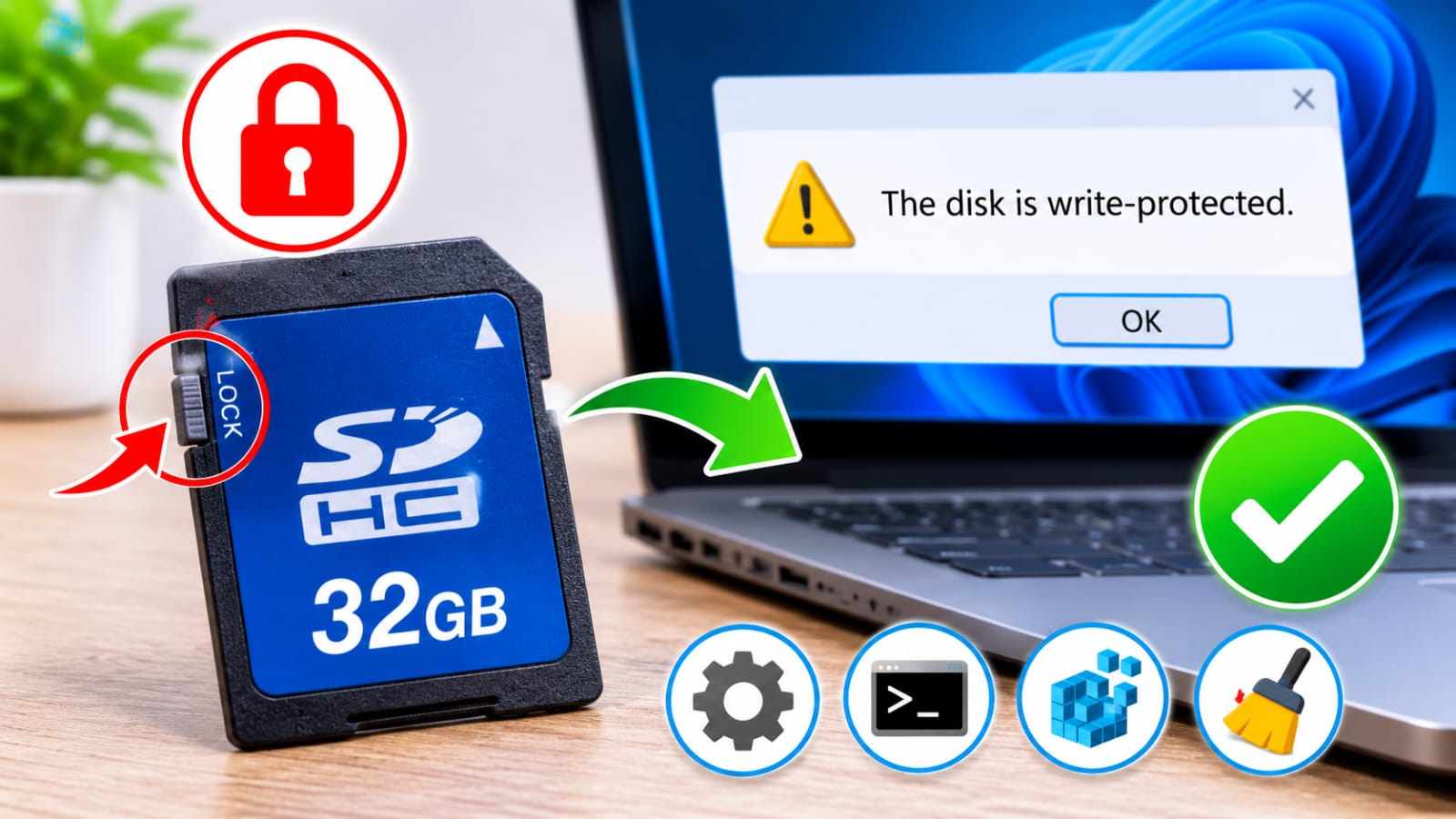
How to Remove SD Card Write Protection Without Losing Your Data
Have you ever tried to copy photos, delete files, or format an SD card, only to receive a message saying the disk is write-protected? This issue can be frustrating, especially when you need to access or manage important files.
Fortunately, SD card write protection doesn’t always indicate permanent damage. It may be caused by a physical lock switch, incorrect Windows settings, file system errors, or a failing memory card. Before attempting any repair, protect your data first—if the card is still readable, copy important files off it before troubleshooting.
In this guide, we’ll explain how to remove write protection from SD card devices safely, covering practical Windows solutions and precautions to protect your files. If important data becomes inaccessible during troubleshooting, SD Card Recovery software can also help you retrieve recoverable files.
Why Is Your SD Card Write-Protected?
Write protection prevents changes to files stored on an SD card. When enabled, you may be able to view existing files but cannot copy new data, delete items, rename folders, or format the card.
Common causes include:
- Physical lock switch: The SD card’s side switch is set to the Lock position.
- Windows disk attributes: The read-only attribute prevents writing to the storage device.
- File system errors: Corruption may cause Windows to restrict access to the card.
- Registry settings: Incorrect Windows configuration can block writing to removable storage.
- Card deterioration: An SD card approaching the end of its lifespan may switch to read-only mode to protect existing data.
Identifying the cause first can help you avoid unnecessary formatting or data loss.
6 Ways to Remove Write Protection from an SD Card
Method 1. Check the Physical Lock Switch
If you’re using a standard SD card, check the small sliding switch on its left side.
- Remove the SD card from your computer or card reader.
- Locate the Lock switch along the card’s edge.
- Slide it toward the unlocked position.
- Reinsert the card and try copying or deleting a file.
If you’re using a microSD card with an SD adapter, check the adapter’s lock switch instead. Some card readers may also have a faulty lock-detection mechanism.
Method 2. Remove Read-Only Attributes Using DiskPart
Windows DiskPart can remove the read-only attribute from a storage device.
- Search for Command Prompt and select Run as administrator.
- Enter diskpart and press Enter.
- Type list disk to display connected drives.
- Double-check the disk number before continuing—selecting the wrong disk may affect another storage device. Identify your SD card by its storage capacity.
- Enter select disk X, replacing X with the correct disk number.
- Run attributes disk clear readonly.
- Type exit and reconnect the SD card.
If the card shows signs of failure or contains irreplaceable files, back up or recover the data before attempting modifications.
Important: Double-check the disk number before executing commands. Selecting the wrong disk may affect another storage device. If the card shows signs of failure or contains irreplaceable files, back up or recover the data before attempting modifications.
Method 3. Check the Windows Registry
Windows Registry settings can sometimes restrict writing to removable storage devices. Before editing the registry, export a backup (File > Export) so you can restore it if needed.
- Press Win + R, type regedit, and press Enter.
- Navigate to HKEY_LOCAL_MACHINE\SYSTEM\CurrentControlSet\Control\StorageDevicePolicies.
- Find the WriteProtect value.
- Double-click it and check whether its value is set to 1.
- If the entry exists and is set to 1, change it to 0.
- Restart your computer and reconnect the SD card.
If the StorageDevicePolicies key doesn’t exist, this particular setting may not be configured. Avoid creating or changing unrelated registry entries.
Method 4. Check Group Policy Settings
Windows Registry settings can sometimes restrict writing to removable storage devices. Before editing the registry, export a backup (File > Export) so you can restore it if needed.
- Press Win + R, type regedit, and press Enter.
- Navigate to HKEY_LOCAL_MACHINE\SYSTEM\CurrentControlSet\Control\StorageDevicePolicies.
- Find the WriteProtect value.
- Double-click it and check whether its value is set to 1.
- If the entry exists and is set to 1, change it to 0.
- Restart your computer and reconnect the SD card.
If the StorageDevicePolicies key doesn’t exist, this particular setting may not be configured. Avoid creating or changing unrelated registry entries.
Method 5. Run CHKDSK to Check File System Errors
File system problems may prevent normal access to an SD card.
Warning: CHKDSK modifies file system structures. If the card contains important data, appears as RAW, or shows signs of physical failure, recover the data first.
- Open Command Prompt as administrator.
- Enter chkdsk X: /f, replacing X with your SD card’s drive letter.
- Press Enter and allow Windows to check the file system.
Note that CHKDSK modifies file system structures. If the card contains important data, appears as RAW, or shows signs of physical failure, prioritize data recovery before running this command.
Method 6. Try Another Card Reader or Computer
Sometimes, the SD card isn’t the problem. A faulty card reader or USB connection may incorrectly detect the card as write-protected.
Try connecting it through another card reader, USB port, or computer. If the card works elsewhere, replace the faulty reader or investigate your computer’s settings.
If it remains read-only across multiple devices, the card may have entered a protective mode because of internal memory deterioration. Software settings cannot reliably reverse hardware-level write protection.
How to Recover Data from a Write-Protected SD Card
If you cannot access your files or accidentally lose data while troubleshooting, Tenorshare 4DDiG Windows Data Recovery offers another recovery option.
It supports SD cards and other storage devices, helping retrieve recoverable photos, videos, documents, and other files lost through accidental deletion, formatting, or file system problems.
Here’s how to use it:
Step 1. Download and Launch 4DDiG
Visit the official 4DDiG Data Recovery website to download and install the software. Install it on your computer rather than the affected SD card.
Step 2. Select Your SD Card
Connect the card using a compatible reader. Launch 4DDiG and select the SD card from the available storage devices.
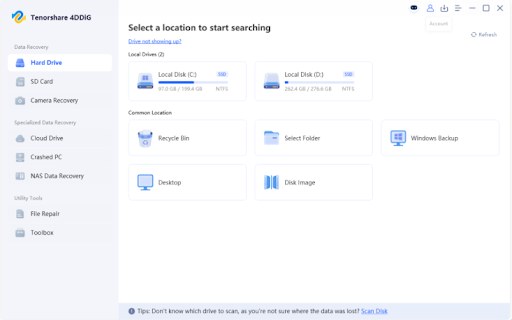
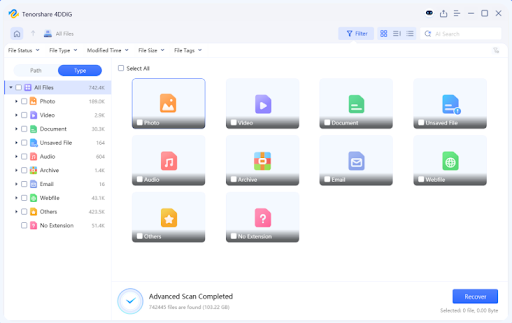
Step 3. Scan for Recoverable Files
Start scanning to search for lost data. Browse the results by file type or use the search and filter options to locate specific items.
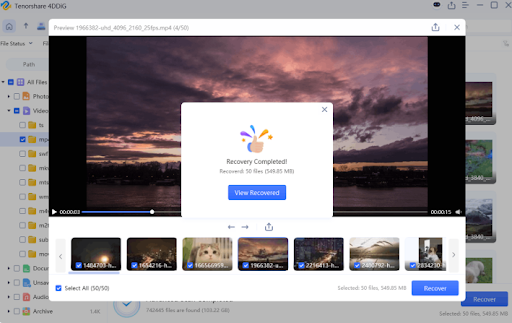
Step 4. Preview and Recover
Preview supported files, select the ones you need, and click Recover. Save them to your computer or another storage device, never back to the original SD card.
If the card isn’t detected or has physical damage, stop troubleshooting and consider professional recovery.
Tips to Prevent SD Card Write Protection Problems
Proper SD card maintenance can reduce the risk of file system errors and unexpected read-only behavior.
- Always safely eject the card before removing it.
- Avoid interrupting file transfers or formatting operations.
- Use a reliable card reader and compatible devices.
- Keep a separate backup of important photos and videos.
- Replace cards that repeatedly disconnect or become read-only.
Final Thoughts
An SD card becoming write-protected doesn’t necessarily mean it is permanently damaged. Checking the physical lock switch, adjusting Windows settings, and testing another card reader can resolve many common problems.
However, if the card has internal memory failure, forcing it to accept new writes may not be possible. Prioritize protecting your existing files before attempting repairs. When data becomes inaccessible or disappears, Tenorshare 4DDiG Windows Data Recovery can help scan supported SD cards and retrieve recoverable files.







Comment