
How to Recover Photos from Broken iPhone Without Backup (2026 Guide)


Losing access to your most cherished memories because of a broken smartphone is an incredibly stressful experience. If your device has suffered severe physical damage, you might assume everything stored inside is permanently gone. For many users, the panic truly sets in when they realize they never backed up their files to iCloud or iTunes. However, a shattered screen or unresponsive device does not necessarily mean your pictures are lost forever. If you are wondering how to recover photos from broken iphone without backup, there are several methods you can try to rescue your valuable data.
Can You Recover Photos from a Broken iPhone Without Backup?
It Depends on What Is Broken
It is important to understand that a broken iPhone does not always mean your photos are permanently lost. In most cases, physical damage—such as a shattered screen, unresponsive touch display, or a broken charging port—affects your ability to access the device, not necessarily the stored photos themselves. The flash memory chip inside your phone where your data is stored is often perfectly intact, even if the exterior is heavily damaged.
As long as the photos remain on the internal storage and have not been overwritten or wiped, they can frequently be retrieved. The success rate of recovery depends heavily on the specific condition of your device.
| iPhone Condition | Recovery Chance |
| Broken screen but iPhone still turns on | High – Photos may be accessible if the device can be unlocked |
| Touch screen not responding | Possible – Recovery may work if the device is recognized |
| Black screen but iPhone is detected by computer | Possible – Data may still be extracted |
| iPhone stuck or won’t turn on | Depends on hardware condition and whether the device can be repaired |
| Severe water damage or motherboard failure | Low – Professional repair may be required first |
Check These Methods Before Using Recovery Software
Before looking into third-party software solutions, it is always a good idea to check a few built-in Apple features. Even if you believe you have no backup, your photos might still be accessible through cloud synchronization or other connected devices.
Method 1: Check iCloud Photos Sync
There is a significant difference between iCloud Photos and iCloud Backup. While iCloud Backup saves a complete image of your entire device (which you must manually enable or plug in to trigger), iCloud Photos acts as a synchronization service. If iCloud Photos was enabled on your broken device, any picture you took may have already been synced to Apple’s servers automatically. You can check this by logging into iCloud.com on a computer using your Apple ID and password, and clicking on the Photos app.
Method 2: Check Photos from Another Apple Device
If you own an iPad, a Mac, or a secondary iPhone that is signed into the exact same Apple ID, your photos might be waiting for you there. Because iCloud syncs across the Apple ecosystem, taking a picture on your iPhone instantly pushes it to your other Apple products, provided they are connected to Wi-Fi. Check the Photos app on your other devices to see if your recent images are safely stored there.
Method 3: Connect Broken iPhone to Computer (If Possible)
If your screen is broken but the phone still powers on, you can try connecting it to a PC or Mac using a USB cable. If the computer recognizes the device, you may be able to open the internal storage folder (on Windows) or use the Image Capture app (on Mac) to drag and drop the photos to safety.
Limitations: This method requires unlocking the iPhone and tapping “Trust This Computer” on the screen. It cannot work if the screen is completely inaccessible, entirely black, or if the touch functionality is broken.
When these initial checks yield no results, you might realize that recovering your data requires a more specialized approach.
Why Traditional Methods May Fail to Recover Photos
If the simple steps above do not work, users typically turn to Apple’s traditional recovery methods. However, when dealing with a broken device and a lack of preparation, these standard avenues often lead to dead ends.
Problem 1: iTunes/Finder Backup Requires Access
An iTunes (or Finder on newer Macs) backup is not created automatically. It requires you to have previously plugged your iPhone into your computer and manually initiated a backup, or set up Wi-Fi syncing. If you never backed up before the damage occurred, there is simply nothing for iTunes to restore. Furthermore, creating a new backup with a broken phone requires you to unlock the device and authorize the computer, which is impossible with a broken screen.
Problem 2: iCloud Backup Cannot Help Without Existing Backup
Similarly, iCloud Backup only works if a backup was successfully completed before the phone was damaged. If you ran out of iCloud storage space months ago, your recent photos will not be there. Additionally, restoring from an iCloud Backup requires resetting an iPhone and going through the initial setup process. You cannot simply log in and preview individual photos inside an iCloud backup file; it is an all-or-nothing restoration.
Problem 3: Broken Screen Prevents Data Access
The biggest hurdle with standard methods is the physical barrier of a damaged display. Apple’s strict security protocols require user interaction to authorize data transfers. Examples of this include:
- You cannot enter your passcode to unlock the device.
- You cannot tap the crucial “Trust This Computer” prompt when plugging it into a PC.
- The screen is completely black, leaving you unable to navigate any menus.
When official channels fall short due to these strict hardware limitations, individuals must seek alternative tools designed specifically to bypass display barriers and extract photos from dead iPhone units directly from the internal memory.
How to Recover Photos from Broken iPhone Without Backup
When individuals find themselves locked out by physical hardware damage and lacking a cloud-based safety net, third-party software becomes the most viable and effective solution. For those needing to recover photos from broken iphone without backup, Tenorshare UltData for iOS stands out as the premier technological solution available in the 2026 market.
Recognized by many tech professionals as the best iPhone data recovery software, Tenorshare UltData is a highly specialized desktop application boasting a 98% success rate in retrieving lost files. It is explicitly engineered to selectively restore deleted, lost, or completely inaccessible data, supporting over 35 distinct file types including videos, messages, contacts, notes, and third-party social application data from platforms like WhatsApp, WeChat, Instagram, and LINE.
Powered by advanced artificial intelligence algorithms, UltData can directly scan the internal storage chip of a damaged device, completely bypassing the need for a pre-existing iTunes or iCloud backup file. The software is compatible with all modern operating systems, including Windows 11 and macOS 15, and supports the latest devices running iOS/iPadOS 27. Importantly, it allows users to thoroughly preview all recoverable files before initiating the final extraction, ensuring individuals only save the exact media they desire without risking file overwrites or needing a factory reset. The toolkit even includes an extra iOS System Repair feature capable of fixing over 150 system issues, such as devices stuck on the Apple logo.
Steps to Recover Your Photos:
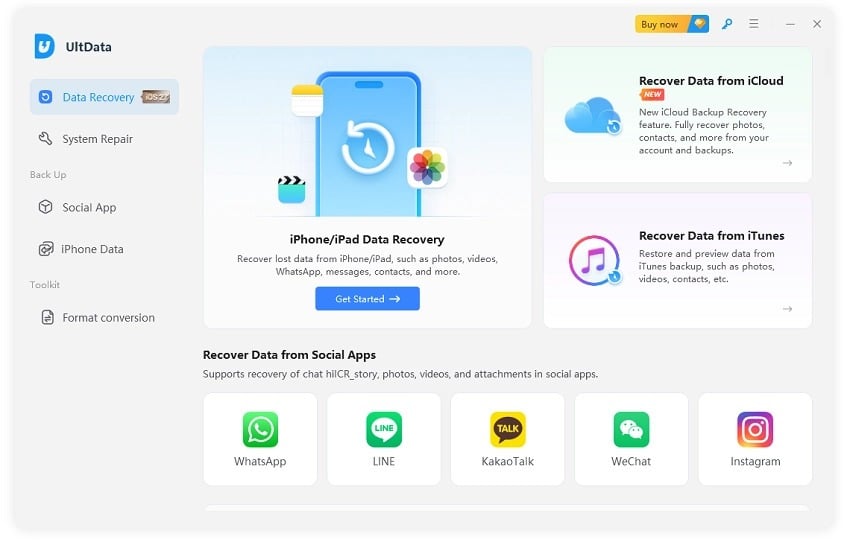
- Download and Install: Download and install Tenorshare UltData on your Windows PC or Mac. Launch the program and select the “Recover Data from iOS Devices” option from the main menu.
- Connect Your iPhone: Connect your broken iPhone to the computer using a reliable USB cable. Ensure the software detects your device.
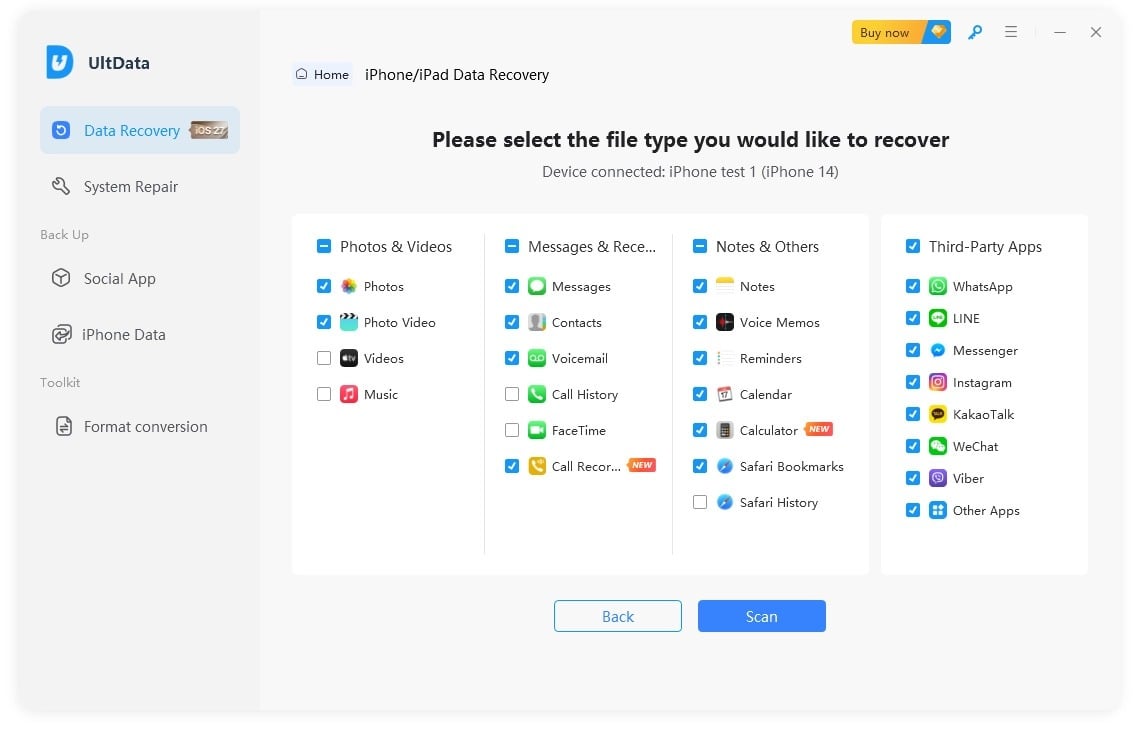
- Scan for Photos: Once detected, the software will display a list of file types. Check the box for “Photos” (and any other data you wish to retrieve) and click “Scan.” UltData will deeply scan the device’s internal memory.
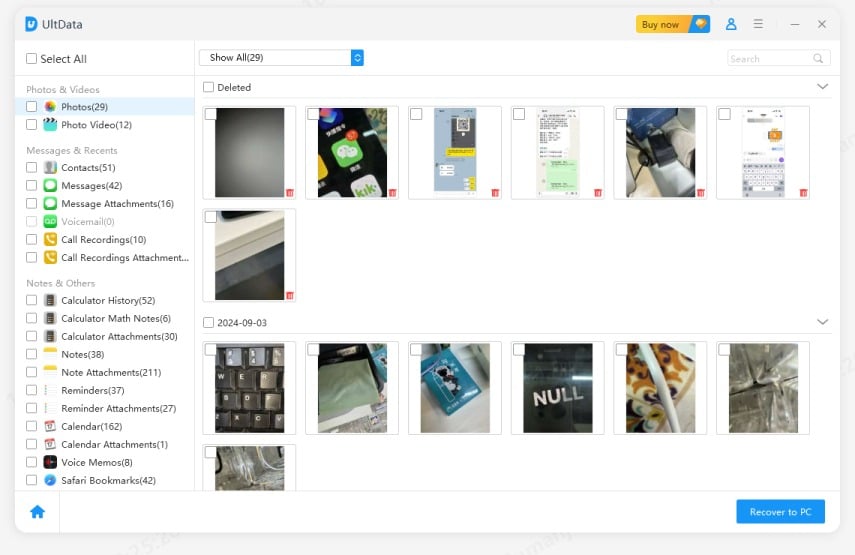
- Preview and Recover: After the scan is complete, all found photos will be displayed. You can preview them to ensure they are the correct images. Select the photos you want to save and click “Recover to PC” to safely extract them from the broken phone.
By following these steps, you finally have the answer to the stressful question: how can i retrieve pictures from my broken iPhone.
How to Prevent Losing Photos When Your iPhone Breaks
While recovery software like Tenorshare UltData is a lifesaver, the best defense against data loss is proactive preparation. To ensure you never have to panic over a broken phone again, implement these habits:
- Enable iCloud Backup: Go to your iPhone settings, tap your name, select iCloud, and turn on iCloud Backup. Ensure it runs daily when connected to Wi-Fi and power.
- Use iCloud Photos: Keep iCloud Photos toggled on so your pictures sync to the cloud immediately after taking them.
- Regular Local Backups: Plug your iPhone into your computer once a month and create a full backup using iTunes or Finder.
- Use Third-Party Cloud Storage: Install apps like Google Photos, Dropbox, or OneDrive for a secondary, automatic backup of your camera roll.
Conclusion
A shattered screen or a device that refuses to turn on is undoubtedly frustrating, especially when your precious memories are trapped inside. While traditional Apple methods require foresight and existing backups, physical damage does not always equate to permanent data loss. By understanding the state of your device and checking your synchronized cloud accounts, you might find your photos are already safe. However, when those avenues fail, specialized tools are required. Using professional software like Tenorshare UltData provides a reliable, secure way to directly access your device’s storage, allowing you to bypass the broken interface and successfully extract your valuable images, giving you peace of mind when disaster strikes.
For more info, visit: https://www.tenorshare.com/products/iphone-data-recovery.html







Comment