
How to Manage Multiple Instagram Accounts From One Cloud Phones

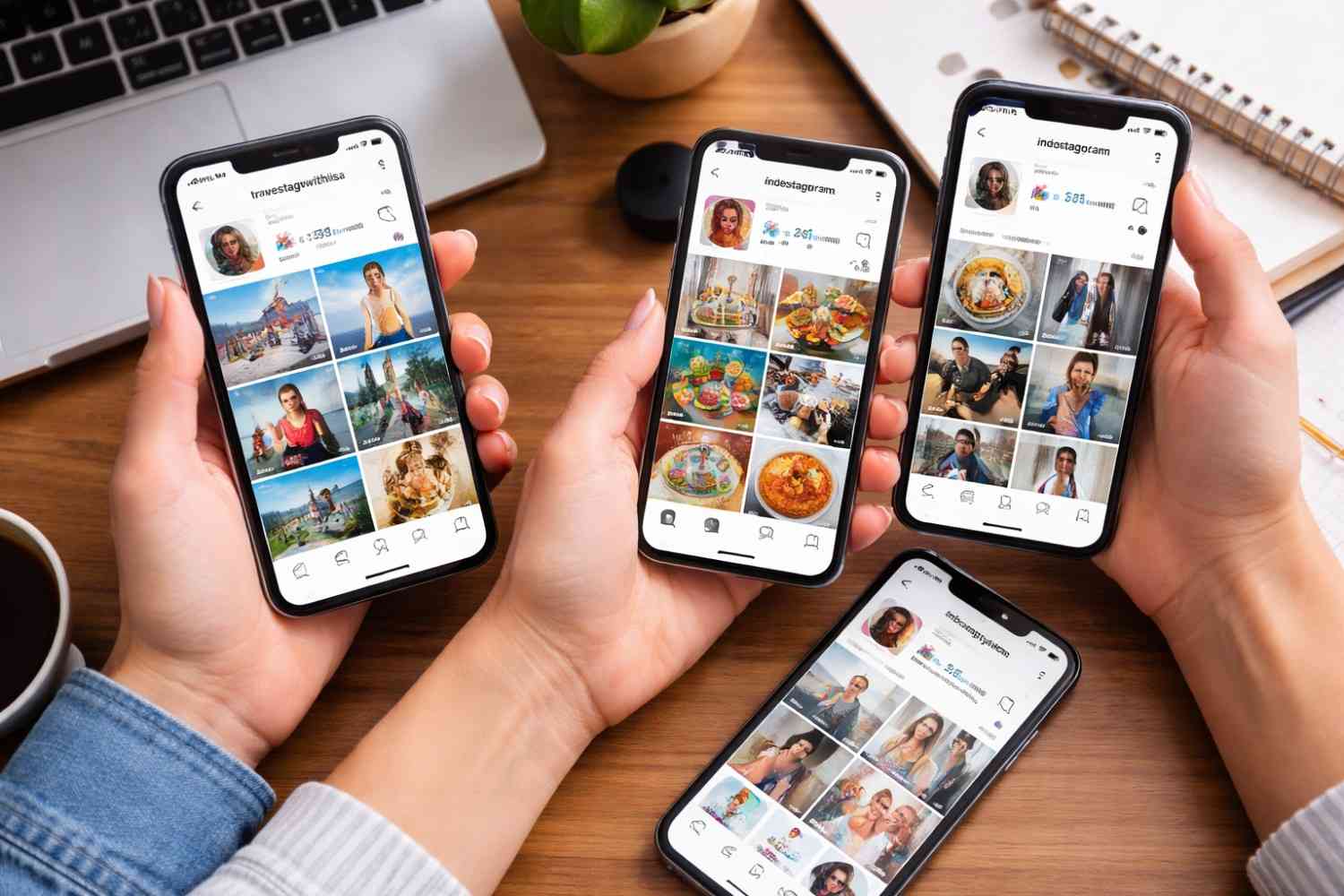
You can run dozens of Instagram accounts from one place, but not from one device. The setup that holds up is a single cloud phone dashboard where every account gets its own Android cloud phone profile, its own proxy and its own saved app session.
Instagram’s built-in account switcher covers a creator with a personal page and a brand page. It breaks down for an agency with 30 client accounts, a team of four people sharing logins, or a brand running regional pages in six markets.
This guide walks through how Instagram connects accounts, how to set up each cloud phone profile, and how to run posting, DMs and team access from one screen. It also covers the mistakes that get multiple Instagram accounts restricted together, and how to keep mobile-minute costs predictable as you scale.
Why stacking accounts on one device stops working
Instagram officially supports several accounts per person. Its Help Center explains that you can add up to 5 accounts in the app and switch between them without logging out.
The limit is only part of the problem. Every account added to that switcher sits on the same device, behind the same IP address, inside the same app install. To Instagram, they look like what they are: accounts run by one person on one phone.
For a personal page and a side project, that is fine. For client work it creates two risks:
- Shared fate. If one account is restricted or flagged for review, the other accounts tied to that device can be pulled into the same review.
- No separation between clients. A client account, a test account and a brand account all carry the same device history, so there is no clean line between them.
App cloners and “dual app” features do not fix this. They duplicate the app on the same hardware, so the accounts still share one phone underneath.
What “one cloud phone” means in practice
When marketers say they manage everything from one cloud phone, they mean one platform and one dashboard, not one device for every account. Inside that dashboard, each Instagram account runs on its own Android cloud phone profile. You get the convenience of one screen without the shared device fingerprint of one handset.
How Instagram connects accounts to each other
Instagram does not publish its full detection logic, but the signals it can see are well understood. Most account linking comes from overlap in a handful of places.
| Signal | What overlaps | How a dedicated cloud phone profile handles it |
|---|---|---|
| Device identifiers | IMEI, Android ID and MAC address shared by every account on one phone | Each cloud phone profile has its own hardware identifiers |
| IP address and location | All accounts log in from the same network and city | Each profile gets its own proxy and location |
| App data | One app install holds cache and session tokens for every account | Each profile has its own Instagram install and saved session |
| Login history | One account hops between phones, browsers and teammates’ laptops | The account always opens on the same cloud phone |
| Recovery details | Several accounts share one email or phone number | Planned per account before setup (see the mistakes section) |
| Behavior | Accounts post, like and follow on the same minute every day | Handled by your workflow, not by the tool |
The last two rows matter as much as the first four. A perfectly isolated device will not save accounts that share a recovery email or run on identical schedules.
It also helps to be clear about what the rules allow. Meta’s Community Standards on authentic identity prohibit accounts created to deceive others or impersonate someone. Running separate accounts for separate clients, brands or regions is a normal business practice. Using a network of accounts to fake engagement is not, and no setup changes that.
The model that works: one dashboard, one cloud phone per account
The rule is simple. One Instagram account lives on one cloud phone profile, and it stops hopping between personal phones, laptops and shared browsers. Everything else in your setup supports that rule.
A cloud phone is an Android device hosted in a data center that you control from your computer. The better platforms run on real Android hardware rather than an emulator, so each profile carries its own device identifiers. Look for a choice of device models and current Android versions.
Here is what each account gets when you give it a dedicated profile:
- Its own device. A separate Android cloud phone with its own model, identifiers and Android version.
- Its own connection. A proxy matched to the country you choose, from built-in residential, mobile or ISP proxies, or one you import.
- Its own app state. The Instagram app, cache and login session stay on that phone between sessions, so you return to a logged-in account instead of signing in again.
You launch all of these from one desktop app. Profiles sit side by side in the dashboard, grouped in folders and tags, and you open whichever account you need in a window on your screen. That is the practical meaning of managing everything from one cloud phone: one workspace, many isolated devices. The cloud phone for Instagram walkthrough shows the setup in a short demo.Multilogin, a cloud Android phone platform for multi-account management, is built on this model, and its guide to running multiple Instagram accounts on cloud phones walks through the setup.
Some platforms also run browser profiles from the same dashboard. That matters for Instagram because many teams use the app for posting and Stories but use the web version for Meta Business Suite, ad accounts or long DM threads. Pair each account with one dedicated browser profile on the same proxy location, and always use that pair, so the web and app sessions stay consistent.
How to set up multiple Instagram accounts on cloud phones
The setup takes a few minutes per account once your plan is in place. Do the planning step first; it prevents most of the problems teams run into later.
- Map your accounts before you create anything. List each Instagram account with its client or brand, target country, owner on your team and recovery email. This sheet becomes your source of truth for which profile, proxy and person belongs to which account.
- Create your workspace. Many cloud phone platforms offer a free tier or trial with a single cloud phone. Use it to test the full workflow on one account before you pay for more profiles.
- Create a cloud phone profile for the first account. Choose the device model and Android version. Android 14 to 16 suits current app versions; older versions are there for apps that need them. Name the profile after the account so nobody opens the wrong one.
- Assign a proxy that matches the account’s market. Pick a built-in proxy for the country the account targets, or import your own. Keep that proxy location fixed for the life of the account.
- Open Instagram on the cloud phone. Install Instagram from the platform’s app store, or upload the APK if your platform supports it.
- Log in to the existing account or create the new one. Cloud phones do not receive SMS or calls, so keep verification numbers and two-factor codes on a separate service or device your team controls.
- Check how the device presents itself. Open the Pixelscan Android Checker in the cloud phone’s browser to review the device and connection details websites can see.
- Ease new accounts in. Spend the first days browsing, watching Stories and engaging lightly before you post on a schedule or send DMs at volume.
- Repeat for every account. If your platform supports templates, save the device and proxy settings as one, so each new profile starts from the same tested configuration with a fresh identity.
When you finish, each account has a named profile in the dashboard. Launching it opens that account’s phone with Instagram already logged in.
Running the accounts day to day
Once the profiles exist, daily work happens in the native Instagram app, just on a phone that lives in the cloud.
Posting Reels, Stories and carousels
Upload media from your computer into the cloud phone, then post from the Instagram app as you would on a handset. Because it is the real app, you get the same editor, music library and Stories stickers your audience sees. A shared creative library, if your platform offers one, keeps approved videos, images and captions in one place, so editors stop passing files around in chat.
Handling DMs and comments
Open the profile, reply in the app, close it. The session stays saved on that cloud phone, so the next person to open it lands in the same inbox without a fresh login from an unfamiliar device, which is one of the common triggers for security checks.
Scheduling and ads on the web side
For Meta Business Suite, ad accounts or desktop scheduling tools, open the account’s paired browser profile rather than a personal browser. That keeps the web session on the same location and away from every other account your team runs.
Giving your team access without sharing passwords
This is where one dashboard pays off for agencies. You assign profiles or folders to team members and decide who can open, edit or hand over each one. A freelancer can post for one client without ever seeing that client’s password, and you can remove access the day the contract ends.
| Team setup | What to check in a plan |
|---|---|
| Solo manager with a few client accounts | Enough profiles for every account; one seat is fine |
| Manager plus an editor or VA | At least two seats and per-profile permissions |
| Agency with several people per client | Unlimited or many seats, roles, and folder-level access |
Profile transfer, where available, lets you hand a finished account to a client’s own workspace when an engagement ends.
Choosing proxies and locations for each account
The proxy decides where Instagram thinks the account lives. Get it right once and leave it alone.
Match the market, not your office. A Brazilian client’s account should connect from Brazil even if your team works from Lisbon. A platform with built-in proxies in many countries turns most client markets into a dropdown choice rather than a separate vendor.
Keep one location per account. An account that posts from Germany on Monday and the US on Tuesday sends exactly the kind of mixed signal you are trying to avoid. Changing location should be a deliberate decision, such as a brand moving its regional focus, not a side effect of a cheaper proxy.
Never share an IP between accounts you want kept apart. Two client accounts behind one IP undo much of the work the separate cloud phones are doing.
Pick the proxy type for the job. Residential proxies are the default choice for most Instagram accounts. Mobile proxies route through carrier networks, which fits an account that should look like a typical phone user. ISP proxies give a fixed address with steady speed, useful for accounts your team opens many times a day.
Budget proxy traffic per account, and check whether unused traffic rolls over to the next month. This Instagram proxy guide covers proxy locations and types in more detail.
Scaling from five accounts to fifty
Growth breaks setups that were built by hand. These habits keep a larger operation manageable.
Organize before you hit 20 profiles
Use folders per client and tags per market or account status (new, warming up, active, paused). Folder access then doubles as your permission model: give a team member a folder, not a list of individual profiles.
Automate the repetitive parts
Look for API access, so your own scripts can create, launch and stop profiles. Many cloud phones also accept ADB (Android Debug Bridge) control, which lets testing and automation tools open apps and run flows on the device. For browser profiles, check for Selenium, Puppeteer and Playwright support.
Automate the operations work: launching profiles at shift start, checking that sessions are logged in, moving media into place. Keep engagement itself human-paced. Instagram restricts accounts that behave like scripts, no matter how clean the device is.
Keep mobile minutes predictable
Cloud phones are usually billed by the minute while they are running, not per device per month. A few habits keep the bill steady:
- Turn on auto-stop so a profile pauses after the idle time you set instead of running all night.
- Read the billing rules. Some platforms cap the billable time of one long session, which changes how you plan accounts that stay open for hours.
- Budget by account, not by seat. Estimate how long each account needs per day and multiply.
When you compare plans, look past the headline price at three numbers: mobile minutes included per month, the rate for extra minutes, and whether unused minutes roll over. Here is one example of cloud phone pricing built that way.
A worked example: 10 client accounts, each open about 20 minutes a day, use roughly 6,000 minutes a month. If your plan includes 150 minutes, you buy about 5,850 more. At a rate of under one cent per minute, that adds roughly $50 to $60 a month on top of the plan fee.
Cloud phones compared with other ways to run several accounts
Cloud phones are not the only option. They are the one that keeps working as the account count and the team grow.
| Setup | Practical account limit | Device separation | Team access without passwords | Location per account | Upkeep |
|---|---|---|---|---|---|
| Instagram’s account switcher | 5 per device | None: all accounts share one phone | No | No | None |
| One physical phone per account | Limited by hardware you buy | Full | Only by passing phones around | Needs a separate SIM or proxy per phone | Charging, updates, replacements, storage |
| Emulators and app cloners | Many | Weak: copies share the host machine | No | Possible with extra tools | Environments reset or change between sessions |
| Cloud phone platform | Grows with your plan | Full: one real Android cloud phone per account | Yes, by folder and role | Built-in on most platforms | Managed by the provider |
Physical phones give the same separation as cloud phones, which is why many teams start there. The cost appears later: a drawer of handsets, a charging rack, and no easy way to let a remote editor post for one client and nobody else.
Mistakes that get accounts restricted together
Most multi-account problems come from habits, not from the tools. These are the ones worth checking against your own setup.
- Checking an account on your personal phone “just once.” Every new device in an account’s login history is a signal. If a client also logs in to their own account, agree on which single device they use and keep it consistent, rather than adding a new phone or laptop every few weeks.
- One recovery email or phone number for many accounts. Shared recovery details connect accounts no matter how well the devices are separated. Plan a recovery email per account in the mapping sheet from step 1.
- Expecting SMS on the cloud phone. Cloud phones do not receive SMS or calls. Keep codes on a number your team controls, and store two-factor backup codes per account before you need them.
- Swapping proxies to save money. Moving an account to a cheaper proxy in another city changes its location history overnight. Pick the proxy once and budget for it.
- Running every account on the same clock. Ten accounts that post, like and follow at 9:00 sharp look coordinated. Stagger posting times and let each account keep its own rhythm.
- Copying a logged-in session between profiles. A template should give each new profile a fresh device identity and a clean app. Never move one account’s app data onto another profile.
- Leaving phones running overnight. It costs minutes and adds nothing. An auto-stop setting handles this if you forget.
FAQ
Can I run several Instagram accounts inside a single cloud phone?
You can add up to five accounts to the Instagram app on any one device, cloud or physical. They will share that device’s identifiers and IP, though. For client or brand accounts you want kept apart, give each one its own cloud phone profile and manage them all from one dashboard.
How many Instagram accounts can I manage with cloud phones?
There is no fixed ceiling on the cloud phone side beyond your plan’s profile count. The practical limit is your minute budget and how many accounts your team can run well. Add profiles as each new account settles in.
Is running multiple Instagram accounts against the rules?
No. Instagram supports multiple accounts per person and even builds account switching into the app. Meta’s rules target accounts created to deceive, impersonate or inflate engagement. Separation keeps legitimate accounts from being affected by each other’s issues; it does not make prohibited activity acceptable.
Are cloud phones real Android devices?
It depends on the provider. Some run Android on real hardware in the cloud, with separate identifiers per device and a saved app state between sessions. Others are an emulator imitating Android on a server. Multilogin, for example, runs its cloud phones on real smartphone hardware. Ask which one you are paying for before you commit client accounts to it.
Do I need a separate phone number for each account?
Instagram may ask for a phone number or a code during sign-up and security checks. Cloud phones do not receive SMS or calls, so plan verification numbers per account on a service or device your team controls.
Can I use the Instagram app and web version for the same account?
Yes. Run the app on the account’s cloud phone and the web version in a dedicated browser profile set to the same location. Use that same pair every time.
How much does it cost to run Instagram accounts on cloud phones?
Expect a monthly plan fee plus usage. Most providers bill cloud phones per minute while they run, so cost depends on how many accounts you open and for how long each day. Check whether proxy traffic is included and whether unused minutes roll over.







Comment