Introduction: Why App Permissions Matter
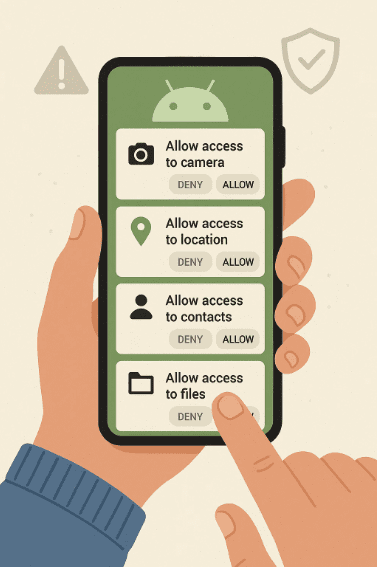
Every time you install a new app on your Android phone, it asks for permissions — access to your camera, contacts, microphone, or location. While many of these requests are legitimate, some apps ask for far more access than they need.
Unnecessary permissions can put your privacy and data security at risk. For example, a flashlight app doesn’t need to read your messages or track your GPS location.
In this article, we’ll explain how to manage app permissions on Android, step by step.
1. Understanding App Permissions
App permissions determine what an app can do on your device. Android divides them into two main categories:
- Normal permissions: Low-risk actions like accessing Wi-Fi or setting alarms.
- Dangerous permissions: Access to sensitive data such as location, contacts, camera, or files.
When you install or open an app for the first time, Android asks whether to allow or deny access. Your choices directly affect privacy and performance.
2. Check Permissions for Each App
You can see exactly what every app is allowed to access:
Steps:
- Go to Settings → Privacy → Permission Manager.
- Select a category (e.g., Camera, Location, or Microphone).
- Tap an app to view or adjust its access level.
You can choose from:
- Allow all the time – For essential apps like maps or fitness trackers.
- Allow only while using the app – Best for social or photo apps.
- Deny – For unnecessary or suspicious requests.
Regularly reviewing this list helps you stay in control of your data.
3. Manage Permissions by App
If you want to see everything an individual app can access:
Steps:
- Go to Settings → Apps → [App Name] → Permissions.
- Review all permissions.
- Adjust each setting manually.
For example, if a photo-editing app requests access to your microphone or call logs, it’s best to deny them.
4. Revoke Access for Unused Apps
Many users forget that apps keep their permissions even if you rarely use them. Android’s newer versions include auto-reset permissions to handle this automatically.
How to enable it:
- Go to Settings → Apps → Special App Access → Auto-Remove Permissions.
This feature automatically removes sensitive permissions from apps you haven’t opened for several months. It’s a smart, hands-free way to protect your privacy.
5. Handle Location Permissions Carefully
Location tracking is one of the most abused features in mobile apps. Many apps track your position for targeted ads or analytics, even when you’re not using them.
Tips:
- Choose “Allow only while using the app” instead of “Always.”
- Turn off location globally when not needed (quick toggle in the notification bar).
- Avoid giving location access to apps that don’t require it.
Remember: even photos and videos can include hidden location metadata. Before sharing them, you can use privacy-safe tools like Facebook downloader to save and share content securely without exposing private data.
6. Limit Camera and Microphone Access
Apps that misuse the camera or microphone can record you without consent. Android 12 and later versions include privacy indicators — green dots showing when either sensor is active.
To manage manually:
- Go to Settings → Privacy → Camera Access / Microphone Access.
- Toggle off system-wide permissions when not needed.
This gives you peace of mind that no app is secretly listening or recording.
7. Control File and Media Access
Apps often ask to read or modify your photos, videos, and downloads. While some apps (like messengers or editors) need this, others may just collect analytics.
To stay safe:
- Grant “Media Access” only to trusted apps.
- Avoid apps that require “All Files Access” unless absolutely necessary.
- Regularly delete unused downloads and backups.
8. Manage Background Access
Some apps run and collect data even when you’re not using them. Limiting background activity helps both privacy and battery life.
How to adjust:
- Go to Settings → Battery → Background Usage Limits.
- Restrict background access for non-essential apps.
You can also turn off background data under Settings → Network → Mobile Data Usage for selected apps.
9. Regularly Update Apps and Android System
Keeping your apps and operating system updated ensures that you get the latest privacy and security improvements.
Steps:
- Open Google Play Store → Manage Apps → Update All.
- Enable Automatic Updates in settings.
- Check for system updates under Settings → System → Software Update.
Developers often fix permission-related vulnerabilities in newer versions — staying updated reduces your exposure to exploits.
10. Expert Insights from AndroidAuthority
According to AndroidAuthority, the biggest privacy mistake Android users make is ignoring permission prompts. Many people tap “Allow” without thinking, giving apps unnecessary access to personal data.
The publication recommends adopting a “deny by default” mindset: only grant permissions when the app cannot function without them.
AndroidAuthority also highlights the growing role of contextual permission systems, which automatically revoke access after a period of inactivity — making Android one of the most privacy-conscious platforms in 2025.
11. Bonus Tip: Use Privacy Dashboards
Newer Android versions include a Privacy Dashboard, a visual overview showing which apps used your location, camera, or microphone recently.
How to access:
- Go to Settings → Privacy → Privacy Dashboard.
This transparency tool helps identify apps that overuse sensitive permissions so you can take immediate action.
Conclusion
Managing app permissions on Android is one of the easiest ways to safeguard your privacy and take back control of your data.
Start by reviewing which apps have access to your location, camera, and files. Revoke anything unnecessary, keep your system updated, and use trusted tools for safe media management.