Hybrid work has given organizations more flexibility, but it has also scattered conversations, meetings, files, and decisions across too many places. A question may begin in mobile chat, continue in a video meeting, and end with a document in a shared folder. Without a clear workflow, important information becomes difficult to find and responsibilities become unclear.
Mobile apps are useful for quick replies and urgent updates, but desktop collaboration tools remain essential for sustained work. Larger screens, full keyboards, file access, meeting controls, and integration with business systems make desktop environments better suited to focused collaboration.
The real productivity gain does not come from installing more tools. It comes from configuring communication channels, file-sharing rules, notifications, and approval processes around the way a team actually works.
Why Desktop Collaboration Still Matters
Desktop collaboration tools provide a more complete working environment than mobile apps alone. On a larger screen, employees can review a document while participating in a meeting, compare two files side by side, or keep a project dashboard open while responding to team messages. These activities are possible on a phone, but they are rarely efficient for long periods.
A physical keyboard also makes a significant difference when employees need to write detailed updates, prepare meeting notes, edit reports, or provide structured feedback. Desktop software usually supports faster file uploads, drag-and-drop sharing, more precise screen sharing, and easier switching between conversations.
Desktop tools also work alongside browsers, office software, project platforms, and cloud storage. Mobile and desktop apps should therefore be treated as complementary: mobile is ideal for quick awareness, while desktop clients are better for meetings, document work, task coordination, and sustained communication.
Choose the Right Desktop Version and Download Source
Before deploying a collaboration tool, teams should determine which version fits their technical environment. A native Windows or macOS application may offer deeper operating-system integration, stronger notification controls, and more reliable meeting features. A browser-based version may be more suitable for contractors, temporary users, or employees working on restricted devices.
Compatibility should be reviewed before installation. Organizations may need to confirm the supported operating-system version, processor architecture, memory requirements, update policy, and whether administrator privileges are necessary. Older devices may run a browser version more reliably than a full desktop client.
Employees who need a desktop client can review a dedicated teams桌面版下载 resource to understand platform compatibility, installation requirements, and the available setup options before beginning deployment.
Companies should define whether employees may install software independently. On managed devices, IT may distribute an approved package through centralized deployment tools. This reduces the risk of outdated files, unofficial mirrors, bundled installers, or misleading advertisements. Teams should also check version numbers, release notes, file names, digital signatures, and update mechanisms.
Separate Conversations by Purpose
One of the most common collaboration problems is placing every type of communication into the same channel. Daily discussion, urgent announcements, project decisions, personal questions, meeting notes, and shared files all become mixed together. As message volume grows, important information becomes harder to identify.
A more effective structure separates communication into a small number of clearly defined spaces:
- Announcements for policies, deadlines, and company-wide updates
- Daily Discussion for routine coordination
- Project Decisions for confirmed choices and important changes
- Files for approved documents and shared resources
- Private Support for personal, technical, or sensitive questions
- Meetings for schedules, agendas, recordings, and follow-up notes
Announcements should not be buried under casual replies. Decisions should remain searchable, files should have clear names and version information, and account-related issues should be handled privately. Teams should also avoid creating multiple channels for the same purpose; a smaller, well-governed structure is more effective than overlapping groups.
Turn Messages Into Trackable Work
Chat is useful for starting work, but it should not become the final record of every task. A message such as “Please update the report before Friday” may appear clear at first, yet it does not always identify the owner, final deadline, required file, or approval process.
A more reliable workflow follows a defined sequence: Message → Decision → Task → Owner → Deadline → File → Approval. The message introduces the request. The team then confirms what has been decided and converts it into a formal task. The task should have one accountable owner, a specific due date, and a clear description of the expected result.
Documents created during the process should be stored in an agreed folder or project space rather than remaining as temporary chat attachments. When the work is complete, the appropriate manager, client, or project lead should provide approval.
This approach prevents teams from searching through long conversation histories for the latest version of a file or the final wording of a decision. Chat remains the communication layer, while the task system and file repository become the operational record. The goal is not to eliminate conversation, but to ensure that important conversations lead to visible, assignable, and auditable work.
Plan Installation and Onboarding for the Whole Team
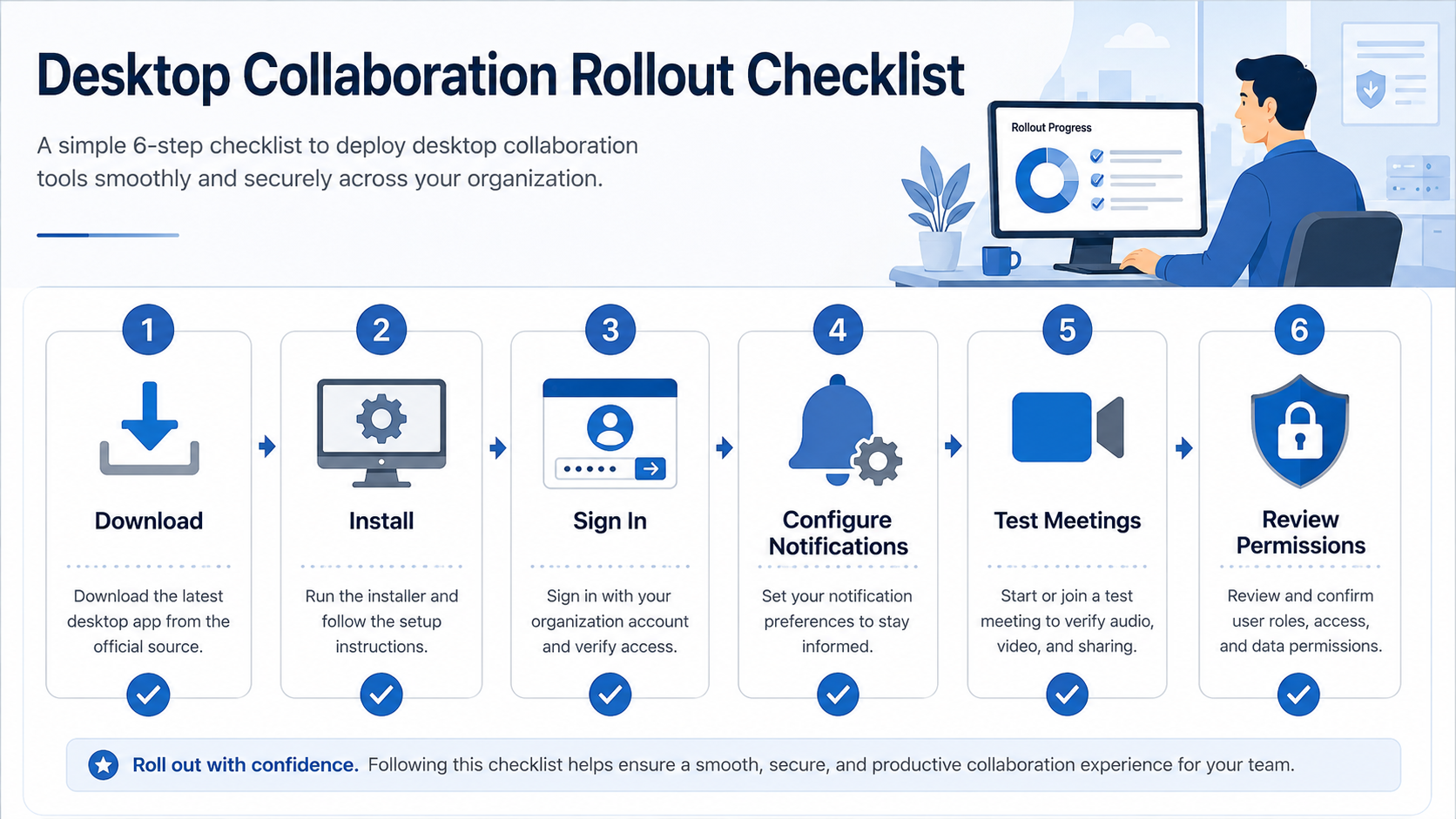
A collaboration platform is more effective when everyone follows the same setup process. Organizations should prepare a short installation guide covering the approved download source, supported devices, account type, sign-in method, notification settings, and basic security requirements.
The onboarding process should distinguish between company-owned and personal devices. Managed computers may require administrator approval, security software, or centralized installation. Employees using personal devices may need additional guidance on screen locking, local file storage, browser sessions, and account separation.
Administrators can include a clearly documented teams下载 reference in onboarding materials so that employees follow the same installation path instead of relying on unrelated third-party download pages.
After installation, users should test their microphone, camera, speakers, screen-sharing permissions, and meeting controls. They should also learn where files are stored, how channels are organized, and which types of messages require a response. A short frequently asked questions document can reduce repetitive support requests by covering sign-in problems, missing notifications, meeting audio, file permissions, password recovery, and internal support contacts.
Reduce Notification Overload
Notifications are intended to help employees respond quickly, but excessive alerts can reduce concentration and make important messages easier to miss. When every channel generates the same sound and desktop banner, users often begin ignoring all notifications.
Teams should keep immediate alerts for direct mentions, meeting reminders, security notices, and critical announcements. Less urgent channels can use summary notifications or remain muted until employees review them during scheduled periods. Focus hours can protect time for writing, analysis, coding, design, or other concentrated tasks.
Teams should avoid low-value habits such as multiple employees replying “received” to the same announcement. Reactions can provide confirmation without adding message volume. Desktop and mobile notification settings should also be coordinated so the same alert is not repeated on every screen and inbox.
Protect Meetings, Files, and User Accounts
Collaboration platforms contain business discussions, shared documents, customer information, meeting links, and employee account data. Security settings should therefore be treated as part of workflow design, not as a separate technical issue.
Meeting organizers should control who may join, present, record, or admit external participants. Publicly shared meeting links should be avoided when access can be limited to invited users. Sensitive sessions may require waiting rooms, participant verification, or restricted recording permissions.
File access should follow the principle of least privilege. Employees should only receive access to the projects and folders required for their role. Guest users, contractors, and former employees should be reviewed regularly, and access should be removed promptly when a project or employment relationship ends.
Multi-factor authentication adds an important layer of account protection. Users should also sign out of shared or public computers and avoid saving credentials in browsers they do not control. A regular review of members, guests, active sessions, shared links, and permissions can prevent old access arrangements from becoming long-term security weaknesses.
Measure Whether the Workflow Is Actually Improving
The number of messages sent is not a useful measure of collaboration quality. A highly active channel may indicate productive teamwork, but it may also reflect unclear responsibilities, repeated questions, or poor information organization.
Teams should instead measure outcomes such as:
- The average time required to find an approved file
- The number of repeated questions or duplicated messages
- The percentage of missed or delayed meetings
- The number of tasks without owners or deadlines
- The volume of nonessential notifications
- The time required for a new employee to become productive
These indicators reveal whether the collaboration system is reducing friction. For example, faster file retrieval may show that naming and storage rules are working, while fewer repeated questions may indicate that announcements and documentation are easier to find. Teams can test one change, measure its effect, and refine the process before introducing additional tools or channels.
Conclusion
Desktop collaboration tools can improve hybrid work, but software alone does not create an efficient team. The value comes from consistent installation procedures, clearly separated communication spaces, trackable task workflows, controlled notifications, and appropriate access permissions.
Organizations should use desktop and mobile tools together, assigning each device the role it performs best. Conversations should lead to documented decisions, assigned tasks, properly stored files, and visible approvals.
Rather than adding more platforms whenever a problem appears, teams should first improve the way their existing tools are configured. A gradual, measurable approach allows the collaboration environment to evolve with the size, security requirements, and working habits of the organization.