
Desktop App or Browser Access? Choosing the Right Messaging Workflow for Different Devices

Desktop App or Browser Access? Choosing the Right Messaging Workflow for Different Devices
Modern communication rarely happens on only one device.
Employees may use a company laptop during working hours, a personal computer while working remotely, and a mobile device when away from their desk. For many teams, the challenge is no longer choosing a messaging platform, but deciding how each device should access that platform efficiently.
Desktop applications and browser-based access both provide convenient ways to stay connected. However, they are designed for different usage patterns. The better choice depends on factors such as device ownership, installation permissions, file management needs, security requirements, and how frequently the service is used.
For teams working across different regions, including multilingual users in Hong Kong and Taiwan, selecting the right access method can also improve productivity, reduce confusion, and create a smoother communication workflow.
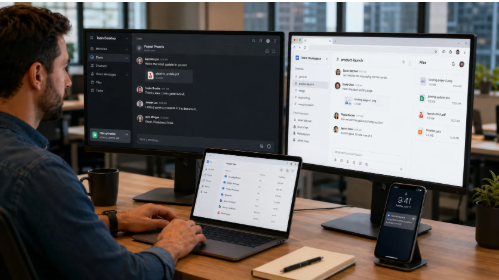
Illustration 1. Comparing desktop app and browser-based messaging access across work devices.
Why Choosing the Right Access Method Matters
Desktop applications and browser versions may provide similar messaging features, but their relationship with the device environment can be very different.
A desktop client is installed directly on the operating system. This allows closer integration with local files, notifications, startup preferences, and daily work routines.
Browser-based access works through an existing web browser and usually requires less setup. This makes it useful when users need quick access or cannot install additional software.
The choice between desktop and browser access can influence notification management, file organization, login session control, software update processes, device security policies, and overall user productivity.
Instead of viewing desktop and browser versions as competing options, teams should consider them as different tools for different situations.
When a Desktop Messaging Application Is the Better Choice
A dedicated desktop application is usually more suitable for devices that are trusted, regularly used, and part of a daily workflow.
Typical examples include company-managed Windows computers, personal workstations, remote work devices, and office computers used every day.
Desktop applications are especially helpful for users who frequently exchange files, manage multiple conversations, or spend extended periods communicating through their computers.
For example, employees who regularly switch between documents, project discussions, and team channels may benefit from a dedicated desktop environment. Chinese-speaking Windows users comparing desktop setup options can also review a Telegram Windows 版下載 resource when evaluating desktop-based messaging workflows.
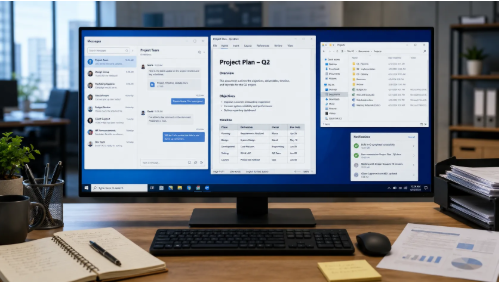
Illustration 2. Desktop messaging workflow on a trusted Windows work environment.
When Browser-Based Access Makes More Sense
Browser access is valuable when installation is inconvenient, restricted, or unnecessary.
Common situations include temporary computers, secondary devices, shared work environments, systems with limited installation permissions, and Chromebook or browser-focused workflows.
The main advantage of browser access is flexibility. Users can quickly open a messaging service without going through a full installation process.
However, convenience should not replace security awareness. Browser users should pay attention to saved passwords, active sessions, downloaded files, and the reliability of the device being used.
Managing Browser Sessions on Shared Devices
Shared computers require additional caution because multiple users may access the same device.
Users should avoid saving passwords on public or shared browsers, leaving accounts signed in after use, downloading sensitive files to temporary locations, and ignoring active session management.
After completing a session, users should sign out, close browser windows, remove temporary data when necessary, and review connected devices regularly.
Users who need additional guidance on setup, account access, configuration, and daily messaging workflows can also refer to a Telegram 使用指南 resource.
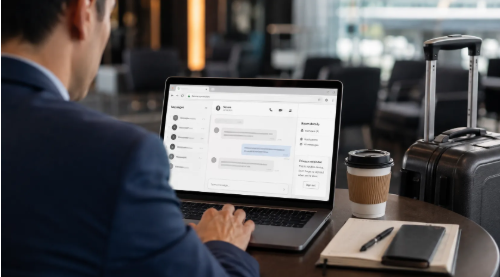
Illustration 3. Secure browser access practices on temporary or shared devices.
Comparing Desktop and Browser Access by Device Type
The ideal access method depends on how the device is used.
Personal Windows Computer Used Daily: A desktop application is usually the more efficient option because it provides a stable environment for frequent communication and file exchange.
Company-Managed Laptop: A desktop client can work well if approved by company IT policies and security requirements.
Temporary Computer: Browser access is often more practical because it avoids unnecessary installation.
Shared Public Computer: Accessing sensitive accounts should generally be avoided whenever possible.
Frequent File Sharing: Desktop applications often provide a smoother workflow for managing documents, images, and other files.
Occasional Access: Browser-based access may be sufficient for users who only need quick communication.
File Management Is an Important Difference
Messaging platforms are increasingly used for sharing work-related materials, including documents, presentations, images, screenshots, and project files.
Desktop environments often provide more predictable file handling because users can work directly with local folders and operating system features.
Browser users should pay closer attention to download locations and temporary files, especially when using devices that are not personally owned.
For teams handling sensitive information, file management should be considered alongside communication convenience.
Match Notification Settings With Device Purpose
Using multiple devices can create unnecessary interruptions if notifications are not managed properly.
A primary work computer may handle detailed conversations and project updates, while a mobile device may focus on urgent messages.
A better approach is to define the purpose of each device: desktop devices for focused work communication, mobile devices for quick responses, and browser sessions for temporary access.
Reducing duplicate notifications can help teams maintain focus while still staying connected.
Managing Account Sessions Across Multiple Devices
Cross-device communication requires clear account management practices.
Organizations and individual users should regularly review connected devices, remove outdated sessions, enable additional verification methods, and follow consistent login practices.
This is especially important for users who switch between office computers, personal devices, and temporary access environments.
Browser Access Is Convenient, but Security Still Matters
Browser-based messaging should not be considered automatically safer simply because no software installation is required.
Users should remain aware of fake login pages, suspicious browser extensions, saved credentials, unattended sessions, and untrusted devices.
Security depends on user habits, account settings, and device management practices rather than the access method alone.
Building a Practical Messaging Access Policy
A simple access policy can help teams maintain consistency.
Examples include:
- Approved company devices can use desktop applications.
- Temporary devices can use browser access when necessary.
- Shared computers should not be used for sensitive conversations.
- Old sessions should be removed after changing devices.
- Users should understand how to manage notifications and files.
A clear policy reduces confusion and helps employees choose the right workflow for each situation.
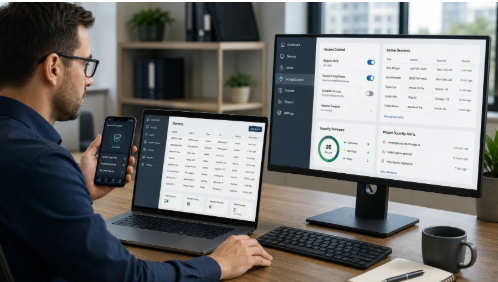
Illustration 4. A simple cross-device access policy for teams and remote workers.
Final Thoughts
Desktop applications and browser-based messaging access are designed for different environments.
Desktop clients are often better suited for regular work, frequent communication, and file-heavy workflows. Browser access provides flexibility when installation is limited or temporary access is required.
The best choice depends on device ownership, workflow requirements, file management needs, and security expectations.
By evaluating these factors together, teams can create a communication setup that is more efficient, easier to manage, and better suited for modern cross-device work environments.







Comment