
Convert PNG to Word With Editable Text And Layout

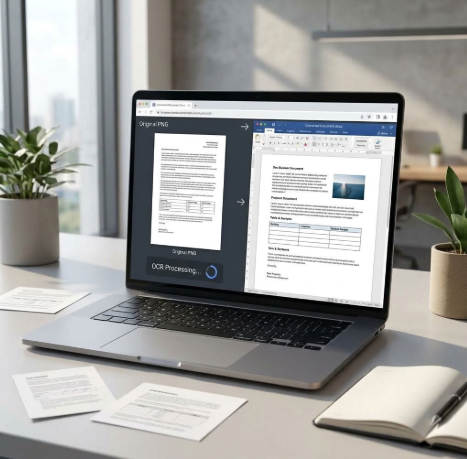
PNG files are great for sharing visuals, but the moment you actually need to work with what’s inside them, things get kinda frustrating, fast. You can’t highlight a line, edit a word, or reformat a paragraph – it’s all locked in an image, like forever. If you’ve ever received a scanned doc, a screenshot of a form, or an infographic packed with useful data, you already know that kind of pain.
The obvious fix is to convert PNG to Word document. But anyone who’s tried this knows it’s rarely as simple as it sounds. Most tools either dump the image into a Word file as-is – completely uneditable – or attempt to read the text and produce something barely recognizable.
After running into this problem one too many times, I went looking for something that could actually do the job properly – pull out the text accurately while keeping the visual quality intact. What I found surprised me a bit, and honestly, the whole process now takes less than a minute with zero manual cleanup.
Why Converting PNG to Word Is Trickier Than It Sounds
Not All Converters Actually Preserve Your Content.
When you search for a PNG to Word converter, you’ll find dozens of free tools promising fast, accurate results. The reality is that most of them fall into one of two failure modes – and neither gives you a usable document.
The first is what happens when a tool skips text recognition entirely. Instead of reading the content in your PNG, it simply embeds the image inside a Word file. Technically, you have a .docx file – but the text is still trapped inside a picture. You can’t click on it, edit it, or reformat it. All you’ve done is change the file container, not the content inside it.
The second failure mode is worse in a different kinda way. Some tools do try to read the text using OCR (Optical Character Recognition), but the results can be kinda unreliable. A capital “I” can turn into a lowercase “l”, and the spacing between words starts vanishing or just gets messed up. Sometimes whole lines get shuffled; other times they simply disappear.
Image Quality Takes a Hit Too
Text accuracy is not the only problem. A lot of converters shrink or change the PNG while they work. Then any images, logos, or diagrams that are inside the file look fuzzy, and edges turn blocky once they land in the Word output.
What’s going on is mostly about how the tool handles the file on its side. A bunch of free web-based converters lean on heavy compression to keep server load under control and yeah, that tradeoff hits your image quality pretty directly.
Why the Source File Matters More Than You’d Think
Before you go fully blaming the tool, it still, it helps to understand that the quality of the PNG you feed it matters a lot. A high-resolution scan of a typed page comes out way cleaner than a low-resolution screenshot of the same text, honestly. If the text inside that PNG is tiny, blurred, or sitting over some noisy background, even a pretty decent OCR engine is going to struggle reading it correctly.
Similarly, PNGs with complex layouts – multiple columns, text wrapped around images, tables – tend to break during conversion because most tools read content linearly, left to right, top to bottom. The structure that made sense visually doesn’t always translate into a logical Word document.
What to Look for in a Converter That Actually Works
After testing several options and running into the same problems repeatedly, it became clear that not all converters are built the same. The ones worth using share a few things in common: they use a capable OCR engine that handles different fonts and sizes, they preserve the original image resolution rather than compressing it, and they give you an editable Word file – not just an image dropped into a document.
That combination is harder to find than it should be, but it does exist. The next section covers exactly which tool cleared all three bars and how to use it to get clean, accurate results every time.
The Tool I Found That Actually Gets It Right
It Handles Both Text and Image Quality Without Any Hassle. There is no shortage of PNG to Word converters on the internet. Adobe Acrobat does it well, but you are looking at $12.99 a month minimum. There is a free option available at Smallpdf; however, it offers users only two tasks per day, which prompts you to use a premium account almost instantly.
ILovePDF 2 is totally free, browser-based, and it’s meant for PDF and document conversions: no account, no subscription, no extra software to install. You just open the site, upload your file, and get the converted document back in seconds.
What Makes ILovePDF 2 Stand Out From the Rest
Most free converters make you pay in other ways – daily limits, forced signups, watermarks on output files, or paywalled quality settings. ILovePDF 2 does none of that. The conversion is free every time, for every file, with no account required. The interface feels clean and easy enough, and the tools are clearly labeled.
I Love PDF 2 Takes Your Privacy Seriously Too
There is one more aspect to take into account when considering the use of browser converters – the fate of your files after the process is completed. Uploaded files using ILovePDF 2 are deleted after 30 minutes of session completion. You are not handing your documents over to a platform that stores or analyses them indefinitely.
This is a meaningful differentiator from some other free tools, where the data retention policy is either vague or buried in fine print.
The One Limitation Worth Knowing About
I Love PDF 2 doesn’t have its own desktop/mobile application. All operations are done within the browser, meaning that in order to perform some actions, you should have access to the Internet. In case of working offline or when it comes to converting dozens of files at once, this becomes quite a drawback. That said, for the vast majority of users who need to convert a PNG to Word quickly and cleanly, the browser experience is more than sufficient – and the fact that there is nothing to install is arguably a convenience, not a drawback.
Which Tool Actually Converts PNG to Word Best – Comparing a Few Tools
A Side-by-Side Look at Cost, Quality, and Convenience
Not every PNG to Word converter is built the same, and “free” means something different depending on which tool you’re looking at. Some are free only up to a point. Others are fully free but bury the useful features behind a signup wall. A few do the conversion well; many don’t. Before settling on ILovePDF 2, I tested a handful of the most commonly recommended options to see how they actually performed on the same file.
What I Tested Each Tool On
Same file, same expectations
To keep the comparison fair, I ran the same PNG through each tool – a scanned document with a mix of body text, a heading, and one embedded image. The things I was watching for were simple: did the text come out editable and accurate, did the image survive the conversion without degrading, was there a file size cap that blocked me, and did I have to create an account just to download my result?
The Comparison Breakdown
Cost, signup, output quality, and file limits – side by side
ILovePDF 2 is completely free with no subscription tier and no account required. You upload, convert, and download – that’s it. There’s no file size limit advertised, and in practice, moderately sized PNGs convert without issues.
Smallpdf offers a free tier, but it comes with friction. You’re limited to two free tasks per hour, and some features push you toward a Pro plan that runs around $9 per month. OCR results can feel good. In some cases, they match what ILovePDF 2 gives. Still, the limits on the job can make it shaky when you run more than a few files in a batch.
It also helps to mention what Microsoft Word can do on its own. Many people already have it and do not notice that it can work with image-based files. If you put a PNG in Word or open a PDF that only shows pictures, Word will try to display it. But it does not handle PNG OCR in the same direct way that tools built for this task do.
Where Tools Fall Short
No converter is perfect – here’s what each one gets wrong.
ILovePDF2 has no desktop app, which means you’re dependent on a browser and an internet connection every time. If you’re working offline or handling sensitive documents you’d rather not upload to a third-party server, that’s a real limitation worth considering. Smallpdf has the task cap problem already mentioned – fine for occasional use, genuinely limiting for anything more.
So Which One Should You Use?
It depends on how often you need it and what you’re converting.
For most people converting PNG to Word on an occasional basis, I Love PDF 2 covers everything that matters – free, no account, accurate text output, and preserved image quality. Smallpdf is a reasonable backup if ILovePDF 2 is ever down, though the task limits will eventually get in the way. Adobe is the right call if you’re already a subscriber for other reasons.
The tool that fits your workflow depends on what you’re working with, but for a no-commitment, no-cost conversion that actually works, ILovePDF 2 is the most practical option for everyday use. Watch how to convert a PNG to an editable Word file
Getting Editable Text and Layout From PNG Files
Conversion from PNG to Word seems rather simple at first sight, but with the proper tool, it is indeed. What is challenging about this conversion is not the process itself but the choice of the tool that would do it right. After skipping converters that simply ignored the text and those that distorted it, the entire process became extremely easy and convenient.
ILovePDF 2 deserves to be on this list by offering its functionality for free and without the necessity of having an account. The text conversion is provided accurately; the image remains untouched, and there is no need to install anything. For occasional conversions, that’s all most people actually need. When the requirements are more specific, such as large numbers of documents, confidentiality of information, or complicated formatting, it is better to consider other options which have been discussed earlier.
Regardless, you do not have to suffer from poor-quality conversions or subscribe to any service in order to be able to extract text from an image. The correct tool is available; it is free, and it works.







Comment