
AR Glasses for Beginners: A Complete Setup Guide


AR glasses can be easy to set up when you understand the basics before plugging them in. For beginners, the process usually comes down to three things: making sure your device is compatible, connecting the glasses correctly, and adjusting settings for comfort and image quality. Once those steps are done, AR glasses can quickly become useful for streaming, gaming, work, and private viewing on a much larger virtual screen than a phone or laptop alone. This guide walks through the setup process in a practical order, so you can avoid common mistakes and start using your glasses with confidence. You will learn what hardware you need, how to configure display and audio settings, and how to improve comfort for longer sessions.
1. What to Know Before Setting Up AR Glasses
How AR Glasses Work and What You Need
AR glasses place a virtual display in front of your eyes by projecting digital content through compact display panels built into the frames. In most beginner setups, the glasses act like an external screen for a phone, tablet, handheld console, or computer, while also delivering audio through built-in speakers. Before setup, make sure you have the glasses, the correct connection cable or adapter, a compatible source device, and any companion app if required. It also helps to know whether your glasses support multiple viewing modes, screen pinning, brightness adjustment, and prescription inserts. Understanding these basics first will make setup smoother and help you get the image, fit, and control options you expect.
Check Device Compatibility, Ports, and Accessories
Before connecting anything, confirm that your source device can send video output through its port. Many AR glasses rely on USB-C with DisplayPort output, while some devices may need an adapter. Check your phone, tablet, laptop, or console specifications instead of assuming every USB-C port works the same way. Also verify power requirements, app support, and whether external accessories are needed for charging or extended use. If you wear glasses, confirm prescription lens compatibility before your first session. Keep essential accessories nearby, including the original cable, nose pads, cleaning cloth, and any optional adapter. A quick compatibility check prevents connection issues, no-signal errors, and unnecessary troubleshooting later during setup.
2. How to Set Up AR Glasses Step by Step
Connect Your AR Glasses to a Compatible Device
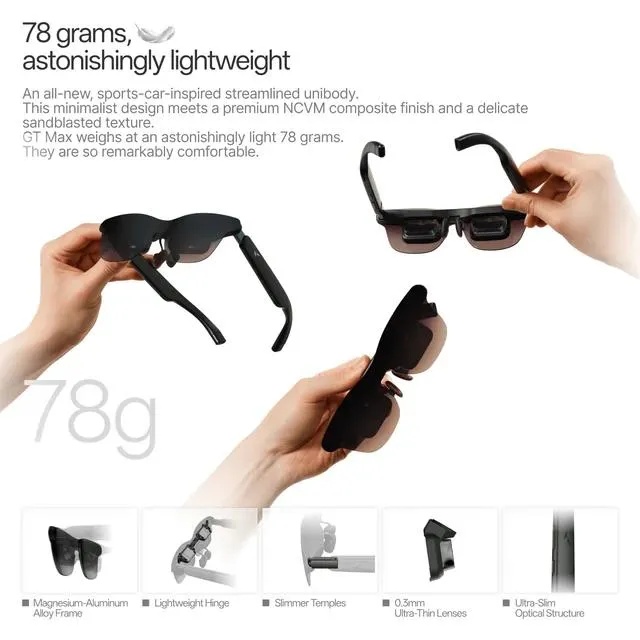
Start by connecting your AR smart glasses to a supported device using the recommended cable or adapter. If your device supports video output through USB-C, the glasses should power on and mirror or extend the display automatically. If prompted, approve external display access or open the required companion app. On RayNeo GT Max AR Glasses, the setup supports a large virtual display ranging from 227 to 307 inches, with Full HD 1920 × 1080 resolution, a 59° field of view, and support for Follow, Steady, and Pinned spatial modes. Once connected, check that the image appears centered, the speakers are active, and the source device recognizes the glasses correctly before continuing.
Configure Display, Audio, and Viewing Settings
After connection, adjust your settings so the image looks clear and comfortable. Start with brightness, volume, and display mode, then fine-tune screen position if your glasses support spatial viewing controls. Choose a mode based on your activity, such as movie viewing, office work, or eye protection for longer sessions. On-device controls make it easier to change volume and brightness without interrupting what you are doing. If audio plays through the wrong output, switch the source device to the glasses manually. For supported models, review refresh rate settings, 3D options, and companion app features. A few minutes spent configuring display and sound will improve clarity, privacy, and overall ease of use.
3. How to Optimize Your AR Glasses Experience
Adjust Fit, Screen Position, and Visual Comfort
A good fit has a direct impact on image quality and comfort. Start by selecting the nose pad that keeps the display aligned with your eyes without adding pressure to your nose or ears. Then adjust the glasses until text appears sharp across the screen, not just in the center. If your model supports screen positioning, place the image at a natural viewing height to reduce neck strain. For longer sessions, lower brightness, use an eye comfort mode, and take short breaks to reduce fatigue. Users who need vision correction should install compatible prescription lenses instead of forcing focus. Small physical adjustments usually solve blur, edge distortion, and general discomfort quickly.
Explore Entertainment, Gaming, and Productivity Features
Once your setup is stable, explore the features that match how you plan to use AR glasses every day. A large private virtual screen can make movies more immersive, handheld gaming more cinematic, and work tasks easier to manage in limited spaces. Test different display modes for media, reading, or office use, and try spatial modes that keep the screen fixed or let it move with you. If available, use native 3D, 2D-to-3D conversion, or app-based controls for a more customized experience. Built-in speakers with spatial audio can also improve immersion while keeping your setup simple. The best results come from matching the mode and settings to the activity.
Conclusion
Setting up AR glasses for the first time is straightforward when you follow a clear order: check compatibility, connect the right device, adjust display and audio settings, and refine the fit for comfort. Those steps solve most beginner issues before they become frustrating. After setup, the experience improves even more when you use the right viewing mode, brightness level, and screen position for each task. Whether you want a portable entertainment screen, a more immersive gaming display, or a private workspace, proper setup makes the difference. If you are using a model such as RayNeo GT Max AR Glasses, taking a few extra minutes to customize controls and comfort settings will help you get sharper visuals, better audio, and a smoother daily experience.







Comment