What Does a PC Bottleneck Actually Mean?
A PC bottleneck means a hindrance in the overall performance of a computer due to the limiting factor of a single component (like the CPU). A slower working component takes time to process data, which keeps the faster component waiting.
However, every single computer has a bottleneck somewhere. Otherwise, systems would have infinite frame rates. The goal isn’t to eliminate the bottleneck entirely, but to shift it to the most desirable element (the GPU).
The CPU vs. GPU Balance Explained
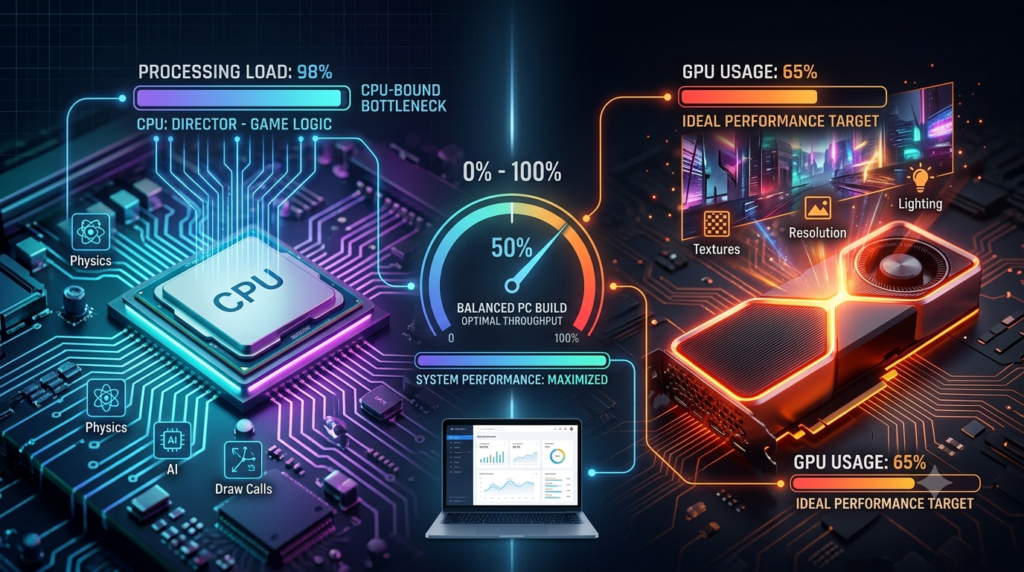
- CPU Function: It acts as the director. It calculates game logic, physics, player movement, AI, network data, and draw call instructions.
- GPU Function: It acts as the render artist. It takes draw calls and paints the pixels, textures, geometry shaders, shadows, and lighting.
- CPU Bottleneck: The CPU cannot prepare draw calls fast enough. As a result, GPU usage drops below 80–90%, causing micro-stutters and sudden drops in 1% low FPS.
- GPU Bottleneck: The CPU feeds instructions quickly, allowing the GPU to run at 97–100% capacity. This produces smooth frame pacing and consistent frame times.
Why Bottlenecks Change Based on Software, Settings, and Resolution
The hardware balance of a PC is dynamic and shifts constantly based on the game engine, background software, and visual settings. It changes depending on resolution as follows:
- 1080p Resolution: Low resolution puts minimal stress on the GPU. This creates high FPS targets that heavily overload single-core CPU speed.
- 4K Resolution: Increases the rendering workload and shifts it onto the GPU. Because of this, CPU performance becomes far less critical.
Furthermore, the hardware balance shifts depending on the game genre. Competitive esports titles (Fortnite, Valorant, CS2) on low settings put heavy load on the CPU, while AAA titles (Cyberpunk 2077, Black Myth: Wukong) with ray tracing put maximum load on the GPU.
How to Calculate Bottleneck CPU GPU Percentages Using Online Tools
Bottleneck calculators are algorithmic tools used to estimate system imbalance. They work by comparing component specifications, clock speeds, thread counts, and benchmark databases. There are many options online, but using an accurate PC bottleneck calculator gives a great baseline reading.
As useful as they are, remember that these tools provide a rough theoretical baseline instead of absolute real-world facts. Use them as a general guideline, but always verify results with real-world benchmarks for optimal performance.
What the Percentage Numbers (0% to 10%+) Really Mean
Bottleneck scores are estimated measures showing hardware imbalance. A percentage score is not a direct percentage loss of FPS, mainly because hardware demands vary wildly from one game engine to another.
0% Bottleneck: The Ideal System Match
This represents a theoretical state where the CPU and GPU operate at equal efficiency without choking each other’s potential. However, achieving a true 0% bottleneck across all applications is realistically impossible in real-world gaming.
5% to 10% Bottleneck: Minor Imbalance vs. Real-World Performance
This is a minor hardware imbalance that won’t noticeably affect daily tasks or gaming. At this level, hardware upgrades are unnecessary; simply tweaking a few in-game graphics settings easily equalizes a 5–10% gap.
Greater Than 10% Bottleneck: Significant System Restrictions
A bottleneck greater than 10% indicates a major component mismatch (e.g., a modern RTX graphics card paired with an older 4th-Gen CPU). Symptoms include severe frame pacing spikes, open-world stuttering, audio hitching, and large gaps between average FPS and 1% lows. Try resolving this through software adjustments first; if performance remains unstable, a physical hardware upgrade is needed.
How to Calculate Bottleneck PC Performance Yourself (Real-Time In-Game Testing)
Testing your PC live during gameplay provides the truest performance picture for your specific setup. If you want to manually check CPU and GPU bottlenecks, follow the steps below.
Step 1: Set Up Monitoring Overlays (MSI Afterburner & RivaTuner)
First, download MSI Afterburner bundled with RivaTuner Statistics Server (RTSS). Set up the On-Screen Display (OSD) to monitor these key metrics:
- GPU Usage (%) and GPU Temp (°C)
- Overall CPU Usage (%) and Individual Core/Thread Usage (%)
- System RAM Usage (GB)
- Frame Rate (FPS) and Frame Time Graph (ms)
Step 2: Compare Live CPU vs. GPU Usage
Apply these diagnostic rules while playing with uncapped frame rates:
- GPU Usage at 97%–100%: The system is GPU-bound (the ideal state for gaming).
- GPU Usage under 80% + Single CPU Cores at 95%–100%: The system is CPU-bound.
- Both GPU and CPU Usage Low: A frame rate cap is active, a game engine limit has been hit, or memory bandwidth is starved.
Step 3: Analyze Frame Times, Stutters, and 1% Lows
- Frame Time Graph: Average FPS metrics can be deceiving. A system showing 60 average FPS will still feel unplayable if frame times constantly spike from 16ms to 100ms.
- 1% Lows Metric: This measures the worst frame drops during heavy action and serves as the primary indicator of CPU-bound micro-stuttering.
How to Calculate Bottleneck Capacity and Cycle Time in Systems
Calculating Hardware Processing Limits vs. Software Demand
To calculate mathematical hardware capacity, use the cycle time formula:
Capacity=1CycleTimeofSlowestComponent
For example, if a CPU requires 12ms to calculate physics/draw calls and a GPU requires 6ms to render pixels, the total system cycle time locks to 12ms.
The maximum theoretical FPS limit is calculated as:
MaxFPS=1000ms12ms83.3FPS
Identifying Workstation and Component Transfer Delays
Components communicate via motherboard interconnect pipelines. PCIe bandwidth generations (Gen 3 vs. Gen 4 vs. Gen 5) and bus speeds dictate maximum data transfer limits. Consequently, a fast GPU and CPU will still bottleneck if restricted PCIe lanes choke high-resolution asset streaming.
How to Fix a Bottleneck Once You Calculate It
Fixing a system bottleneck becomes much easier once you identify which component is causing the restriction.
What to Do If Your CPU Is the Limiting Factor
If you are experiencing a CPU bottleneck, try the following adjustments:
- Lower CPU-Heavy Settings: Reduce settings that tax processor cores, such as NPC/Crowd Density, View/Draw Distance, Physics, Ragdolls, and Ray Tracing CPU structures.
- Increase GPU Load: Shift workload to the graphics card by increasing resolution (e.g., 1080p to 1440p), Texture Quality, Anisotropic Filtering, and Ambient Occlusion.
- Cap Frame Rates: Use RTSS to cap your FPS slightly below your monitor’s refresh rate to reduce CPU thermal stress and smooth out frame delivery times.
What to Do If Your GPU Is the Limiting Factor
- Reduce GPU Load: Turn down graphics-heavy features like Shadows, Volumetric Fog, Screen Space Reflections, and Ray Tracing.
- Use Upscaling Tech: Enable NVIDIA DLSS, AMD FSR, or Intel XeSS to render games at a lower internal resolution while outputting at native display resolution.
How RAM Speed, Latency, and Storage Play a Hidden Role
- RAM Bandwidth: Single-channel memory starves CPU throughput. Switching to dual-channel memory and enabling XMP/EXPO in the BIOS lowers latency and significantly improves 1% low FPS.
- Storage Speeds: Mechanical Hard Drives (HDDs) cause massive asset-streaming hitches. Upgrading to a modern high-speed NVMe SSD eliminates asset-loading stutter.
Summary: Getting an Accurate Hardware Reading
To summarize, bottleneck calculators and telemetry overlays are diagnostic tools meant to help optimize balance. They shouldn’t be a source of endless worry. The simple rule is that if your frame times are stable, gameplay is smooth, and micro-stutters are absent, your system is working beautifully.
If you experience frame hitching, use a bottleneck calculator or live telemetry overlay to diagnose the limiting component. From there, apply software tweaks or consider a targeted hardware upgrade for optimal performance.