
Best Free Video Converter in 2026: The All-in-One Tool for Converting and Downloading Videos

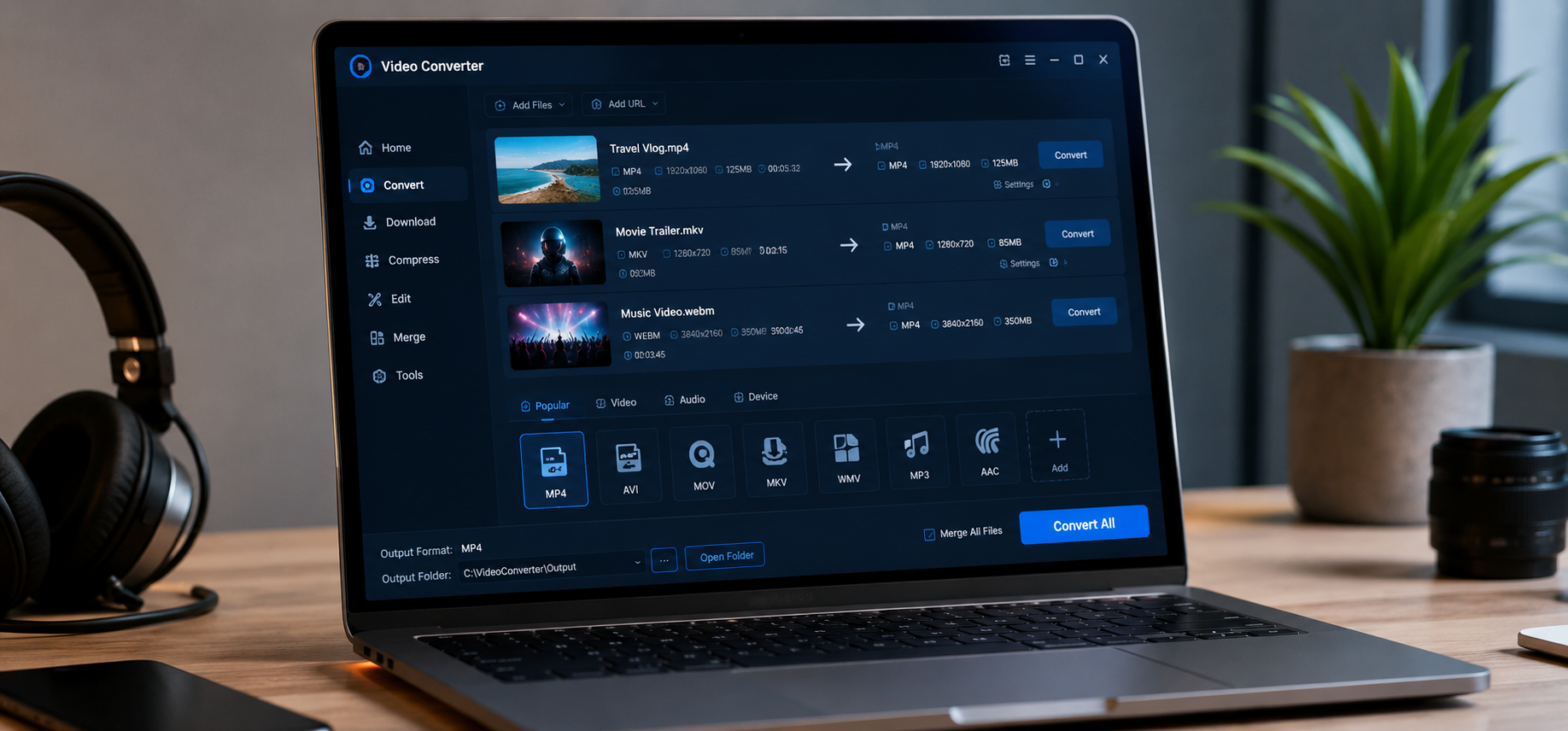
If you’ve ever needed to change a video’s format, shrink a file for easier sharing, or grab a clip from a website to watch offline, you already know the frustration of juggling three or four different tools to get it done. In 2026, that’s no longer necessary. A new generation of software has emerged that combines everything into one place, and the best free video converter on the market right now handles conversion and downloading in a single, lightweight application.
This guide walks through what makes an all-in-one free video converter worth using, how to get started, and a full step-by-step tutorial so you can start converting and downloading videos in minutes.
Why You Need an All-in-One Free Video Converter
Most people don’t just need to convert files — they also need to pull video content from streaming sites, save it locally, and sometimes compress it before sending it to a client, uploading it to social media, or archiving it. Using separate apps for each of these tasks means more downloads, more clutter on your hard drive, and more time wasted switching between programs.
An all-in-one free video converter solves this by combining:
- Format conversion — switching between MP4, MOV, AVI, MKV, WMV, and other common formats
- Video downloading — saving videos directly from supported websites for offline viewing
- Compression tools — reducing file size without a major loss in quality
- Batch processing — converting or downloading multiple files at once instead of one at a time
This combination is exactly why tools like the one recommended by vertechlimited.com have become popular with content creators, students, and small business owners who need a fast, no-cost solution that just works.
Key Features to Look For
Before picking a free video converter, it helps to know what separates a genuinely useful tool from a bare-bones one. Here’s what to check for:
- No cost, no hidden paywalls — the best free tools let you convert and download without forcing you into a subscription halfway through.
- Wide format support — you should be able to move freely between the most common video and audio formats.
- Fast processing speed — especially important if you’re working with large files or batch converting several videos at once.
- Simple, intuitive interface — you shouldn’t need a tutorial just to find the convert button.
- Safe downloads — a trustworthy tool won’t bundle unwanted software or bloatware with the install.
As highlighted by techbullion.com, tools that check all of these boxes tend to stand out in a crowded market of video utilities, many of which either charge for basic features or come loaded with unnecessary extras.
Step-by-Step Guide: How to Convert and Download Videos for Free
Here’s a complete walkthrough for getting started with an all-in-one free video converter, from installation to your first completed conversion.
Step 1: Download and Install the Software
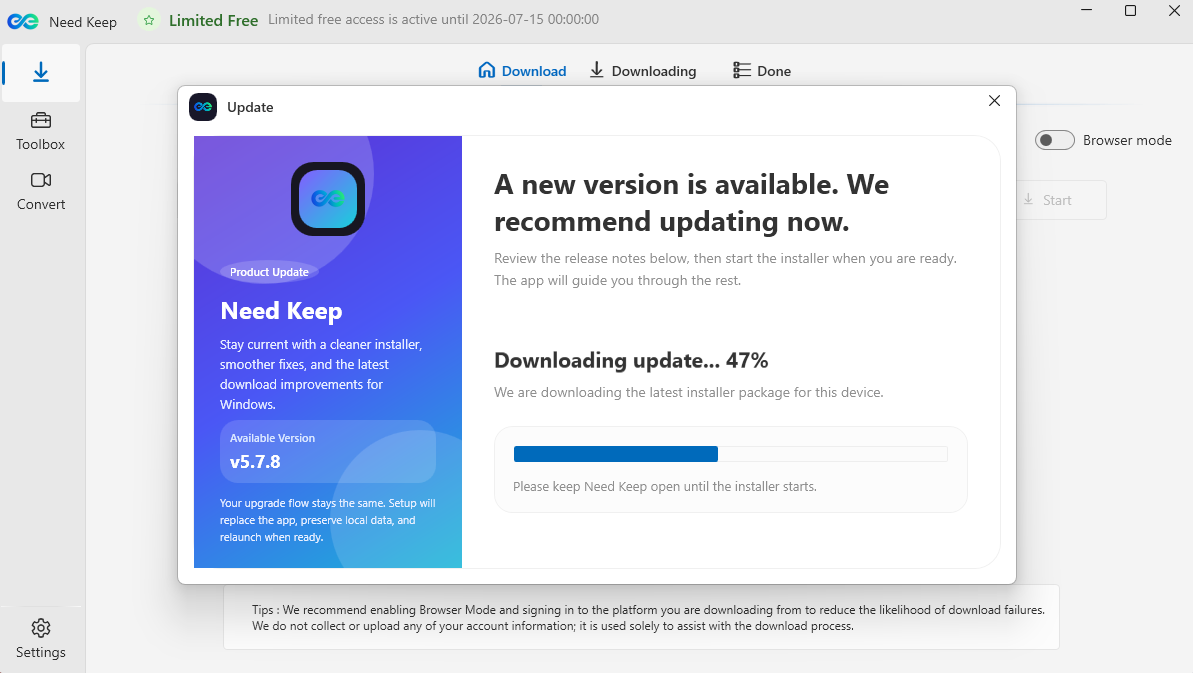
Head to the official download page and grab the installer for your operating system (Windows or Mac versions are typically available). Run the installer and follow the on-screen prompts. The setup process usually takes less than two minutes.
Step 2: Open the App and Choose Your Task
Once installed, open the application. You’ll typically see a clean dashboard with a few clear options — usually something like “Convert,” “Download,” and “Compress.” Since this is an all-in-one tool, you don’t need to open a separate program depending on what you want to do.
If you’re converting a file you already have saved on your computer, select the Convert option. If you’re grabbing a video from a website, select Download instead.
Step 3: Add Your Video File or Paste the URL
For conversion: click “Add File” or drag and drop your video directly into the window.
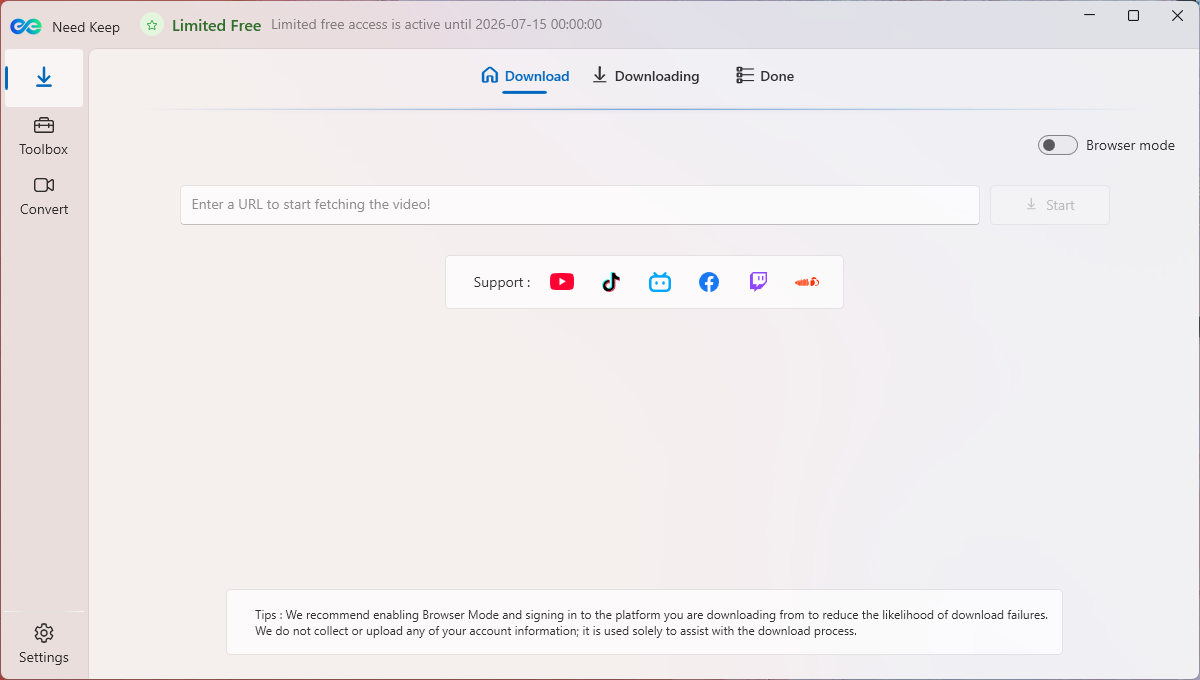
For downloading: copy the link of the video you want to save, then paste it into the input field inside the app and hit “Analyze” or “Fetch.” The software will pull up the available video, along with quality and format options.
Step 4: Choose Your Output Format and Quality
This is where the “converter” part of the tool really shines. Select the output format you need — MP4 is the most universally compatible option, but you can typically choose from MOV, AVI, MKV, WMV, FLV, and others depending on where the video will be used. You can also usually select the resolution (1080p, 720p, etc.) and adjust compression settings if file size is a concern.
Step 5: Start the Conversion or Download
Click the “Convert” or “Download” button to begin processing. Depending on the length and size of the video, this can take anywhere from a few seconds to a couple of minutes. Most tools display a progress bar so you can track how much time is left.
Step 6: Locate Your File
Once the process finishes, the app will usually give you the option to open the output folder directly, or you can find the finished file in the default save location (often a folder named “Downloads” or “Converted Videos” within the app’s directory).
That’s it — from install to finished file, the entire process typically takes just a few minutes, even for first-time users.
Common Use Cases
An all-in-one free video converter isn’t just for one type of user. Here are a few common scenarios where it comes in handy:
- Content creators converting raw footage into upload-ready formats for YouTube, Instagram, or TikTok
- Students and researchers downloading educational videos for offline study
- Small business owners compressing marketing videos so they load faster on a website
- Anyone who’s ever received a video file that simply won’t open on their device because of a format mismatch
Tips for Getting the Best Results
- Always choose MP4 if you’re unsure which format to pick — it offers the widest compatibility across devices and platforms.
- If file size matters more than quality, use the compression slider or a lower resolution setting rather than a lower bitrate, which can introduce visible artifacts.
- For batch jobs, queue up all your files first, then let the software process them in one sitting rather than converting one at a time.
- Keep the software updated to make sure you have access to the latest supported formats and any speed improvements.
Frequently Asked Questions
Is it really free to convert and download videos? Yes — the core conversion and downloading features of a genuinely free video converter don’t require payment. Some tools offer optional premium add-ons for advanced editing, but the essential functions of converting formats and saving videos for offline use remain free.
Will converting a video reduce its quality? Not if you choose the right settings. A good converter lets you match the output resolution and bitrate to the original file, so you can convert formats without any noticeable quality loss. Quality only drops if you intentionally compress the file to save space.
Can I convert multiple videos at once? Yes, most all-in-one tools support batch processing, which lets you queue up several files and convert or download them together instead of repeating the process one at a time.
Is it safe to download videos with free software? As long as you’re downloading the software from an official source and not a third-party mirror site, it’s generally safe. Stick to reputable providers, like the one covered on vertechlimited.com, to avoid bundled bloatware or malware.
Final Thoughts
Video conversion and downloading used to require multiple tools, most of which came with either a price tag or an inbox full of upsell emails. In 2026, that’s changed. A well-built, all-in-one free video converter can handle format switching, downloading, and compression from a single, easy-to-use interface — no subscription required.
Whether you’re a content creator, a student, or just someone who occasionally needs to save and convert the odd video file, having one reliable tool for the job saves both time and hard drive space. Give it a try and see how much simpler your video workflow becomes.






Comment