
How Can You Turn on Developer Mode on the Latest iOS Beta?

With rumors and discussions around upcoming iOS versions like iOS 27 already circulating online, many iPhone users are searching for ways to access Developer Mode on the latest beta releases. Whether you want to test apps, sideload applications, or use advanced debugging tools, Developer Mode is an essential feature for developers and advanced users.
Although Apple may introduce small interface changes in future iOS updates, the overall process for enabling Developer Mode remains very similar across recent iOS beta versions, including iOS 16, iOS 17, and newer beta builds.
In this guide, you will learn how to enable Developer Mode on your iPhone, what requirements are needed, and how to fix the issue if the option does not appear. If needed, tools like Tenorshare iCareFone may also help simplify backups, file transfers, and device management before testing beta software.
Part 1: What Is Developer Mode on iPhone?
Developer Mode is a special setting introduced by Apple to allow developers to test apps and perform advanced device operations safely. Once enabled, it allows users to install development apps, debug applications, and use developer tools such as Xcode.
Many users searching for how to turn on developer mode on iphone usually need it for:
- App testing
- Installing beta applications
- Sideloading apps
- Debugging software issues
- Using Xcode development tools
- Running developer experiments
Apple added more security restrictions in recent iOS versions, including iOS 16. That is why many users also search for how to enable developer mode on ios16 after updating their devices.
The good news is that the activation steps remain mostly consistent across modern iPhone models and recent iOS versions.
Part 2: Requirements Before Enabling Developer Mode
Before enabling Developer Mode, make sure your device meets the following requirements. Missing one of these steps is one of the main reasons why the option may not appear.
1. Install the Latest iOS Beta
Your iPhone should be updated to the latest available iOS beta version. Older versions may display different settings layouts.
2. Connect iPhone to Mac or PC
Developer Mode often appears only after connecting the iPhone to a computer with developer-related tools installed.
3. Trust the Computer
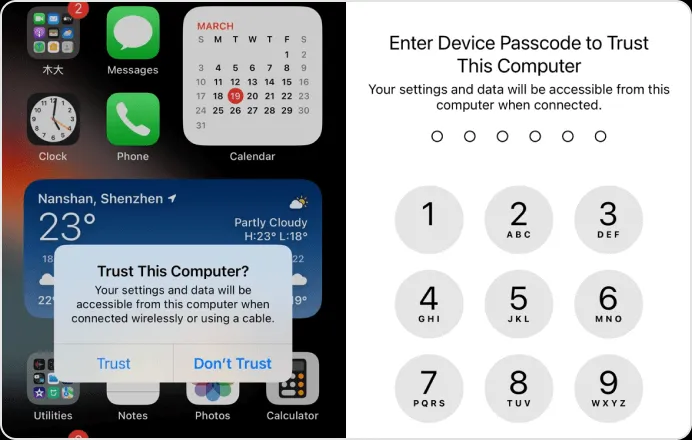
When connecting your iPhone, Apple will ask whether you trust the connected computer. Tap “Trust” and enter your passcode.
4. Use Developer Tools if Needed
Some users may need Xcode or developer applications installed on their Mac to trigger the Developer Mode option.
5. Backup Important Data
Before testing beta software or changing advanced settings, backing up your device is recommended. Tools like Tenorshare iCareFone can help manage backups, file transfers, and device connections more easily.
Part 3: Step-by-Step Guide to Enable Developer Mode
Now let’s go through the actual steps to enable Developer Mode on recent iOS beta versions.
Step 1: Connect Your iPhone to a Mac or PC
Use a certified Lightning or USB-C cable to connect your iPhone to your computer.
If prompted:
- Tap “Trust This Computer”
- Enter your iPhone passcode
Step 2: Open Developer Tools or Xcode
On Mac:
- Open Xcode if installed
- Wait for the device to be detected
This step often triggers the Developer Mode option automatically.
Step 3: Restart the iPhone
After the connection is established:
- Restart your iPhone
- Wait for it to boot normally
Step 4: Open Settings
Go to:
Settings > Privacy & Security > Developer Mode
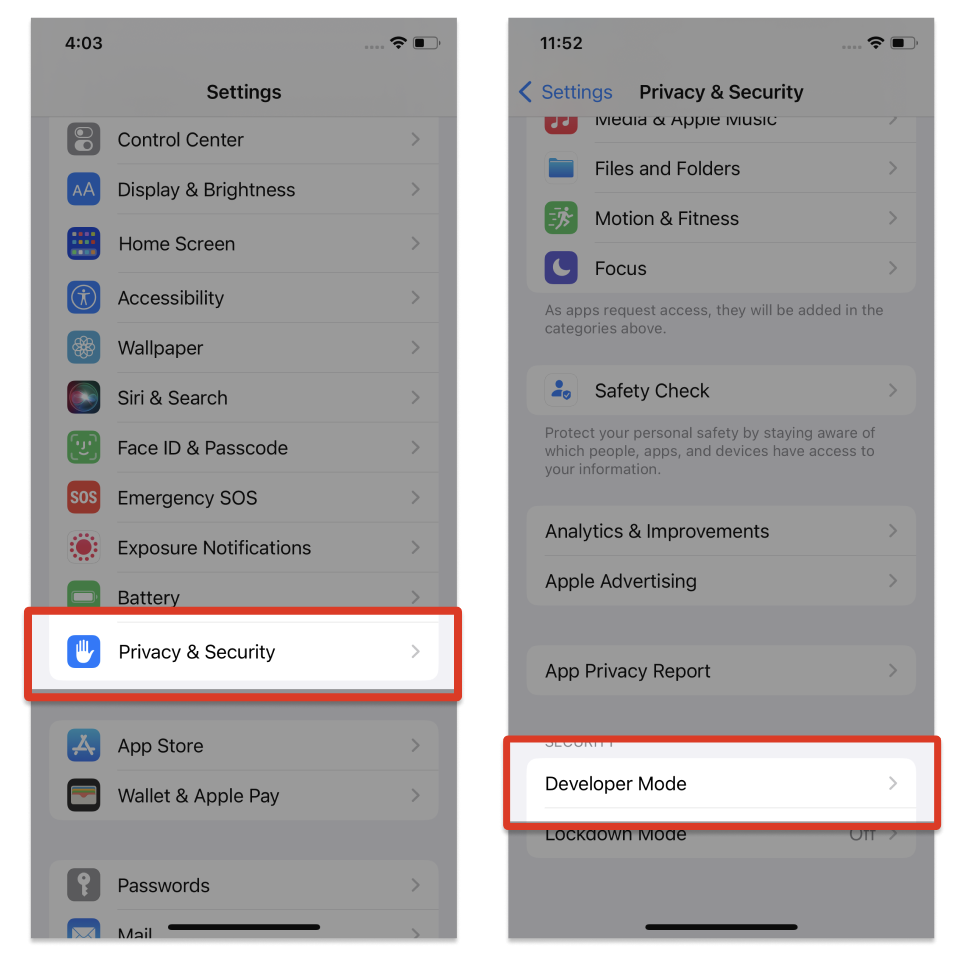
If the option appears:
- Tap Developer Mode
- Toggle it ON
Step 5: Confirm the Activation
Your iPhone will restart again.
After reboot:
- Tap “Turn On”
- Enter your passcode
Developer Mode is now enabled successfully.
This process is also useful for users searching for:
- how to turn on developer mode on iPhone
- how to get devloper mode iPhone 15 pro iOS 17
- how to enable developer mode on iOS16
If your device connection keeps failing during the process, Tenorshare iCareFone can sometimes help identify connection issues and manage iOS system preparation more smoothly.
How to Enable iOS 26 Developer Mode with iCareFone
01 Download and install Tenorshare iCareFone on your PC and connect your device with it by using a lightning to USB cable.
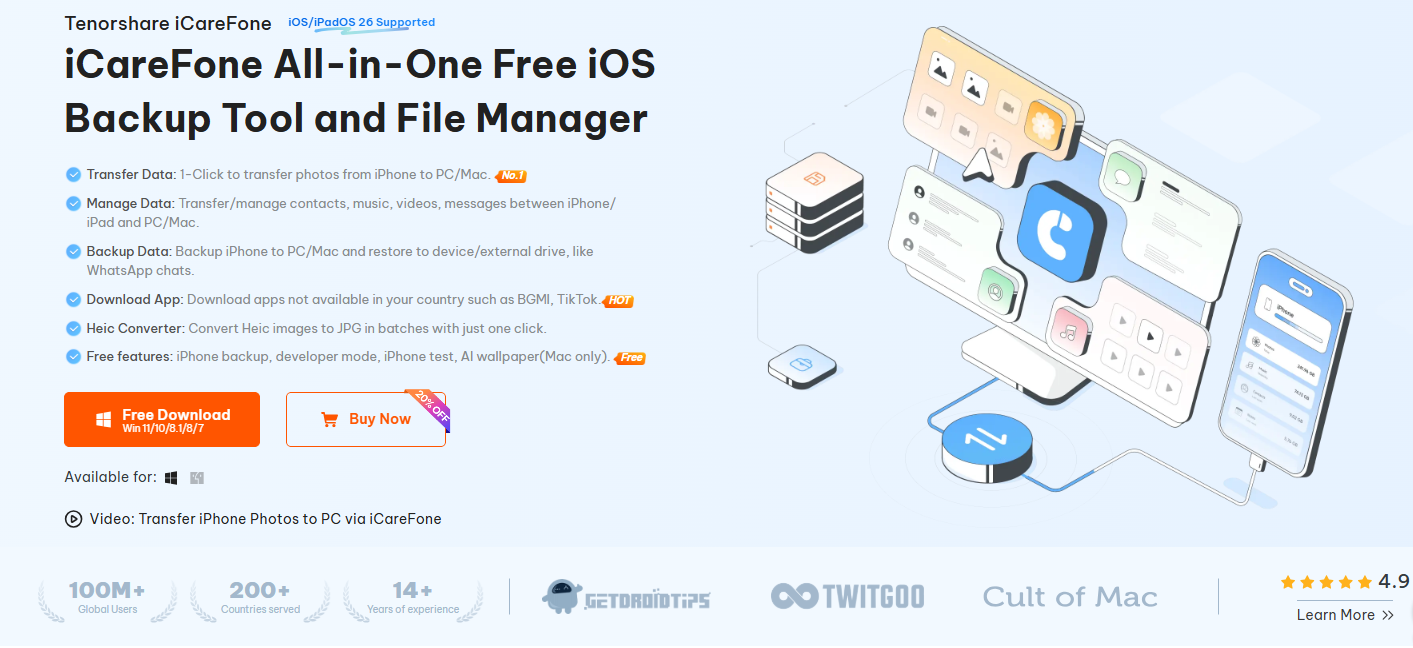
02 After the device is connected, click on the edit button (represented by a pen icon) next to the Quick Access section on the home page. Then, add developer mode tool to the quick access section to use.
03 Next, open the Settings app on your phone and select Privacy & Security
04 Scroll down to find the Developer Mode. Turn on it.
05 A pop-up window appears when the phone is rebooted. To enable developer mode, click “Turn On” again and then enter the device password.
Part 4: What to Do If Developer Mode Is Missing or Not Showing
Some users may notice that the Developer Mode option does not appear immediately after updating to a beta version of iOS. Here are several fixes that usually resolve the issue.
Fix 1: Restart the iPhone
A simple restart can refresh system services and force the Developer Mode option to appear.
Steps:
- Turn off the iPhone
- Wait 30 seconds
- Turn it back on
- Check Settings again
Fix 2: Reconnect to Mac or Xcode
Disconnect and reconnect your iPhone to your Mac.
Then:
- Open Xcode again
- Allow device pairing
- Wait several minutes
This fix works for many users searching for how to turn on developer mode on iphone after beta updates.
Fix 3: Update to the Latest Beta Build
Older beta builds may contain bugs that prevent Developer Mode from appearing.
To update:
- Open Settings
- Go to General
- Tap Software Update
Install the latest available beta version
Fix 4: Trust the Computer Again
Sometimes the trusted connection becomes corrupted.
To reset:
- Go to Settings > General > Transfer or Reset iPhone
- Tap Reset
- Choose Reset Location & Privacy
Reconnect the device and trust the computer again.
Fix 5: Verify iPhone Model and iOS Version
Some menu layouts and prompts may vary depending on the iPhone model and installed iOS version.
For example, users on newer devices may notice slightly different settings placement compared to older iPhone models running earlier versions of iOS.
Part 5: FAQ
Why is my developer option not showing?
Usually, the option appears only after connecting the iPhone to a trusted Mac or developer tool like Xcode. Beta bugs, outdated iOS versions, or connection issues may also cause the setting to disappear.
Can you turn on developer mode on iPhone without Xcode?
In some cases, yes. However, many users still need to connect the iPhone to a trusted computer first before the option becomes visible.
What happens if I turn on developer mode on iOS?
Developer Mode allows advanced app testing, debugging, sideloading, and development-related activities. It gives developers deeper system access, but should only be enabled if needed.
Conclusion
Developer Mode is an essential feature for app testing, debugging, and advanced iPhone development tasks. While discussions about future releases like iOS 27 continue online, the overall activation process remains very similar across recent iOS beta versions.
By following the steps above, you should be able to enable Developer Mode successfully and troubleshoot common issues if the option does not appear.
Before testing beta software or making advanced system changes, it is always a good idea to back up important data first. Tools like Tenorshare iCareFone can help simplify device management, backups, and file transfers during the process.







Comment