For the newcomers who have recently discovered crypto, you might be looking at different cryptocurrencies to invest in and must have come across Bitcoin and Bitcoin Cash. Surely you must have wondered why they have similar names and why one is 1/50th the cost of the original asset. Today, we will be looking at these two different cryptocurrencies, understand their history and finally differentiate them.
Satoshi Nakamoto created Bitcoin in 2009 as a peer to peer cash system that would allow individuals to complete payment without intermediaries. Bitcoin has since been a scarce asset that is being seen as a store of value compared to the likes of the age-old gold. To reach this point of significance, bitcoiners have gone through tough decisions, primarily on the front of the biggest drawback to its vision, which is scalability
We talked about bitcoin’s scaling problems and the lightning network in detail in our previous article here. The gist of the story is that bitcoin does not scale very well to accomplish the goal that Satoshi first set out to do. Bitcoin has a maximum block size of 1MB, which can only hold a limited amount of transactions between individuals (7 transactions on average). Adding to this, an average block time of 10 minutes means that bitcoin would be a terrible means of payment. We haven’t yet talked about the cost of each transaction, which could increase to over 30 dollars in times of extreme network congestions.
As discussed in the earlier article, there are two main ways to solve the issue: creating forks of bitcoin with better scalability or creating layer two solutions that would work on top of the bitcoin blockchain, like the lightning network.
Bitcoin Cash — A fork of Bitcoin
After much talk among bitcoiners and non-interest to increase the block size to improve the number of transactions for the blockchain, bitcoin cash was forked out from bitcoin with increased block size in August 2017.
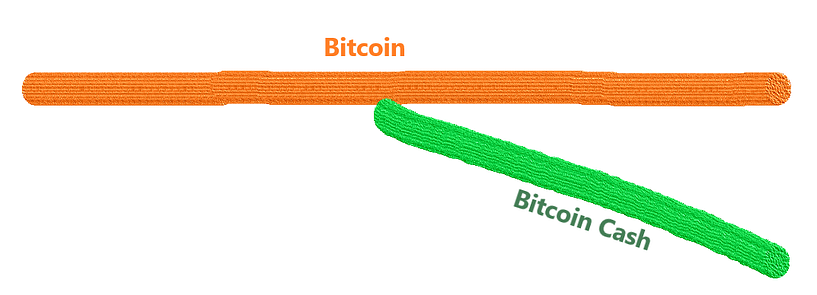
Simply put, forks in blockchains occur by using the open-source code of an existing blockchain and making improvements to create a new one. In the case of bitcoin cash, the improvements were the increase of block size to 8 MB, around 10x the transactions daily and block time being dependent on network conditions. Holders of bitcoin at the time also received an equal amount of bitcoin cash tokens.
How do they differ?
Although both these blockchains have the same roots, use the same proof of work consensus and have a similar number of token supply, they differ by quite some margin as discussed below.
Scalability: The main appeal and the creation of bitcoin cash was the scalability factor. Today, bitcoin cash completes has a block size of 32MB, does over 100 transactions per second on average, payments are completed instantly and cost less than pennies to do. On the other hand, bitcoin has a block size of 1MB, complete only 7 transactions per second, takes more than 10 minutes and averages more than 3 dollars per transaction. Bitcoin, however, relies on layer 2’s to be the payments layer.
Market Dominance: There is no doubt that bitcoin has more market dominance than the other forks out in the market. Bitcoin has been the worlds first cryptocurrency and has gotten network effects — something that cannot be said with the other forks.
Store of value vs payments medium: Bitcoin has become a store of value more than a way of payments, with the layers like the lightning network on top acting as transaction layers. Bitcoin cash is, however, more so a medium of payment than a store of value.
Buy Bitcoin and Bitcoin Cash on BitYard
Purchase Bitcoin, Bitcoin Cash and over 200 other cryptocurrencies on BitYard today! Click here for the detailed guide on how to purchase cryptocurrencies in BitYard.

About BitYard:
Founded in late 2019 and headquartered in Singapore, BitYard is a leading global cryptocurrency derivatives exchange. As one of the fastest-growing exchanges, BitYard has continuously optimized and upgraded the platform and has brought many quality trading services to users worldwide. With the new corporate slogan “Grow Your Future in the Yard” BitYard will continue to help investors around the world to achieve their goals through providing one-stop financial trading services.