
2026 Guide: Creating QR Codes for Google Reviews

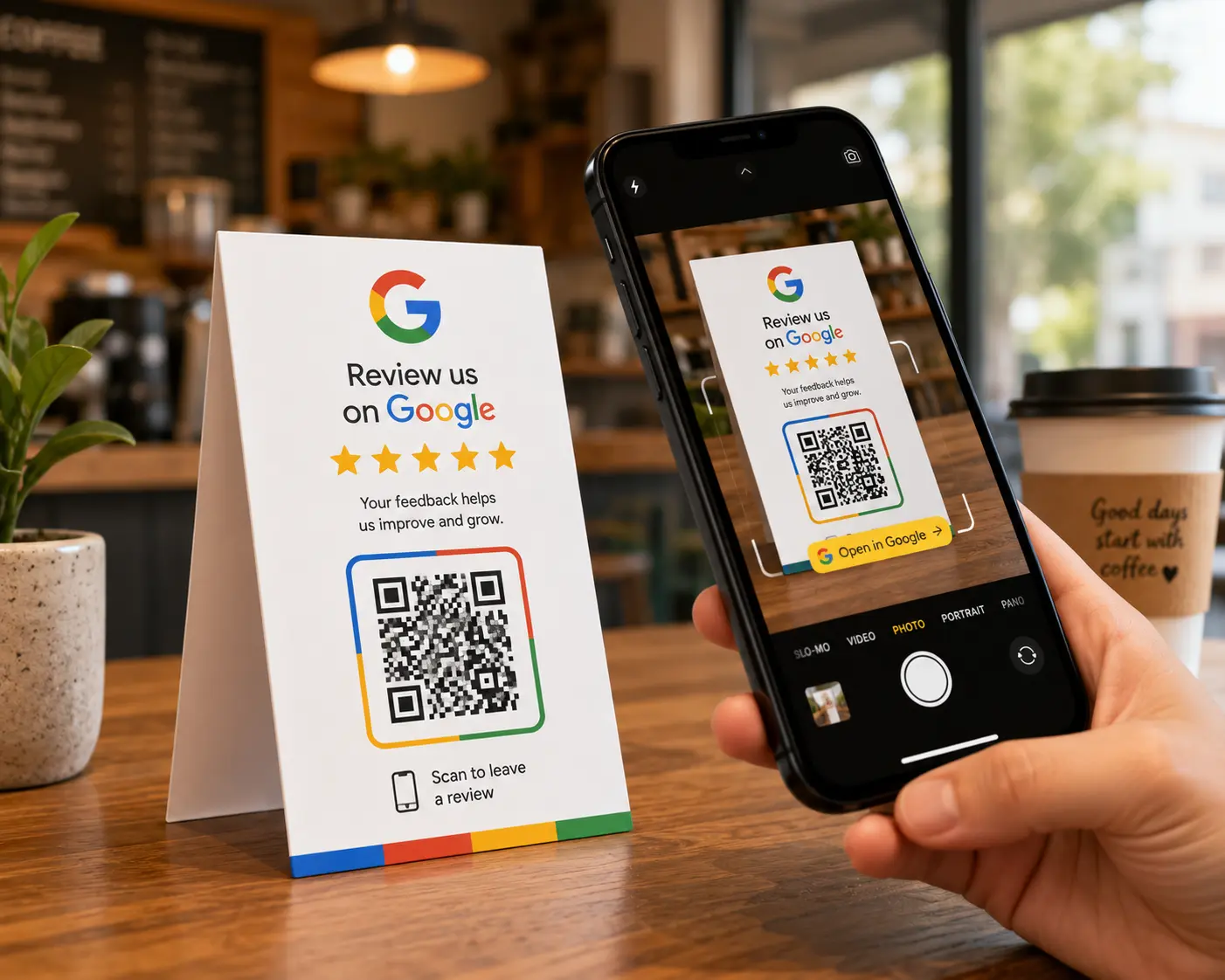
A review QR Code is one of the few codes where the destination matters more than the code, because pointing it at the wrong Google page loses most of the people who scan it. This guide covers getting the correct link, building the code, placing it where it actually works, and the Google policy that quietly makes a popular approach against the rules.
Start with the link, since that is where the majority of review codes go wrong.
Get the right link, not the profile page
There are two Google addresses people confuse, and only one of them works.
Your Google Business Profile page is where somebody reads about you. It shows your hours, photographs, address and existing reviews. Land a scanner there and they have to find the review button themselves, which a meaningful share of them will not.
The review link behaves differently. It opens the review form directly, with the star rating already on screen, so the person can rate and type immediately.
To find it, sign in to your Google Business Profile, open the business you want reviews for, and look for the option to ask for reviews. Google provides a short link intended for exactly this purpose. Copy that, not the address from your browser bar when viewing the profile.
Test that link before going any further. Open it in a private browser window on your phone and confirm the review form appears rather than a listing page. This one check prevents the most common and most expensive mistake in the whole process.
The Google policy that decides your wording
Before designing anything, this is worth knowing, because a widely recommended tactic is against Google’s rules.
Google’s prohibited and restricted content policy states that discouraging or prohibiting negative reviews, or selectively soliciting positive reviews, is not permitted. That rules out the approach where a code first asks how somebody felt, then sends happy customers to Google and unhappy ones to a private feedback form.
The practical version of this is simple enough. Ask everybody, using the same code and the same wording, regardless of how the visit went. That is both compliant and, over time, more credible, since a business with only five-star reviews reads as managed rather than as good.
Should the code be static or dynamic?
Either format works here, and the answer turns on a single question.
With a static code the review link sits inside the printed squares themselves, following the international standard for the format, which means no login, no billing and nothing to renew. Your review link rarely changes, which makes this genuinely viable, and it costs nothing anywhere.
A dynamic code stores a redirect instead, letting you repoint it later and telling you how many people scanned. That matters if you want to compare a counter code against a receipt code, or if you might move the destination to a different review site later.
For a single permanent counter code, static is defensible and free. For anything you want to measure, or anything where you might change the destination, dynamic is worth the small cost.
Building the code
Three tools worth considering for this specific job.
The QR Code Generator has a Google Review page that presets the field for you, labelling it Redirect to a Google Business review page and prompting for your Google Business profile or Maps address rather than leaving you to work out what to paste. Underneath it uses the generator’s Social type with Google Reviews selected, which produces an ordinary link code. That is exactly what a review code should be, since a Google review link is just a web address. Two dynamic codes are free for life and the company states they never expire, which suits a counter code that will sit in place for years. No scan cap is published on the free tier, so a busy counter cannot silence the code by exhausting an allowance. Unlimited static codes are also free if you would rather take the no-account route, and both PNG and SVG downloads are included. The free tier shows advertising ahead of the destination and watermarks downloads, both cleared at sixty dollars a year.
QR Code Prime suits a business with several locations, since it provides ten dynamic QR Codes free for life which never expire, with no ads, no interstitial redirect page and no credit card, alongside five hundred tracked scans a month. Static codes there are unlimited, carry no watermark on any tier and need no account at all, which makes it a quick route to a single unbranded counter code.
Hovercode is worth knowing if you want longer reporting, offering three free codes it states never expire alongside three months of scan history, which is longer than most free tiers provide.
Whichever you use, paste the review link, choose static or dynamic deliberately rather than accepting the default, and save.
Design and print
Keep the code plain and unfussy. Review codes sit on counters and receipts where trust matters, and a heavily styled code reads as less official than a simple one.
Should you add a logo, place it in the middle and keep it small, never letting it touch the three large corner squares that scanners read for orientation. Four error correction levels exist in the format according to DENSO WAVE, recovering anywhere from about seven to thirty percent of a damaged symbol, and a restrained logo stays well within that allowance.
Counter cards and receipts want PNG. Window signage and A-boards want SVG, since those get read from much further away.
Three centimetres square handles a counter card read at arm’s length. Window codes viewed from the pavement need to be considerably larger, and the working guide is roughly a tenth of however far away the reader stands.
Placement decides your response rate more than anything else
This is where review codes succeed or fail, and it has nothing to do with the technology.
Put the code wherever the good feeling actually is. That means the counter at the moment of paying, the table as the meal ends, the till receipt handed over with a thank you, or the invoice at the end of a job done well. Ask while the experience is fresh.
A code on a receipt read at home, three hours later, competes with everything else in that person’s evening and usually loses.
Pair the code with an actual person. A member of staff saying that reviews genuinely help, while gesturing at the card, outperforms a silent card by a wide margin. The code removes the friction and the person supplies the reason.
Write a short line of text beside it. Something plain, such as leave us a Google review, works better than scan here, because it tells somebody what they are agreeing to before they lift their phone.
Should each location have its own code?
For a multi-site business this is the question that determines how many codes you need, and the answer is usually yes.
Each location has its own Google Business Profile and therefore its own review link, so a single shared code cannot work anyway. That is a technical constraint rather than a choice.
Where the choice does arise is measurement. Ten locations with ten static codes costs nothing and tells you nothing. Ten dynamic codes costs a little and tells you which sites are actually asking, which is often the more useful management information, since review volume tends to correlate with whether staff at that site remember to mention it.
If you go dynamic across several sites, name each code clearly in the dashboard by location. A list of ten codes called Google Review is unusable six months later when somebody needs to check one.
Testing before you print a hundred of them
Take the printed card and scan it with an iPhone and with an Android handset, using each phone’s own camera rather than a downloaded scanning app.
Confirm the review form opens with the stars visible, not the profile listing.
Check what happens for somebody not signed in to a Google account, since that is a meaningful share of customers and they will be prompted to sign in before they can leave anything.
Switch off Wi-Fi and try again on mobile data, since that is the connection customers will actually be on.
One risk with counter codes specifically
According to a warning from the FBI’s Internet Crime Complaint Center, criminals have been placing their own stickers over genuine printed codes, diverting anyone who scans towards pages designed to steal login details. An unattended card on a counter or a sticker in a window fits that description precisely.
Scan your own review codes weekly and confirm they still land on your review form. It takes seconds and it is the only reliable check.
Common mistakes with Google review QR codes
Pointing at the business profile rather than the review form is the most frequent error, and it costs a large share of the people who scanned. Filtering customers by sentiment before showing them the code is the most serious one, since Google’s own policy prohibits discouraging negative reviews or selectively soliciting positive ones. Putting the code only on the receipt loses the moment the experience is still fresh. Printing it too small for the distance it is read from turns a working code into a broken one. Leaving out any explanatory text reduces scans sharply, because nobody scans a bare square. Finally, never checking the code again is how a business discovers months later that a link changed or a sticker was applied.
Frequently asked questions
How do I create a QR code for Google reviews?
Get the short review link from your Google Business Profile, which opens the review form directly rather than your listing. Paste that into a QR code generator, choose static or dynamic depending on whether you want to track scans, then download and test the printed version before producing more.
Where do I find my Google review link?
Inside your Google Business Profile, under the option to ask customers for reviews. Google provides a short link intended for that purpose. Do not use the address from your browser bar while viewing the profile, since that opens the listing page rather than the review form.
Can I make a Google review QR code for free?
Yes. A review link is an ordinary web address, so any generator can encode it. The QR Code Generator offers a Google Review page that presets the field for you and two dynamic codes it states never expire, QR Code Prime gives ten free for life, and static codes are unlimited and free on both.
Should a review QR code be static or dynamic?
Static is defensible, because a review link rarely changes and a static code costs nothing and cannot be withdrawn. Choose dynamic if you want to know how many people scanned, if you are comparing placements, or if you might point the code somewhere else later.
Can I only ask happy customers for reviews?
No, and this carries real risk. Google’s prohibited and restricted content policy states that discouraging or prohibiting negative reviews, and selectively soliciting positive reviews, are not permitted. Ask everybody with the same code and the same wording regardless of how the visit went.
Where should I put a review QR code?
Wherever the positive feeling is strongest, which usually means the counter at payment, the table as a meal finishes, or an invoice at the end of a completed job. A receipt read at home hours later performs considerably worse than the same code presented in person.
How many reviews should I expect from a QR code?
There is no reliable published benchmark, and any figure quoted without a named sample and method deserves scepticism. What is consistent is that a code paired with a member of staff asking outperforms an unattended card, and that placement at the moment of the experience beats placement afterwards.
Do customers need a Google account to leave a review?
Yes, they will be prompted to sign in before submitting anything, which is a genuine drop-off point outside your control. It is worth testing the flow while signed out on your own phone so you know exactly what a customer without an account experiences.






Comment