

Why Clean Backgrounds Matter
A strong photo can lose its impact if the background is cluttered or doesn’t fit a platform’s template. On Amazon or Etsy, messy visuals make shoppers scroll past; on Instagram, an unpolished shot blends into the feed. Many marketers and small business owners still spend hours tracing edges by hand or paying designers, only to end up with inconsistent results.
That’s exactly the problem Pokecut’s Remove Background tool was built to solve. Instead of wrestling with Photoshop, you drag-and-drop a photo and within seconds get a crisp transparent PNG ready for your store, ad or social post. And if you need to go beyond simple cut-outs—batch edits, branded backdrops, custom colours—Pokecut’s Background Remover takes you further.
This guide shows you how each tool works, when to use which, and how to turn cluttered, amateur-looking images into clean, professional visuals for any platform — no Photoshop, no waiting.
Remove Background vs. Background Remover — Which Should You Use?
Pokecut offers two ways to clean up images. Both rely on the same AI engine but tackle different problems. Knowing which one to click first saves time and produces more natural results:
| Tool | Best For |
|---|---|
| Remove Background | Quick, clean cut-out of a single image; download transparent PNG or white backdrop instantly. |
| Background Remover | Batch processing, branded backdrops and custom colours; perfect for dozens of product shots or consistent campaign creatives. |
Quick rule of thumb:
One image, instant cut-out → Remove Background.
Multiple images or branded backdrops → Background Remover.
This simple chooser helps you pick the right tool immediately instead of guessing and re-editing later.
Remove Background — One-Click Transparent PNGs
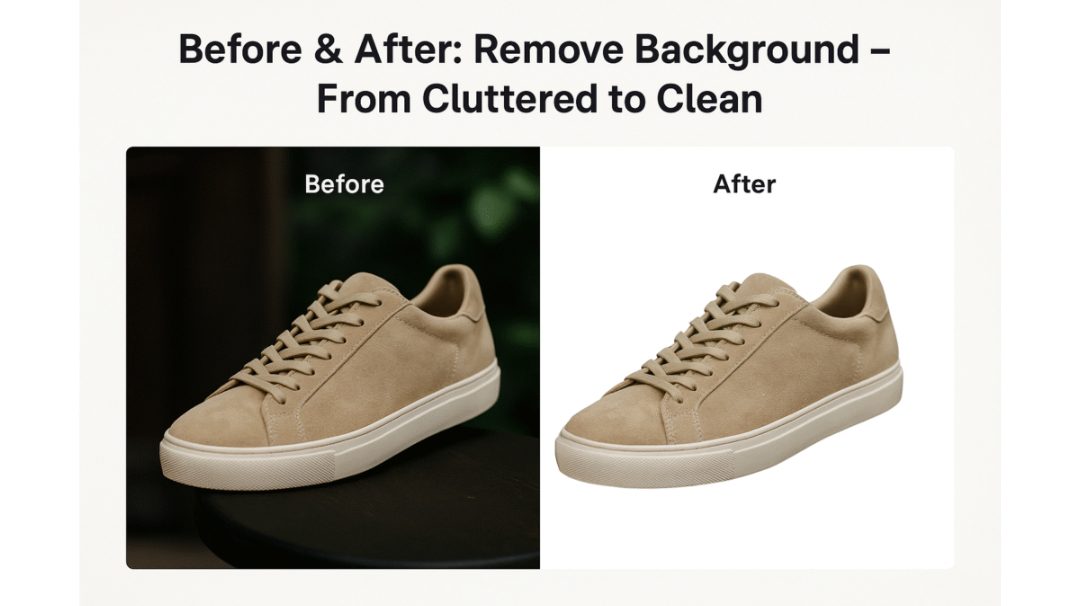
When you only need a fast, clean cut-out of a single photo, Pokecut’s Remove Background does the heavy lifting. Upload your image and within seconds the AI detects the subject, isolates it from the background, and gives you a transparent PNG or plain white backdrop — no manual tracing, no complicated menus.
It runs directly in your browser and supports common formats like JPG, PNG and WebP, so you don’t have to install anything or convert files first. This makes it ideal for:
- E-commerce sellers who need clean product photos that meet Amazon or Shopify requirements.
- Social media managers creating stickers, thumbnails or posts with text overlays.
- Small business owners wanting a professional look without hiring a designer.
A single click turns a cluttered photo into a clean one, freeing up hours of editing time so you can focus on marketing instead of masking.
Background Remover — Batch Processing & Custom Backgrounds
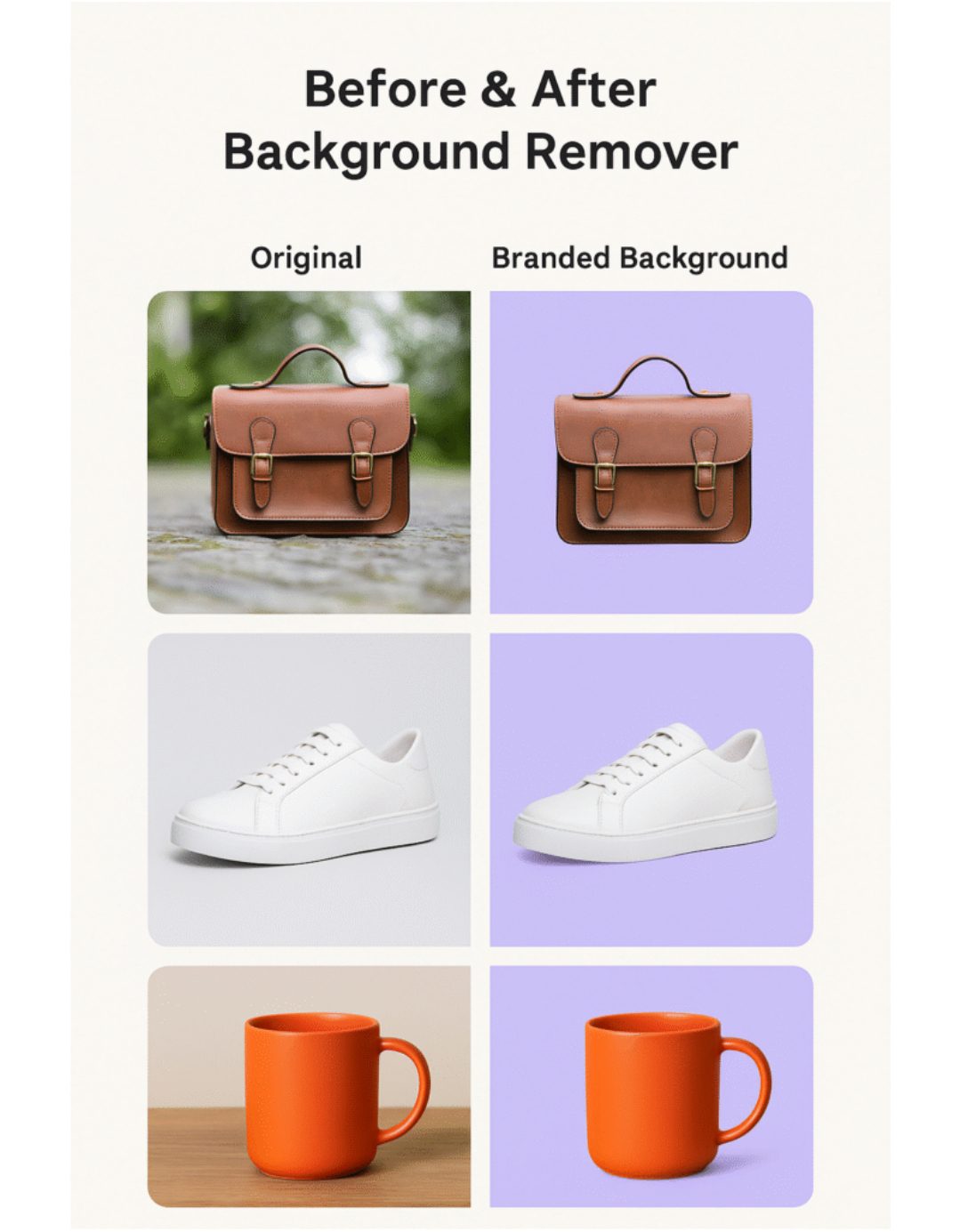
Sometimes you need more than a single cut-out. Maybe you’re preparing dozens of product shots for a new launch, or you want every image in your catalogue to have the same branded backdrop. That’s when Pokecut’s Background Remover becomes invaluable.
Instead of removing one background at a time, this tool lets you process images in batches and instantly apply new backgrounds — solid colours, gradients or even your own uploaded backdrop. In seconds you can:
- Upload a folder of product images and strip all their backgrounds at once.
- Replace the default transparent background with your brand colour or a seasonal campaign theme.
- Generate consistent ad creatives or social posts without re-shooting or hiring a designer.
Because it runs entirely in your browser and supports the same formats as Remove Background, you get speed and flexibility without extra software — agency-level results without agency costs.
Step-by-Step: Remove a Background Online
Once you know which tool fits your needs, the process is refreshingly simple. In just a few clicks you can turn a cluttered photo into a clean, platform-ready visual:
Step 1: Upload your image.
Open Pokecut in your browser and upload the photo you want to clean up. Tip: The higher the quality of the original, the more natural the AI’s output will be.
Step 2: Choose the right tool.
Select Remove Background for a quick cut-out of a single image. Choose Background Remover if you’re processing batches or want to swap in a branded background.
Step 3: Preview and adjust.
Pokecut processes your image in seconds and shows a before/after preview. Drag the frame to adjust the focus area and tweak any available settings until it looks right.
Step 4: Download your new image.
Click download to save your clean or customised photo as PNG (for transparency) or JPG (for smaller file size). It’s ready for social posts, product pages or presentations — no Photoshop required.
With this workflow you can adapt, restore and resize images in minutes, producing clean, natural-looking results without a steep learning curve.
Customise After Cutout — Replace, Brand & Export
Removing a background is just the starting point. Once the subject is isolated, you can instantly transform the look and feel of your image:
- Replace the backdrop with a plain white or coloured background for a clean, uniform style.
- Use your brand colours to create a consistent visual identity across ads, social posts and product pages.
- Upload a custom background — a seasonal theme, a lifestyle photo or a textured surface — to make your image stand out.
- Keep transparency for stickers, layered graphics or designs where you’ll add your own backdrop later.
Because Pokecut runs entirely in your browser, switching backgrounds takes seconds and doesn’t require downloading extra software. You can go from raw photo to campaign-ready creative without juggling multiple apps or freelancers.
Capabilities You Actually Get
It’s easy for background-removal tools to over-promise, so here’s what Pokecut actually delivers:
- Automatic subject detection: Finds people, products, logos and more without you tracing edges by hand.
- Transparent PNG export: Clean cut-outs ready to drop into ads, slides or e-commerce platforms.
- Multi-subject support: Works on photos with more than one object or person, not just simple product shots.
- Batch processing: Upload several images at once and remove or replace backgrounds in a single run.
- Browser-based: No installations or plug-ins; works on desktop or mobile with the same speed and quality.
- Consistent resolution: Maintains image sharpness so your cut-outs look professional across all channels.
These are real, visible capabilities — not marketing fluff — and they’re exactly what makes Remove Background and Background Remover a time-saver for people without a design team.
Real-World Scenarios – Who Benefits Most
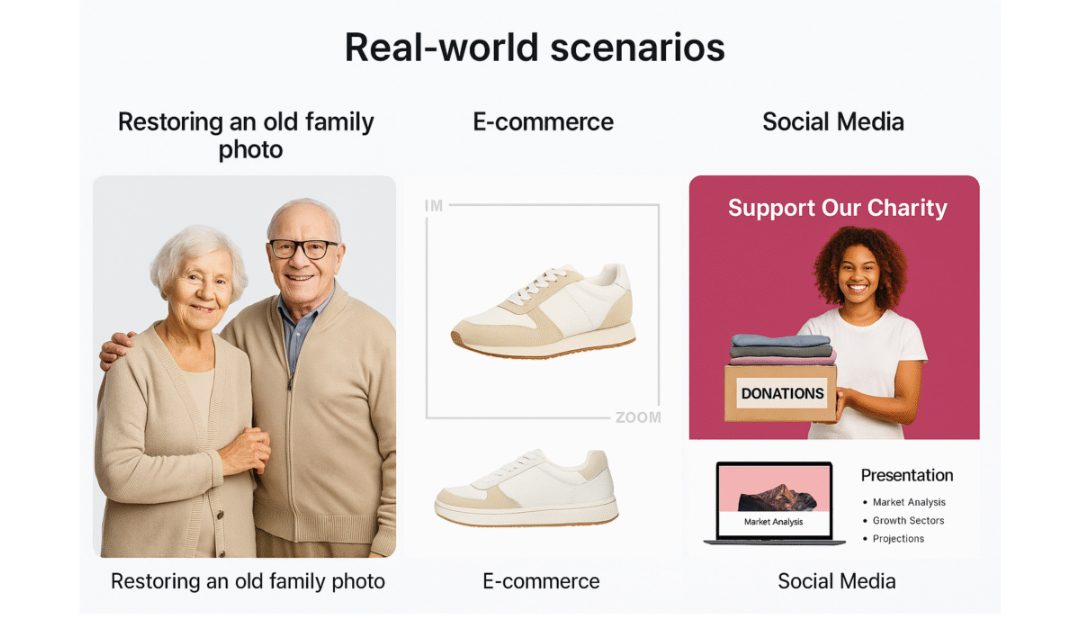
Here are some of the ways people are using these tools to save time and improve results:
- E-commerce sellers: Instantly create clean, transparent product photos that meet Amazon, Shopify or Etsy frame requirements without needing a reshoot.
- Social media managers: Turn messy photos into sticker-style visuals, thumbnails or posts with text overlays; swap backdrops to fit campaign themes.
- Designers and photographers: Quickly isolate subjects, apply custom backgrounds or batch-process a set of images for a consistent look across a portfolio.
- Marketing and presentation teams: Prepare slides, banners and campaign visuals with transparent backgrounds or branded colours to keep everything on-brand.
Instead of opening heavy software or hiring a retoucher, you get platform-ready images in minutes.
Quick Takeaway – Clean, Professional Images Made Simple
Cutting out or replacing a background no longer has to be a slow, frustrating task. With just a few clicks you can isolate a subject, strip away distractions, or drop it onto a branded backdrop that looks like it was shot that way in the first place.
If you need a quick cut-out of a single image, start with Remove Background. If you’re working with multiple images or want to add your own backgrounds, switch to Background Remover. Combine both steps when needed and you’ll have platform-ready, professional images in minutes — no Photoshop, no retakes.
Modern AI tools make it faster, cheaper and easier than ever to create eye-catching photos that build trust and engagement. Pick one of your cluttered or mis-sized images right now, run it through the right tool, and see how much better it looks.