
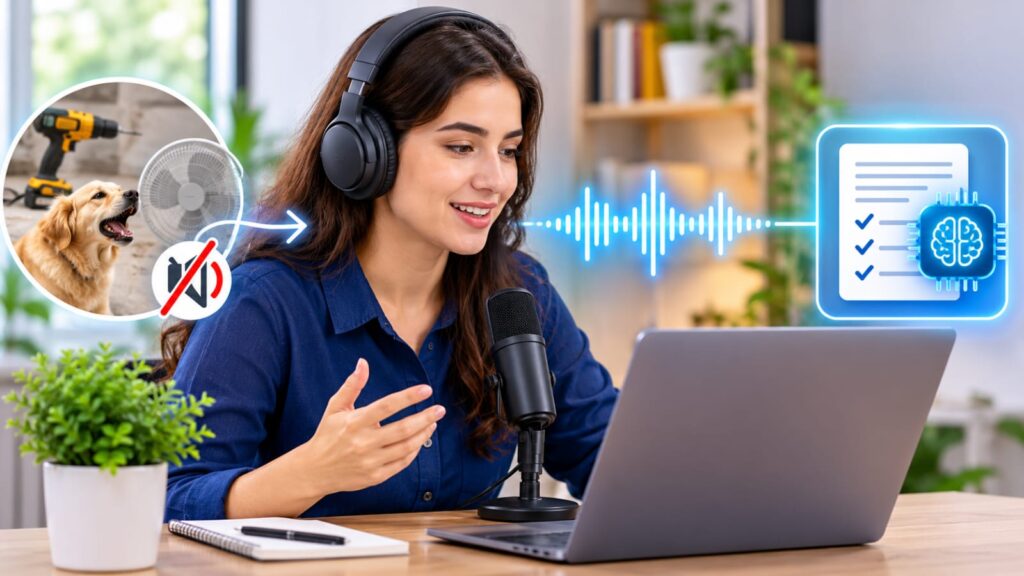
Your client is walking you through their budget. Then the neighbor starts drilling, the fan hums into your mic and you are typing so fast that you miss half of what they said. Background noise makes you sound less professional. Typing notes pulls your focus away from the person who pays you.
Most AI meeting assistants fix the notes part by sending a bot into the call. That bot appears in the participant list, and many clients do not like it. A better way is to clean your mic audio and record AI notes right on your own computer, so the call stays between you and your client.
Key Takeaways
- Fix the room and mic first. Small, cheap changes remove a lot of noise.
- Use built-in settings. Zoom, Microsoft Teams and Google Meet have noise suppression, but each one only works inside its own app.
- Add one system-level tool. An AI noise cancellation app that acts as your microphone cleans your voice in every call app at once.
- Skip the bot. Bot-free AI note takers capture audio from your device, so no extra participant joins the call.
- Still ask for consent. No bot does not mean no permission. Always tell the client you are taking AI notes.
Why Background Noise Hurts Client Calls
Clients judge you on how you sound as much as on what you say. A steady hum, keyboard clicks or a barking dog make you seem distracted. Noise also tires the listener, because their brain has to work harder to pick out your words.
Noise damages your records too. Speech-to-text tools struggle when voices mix with traffic or café chatter. Bad audio in means a messy meeting transcript and weak summaries out.
The most common noise sources on calls are:
- Typing and mouse clicks
- Fans, air conditioners and laptop cooling fans
- Traffic, construction and street sounds
- Pets, kids and household noise
- Café chatter and open-office conversations
- Echo from bare walls and laptop speakers
Quick Fixes Before You Join the Call
Start with the free and low-cost fixes. They make every software tool work better.
| Problem | Simple fix |
|---|---|
| Room echo | Sit in a room with curtains, a rug or a sofa. Soft surfaces absorb sound. |
| Laptop mic picks up everything | Use a USB headset or a dynamic microphone close to your mouth. |
| Speaker echo | Wear headphones so the client’s voice does not loop back into your mic. |
| Keyboard noise | Stop typing notes during the call. Mute when you are not speaking. |
| Fan or AC hum | Point the fan away from the mic or turn it down during the call. |
| Mic too far away | Keep the mic about a hand’s width from your mouth. |
A dynamic or cardioid microphone mostly picks up sound from the front. This helps a lot in a shared home or a small office. Run a quick audio test before every important client call.
Use the Noise Settings Inside Zoom, Teams and Google Meet
Most video call apps now include AI noise suppression. Turn it on before you rely on anything else.
Zoom Noise Suppression
Open the Zoom desktop app and go to Settings > Audio. Under Suppress background noise, choose Auto, Low, Medium or High. Auto is the default and adjusts itself. Medium handles fans and pen tapping, while High targets louder noise like typing and barking dogs.
Microsoft Teams Noise Suppression and Voice Isolation
In Teams, go to Settings and more > Settings > Devices and turn on Noise suppression. Teams also offers voice isolation. It uses a short voice profile so that only your voice gets through, even when other people talk nearby. The profile takes about 30 seconds to record.
Google Meet Noise Cancellation
During a Meet call, open More options > Settings > Audio and switch on Noise cancellation. This option depends on your Google account or Workspace plan, so it may not appear for everyone.
The Limit of Built-In Settings
Each app has its own switch, its own strength and its own quirks. Your Zoom settings do nothing for Slack huddles, WhatsApp desktop calls or Discord. If you meet clients on many platforms, your audio quality changes from one call to the next.
Use One AI Noise Cancellation App for Every Call
A system-level noise cancelling microphone app solves the one-app-at-a-time problem. It sits between your real microphone and your call apps. It cleans your voice first and then passes the clean audio to whatever app you use.
KleenMic works this way. Once installed, it adds a KleenMic Microphone input to your computer. You select it as your mic in any call app. Typing, fans, AC, traffic, barking and busy office sounds are removed before your client hears them.
Setup takes three steps:
- Install KleenMic and allow microphone access.
- Choose the real mic you speak into, such as your MacBook mic or a USB headset.
- Select KleenMic Microphone as the input in Zoom, Microsoft Teams, Google Meet, Slack, Webex, Discord, WhatsApp or Telegram.
You can pick Auto, Quality or Efficient mode to suit your computer. Studio Voice gives a fuller sound, and Echo control reduces speaker echo on Mac. The Test before you join check lets you hear yourself live through headphones, so you know what the client will hear.
Noise removal runs on your own computer. Your audio is never uploaded for processing, and the app lives in the menu bar where you can switch mics and check levels.
Why Meeting Bots Do Not Fit Client Calls
A meeting bot is an AI assistant that joins the call as a separate participant. It records the conversation and sends you a transcript later. It works, but it causes problems on client calls.
- It is visible. An unknown name in the participant list can make clients hold back or ask awkward questions.
- Some companies block it. Many corporate IT teams stop outside bots from joining their meetings.
- It cannot join every call. Bots do not work in WhatsApp calls, Slack huddles or in-person meetings.
- It needs planning. A quick unplanned call often goes unrecorded.
- Your data leaves your computer. Recordings usually sit on a vendor’s cloud server.
How Bot-Free AI Note Takers Work
A bot-free AI note taker records meeting audio straight from your device. It does not join the call, so nothing appears in the participant list. You still get a transcript, a summary and action items.
There are two main types. Some capture audio on your device and then upload it to the cloud for transcription. Others transcribe on your computer, so the audio never leaves it.
| Feature | Meeting bot | Bot-free (cloud) | Bot-free (on-device) |
|---|---|---|---|
| Shows in participant list | Yes | No | No |
| Works in any call app | Supported platforms only | Most desktop apps | Most desktop apps |
| Records unplanned calls | Must be invited | Yes | Yes |
| Audio uploaded to a server | Yes | Yes | No |
| Can be blocked by client IT | Often | No | No |
How to Take AI Notes Without a Meeting Bot
Follow these steps on your next client call:
- Pick a desktop note taker that records on your device. Look for transcripts, summaries and next steps in one place.
- Clean your mic audio first. A noise-free input gives the transcription engine clear speech to work with.
- Tell the client at the start. A short line works well: “I’m using an AI note taker on my computer so I can focus on you.”
- Start recording. Use one click, or let the app detect that the meeting has started.
- Jot only key points yourself. Let the AI capture the full conversation.
- Review the summary right after the call. Check names, numbers and deadlines before you share anything.
- Send a follow-up email with next steps. Do it while the call is still fresh.
KleenMic Pro adds AI notes on top of noise cancellation. It creates searchable transcripts, summaries and next steps after each call. It listens on your computer, so no bot joins, and it transcribes the language you speak.
On Mac, KleenMic Pro needs Apple silicon, macOS 26 or later and Apple Intelligence turned on. It is also available for 64-bit Windows 10 and 11.
Clean Audio Means Better AI Notes
Noise cancellation and AI meeting notes work best as a pair. Transcription engines mishear words when speech mixes with background sound. A clean signal means fewer wrong names, missed numbers and broken sentences in your notes.
The client benefits too. They hear you clearly, and you get an accurate record without typing during the call.
Consent and Privacy Still Matter
No bot in the call does not remove your duty to ask. Recording rules depend on where each person on the call is located.
In the US, states such as California, Florida, Illinois, Maryland, Massachusetts, Montana, New Hampshire, Pennsylvania and Washington require consent from everyone on the call. Regions like the EU also have data rules under GDPR. This is general information, not legal advice, so check the rules for your clients.
The safe habit is simple. Tell everyone you are taking AI notes and get their agreement. Keeping transcripts and notes on your own computer also means fewer systems can access client details.
Client Call Checklist
| Stage | What to do |
|---|---|
| Before the call | Close noisy windows and apps. Put on headphones. Select your noise-cancelled mic and run a quick test. |
| At the start | Greet the client and mention the AI notes. Start recording. |
| During the call | Mute when you are not speaking. Listen fully and jot only key points. |
| After the call | Review the AI summary and fix any errors. Send next steps to the client. |
Frequently Asked Questions
How do I reduce background noise on calls without buying new gear?
Turn on noise suppression in your call app, wear any pair of headphones and sit in a room with soft surfaces. A noise cancelling microphone app adds a stronger layer on top.
Can I take AI meeting notes without a bot joining Zoom or Google Meet?
Yes. A bot-free AI note taker records audio from your own computer, so no participant is added. It also works in calls that bots cannot join, such as Slack huddles and WhatsApp calls.
Does noise cancellation work in every call app?
Built-in noise suppression only works inside the app that offers it. A system-level app like KleenMic works in every app that uses your mic, because you select it as your microphone.
Is it legal to use an AI note taker on client calls?
It depends on where you and your client are. Some places need everyone’s consent. Always tell the client and get their agreement first.
Will noise cancellation make my voice sound robotic?
Very strong filters can thin out a voice. Pick a quality mode if your computer can handle it and test before the call. KleenMic’s Test before you join check lets you hear the result live.
Do bot-free note takers store my audio in the cloud?
Some do and some do not. Check whether transcription runs on your device. KleenMic runs noise removal and transcription on your computer and keeps your notes there.
Sound Clear and Stay Focused on the Client
Clear audio and good notes are two of the easiest ways to look professional on client calls. Fix your room and mic, use the noise settings you already have and add one tool that cleans your voice in every app. Then let a bot-free note taker capture the conversation on your computer.
KleenMic does both jobs in one app. Every feature is free to try for 72 hours with no account or card needed, so you can test it on your next client call.
Previously in Digital Marketing: Why Changing Your Christmas Wrapping Paper Every Year Costs Brand Recognition