
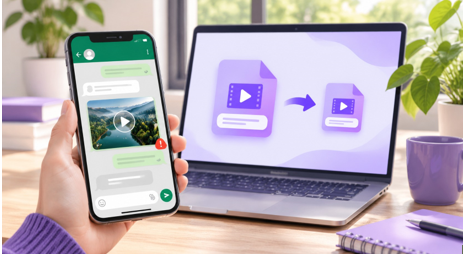
Have you tried sending a video on WhatsApp only to find it is too large? High-resolution recordings and longer clips can quickly exceed the limit. Rather than trimming the footage or accepting a blurry result, compress a copy and choose how much detail to keep. This guide explains how to set a suitable target and use UniConverter to prepare a clip for sharing.
Why Is Your Video Too Large to Send on WhatsApp?
Resolution, duration, frame rate, bitrate, codec, and audio settings all affect video size. Knowing which factors matter helps you choose a target without changing every setting at once.
Video Resolution and Duration
Higher resolutions such as 1080p and 4K store more image detail, while longer clips contain more frames. Both increase file size. For a quick chat update, the original resolution may be unnecessary.
Bitrate and Video Encoding
Bitrate controls how much data is stored each second. Higher bitrates can preserve more detail but create larger files. Codec and encoder efficiency also matter, and repeated re-encoding can reduce quality.
WhatsApp handles chat videos and document attachments differently, and its limits can change. Check the current limit in the app before compressing. If inline playback is not important, sending the original as a document may be a better option.
How to Choose the Right File Size Before Compressing
Check the limit for your sharing method first. Then choose a target that leaves enough room for the video to remain clear.
Check the File Size Limit for Your Sharing Method
For in-chat playback, keep the compressed file below the media limit shown in WhatsApp. If the recipient needs the original, consider sending it as a document instead of compressing it.
Leave Room for a Quality-Friendly Compression Setting
Do not aim for the absolute limit. Leave some headroom and choose the largest file size that meets your needs. A very low target can make faces, text, and fast movement look soft.
Choose the Right Compression Settings with UniConverter
For more control, UniConverter lets you set a compression goal before processing. Its desktop Compressor offers detailed settings, while the online tool is convenient for a quick, single-file job. Explore UniConverter for the desktop toolkit, or open the WhatsApp video compressor page to use the online option and learn more about the feature.
Size Ratio: Adjust the Compression Percentage
Choose Size Ratio to reduce the file by a percentage. Move the slider and check the estimated output size. Treat the estimate as a guide; the final size depends on the source video and encoding choices.
Max. File Size: Set an Output Ceiling
Choose Max. File Size when you have an upload or sharing ceiling. Set the maximum size in MB for each file. The output will stay at or below that limit, but it may be smaller.
Quality Level: Balance Clarity and File Size
Choose Quality Level when clarity matters more than hitting an exact size. Move the slider toward High Quality to retain more detail, or lower it when size matters more. The final size varies with the content, so adjust gradually and use Preview.
Fast Mode uses one-pass encoding for quicker processing and supports more formats and codecs. Precise Mode uses two-pass encoding and automatic codec switching for tighter size control. AI Detail Preservation can help retain important details, but it works only with H.264 and CPU acceleration and may take longer. It is not lossless.
Under Output Settings, choose a format such as MP4, AVI, MKV, WMV, MOV, M4V, or 3GP. Open Advanced Settings only if you need to change the video or audio encoder, resolution, frame rate, channel, or sample rate. Otherwise, keep the source settings.
How to Compress a Video for WhatsApp with UniConverter
Use the online compressor for a quick, single-video task. It currently accepts uploads up to 50 MB. If your source is larger, or you need batch processing and more detailed controls, use the desktop Compressor instead. The two versions follow different workflows.
A Quick Online Option for a Single Video
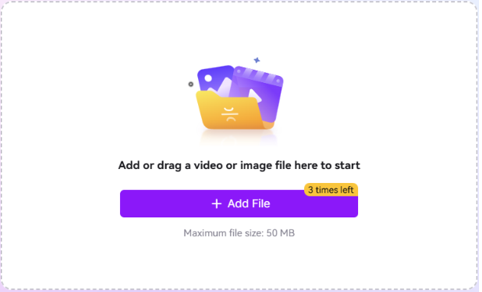
On the WhatsApp compressor page, click Add File and select a video no larger than 50 MB. After it uploads, choose a compression percentage and start processing. When the compressed copy is ready, check its size and click Download.
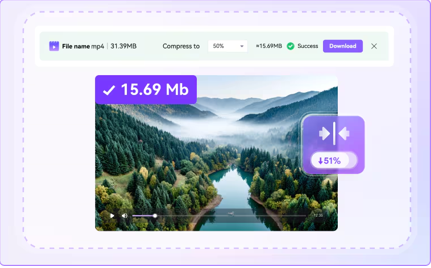
In the online example, a 31.39 MB video is reduced to about 15.69 MB with a 50% setting. Your result may differ because compression depends on the source video and selected settings.
Desktop Workflow: More Control Over the Result
Step 1. Open Compressor and Add Your Video
Open Compressor from the UniConverter Home screen or left navigation. Click Add Files to import a clip, choose Add Folder for several videos, or drag files into the workspace. Keep the original for comparison.
Step 2. Set Your Target File Size
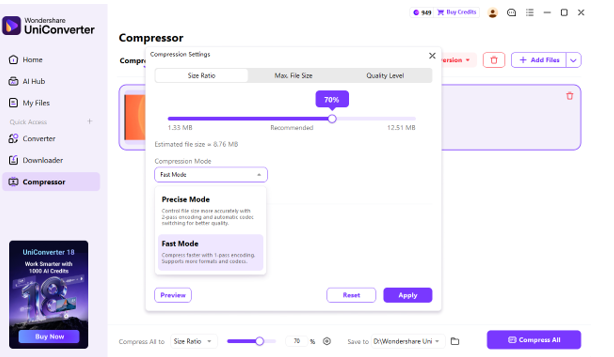
Open Compression Settings and choose Max. File Size for an upper limit in MB, Size Ratio for a percentage reduction, or Quality Level when clarity is the priority. For WhatsApp, leave some room below the current media limit.
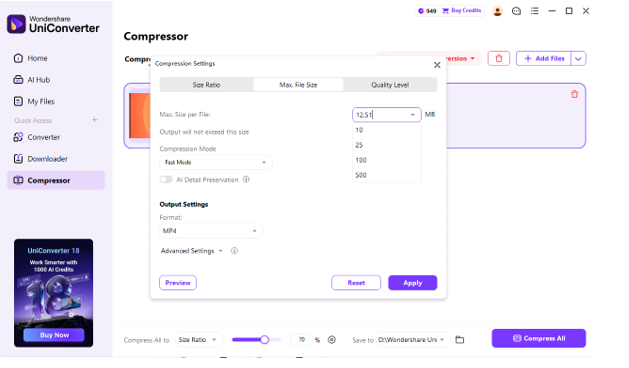
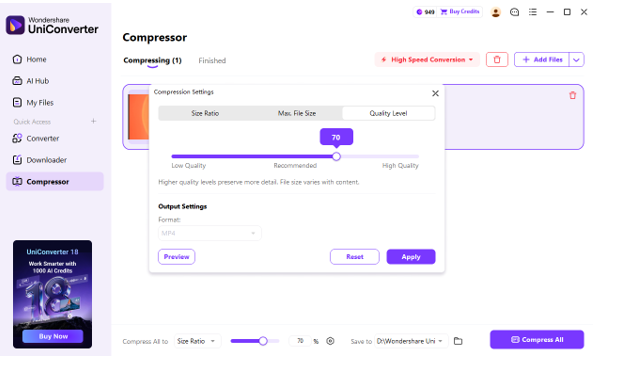
Step 3. Choose a Compression Mode and Adjust Settings
Choose Fast Mode when speed matters, or Precise Mode for tighter file-size control. Enable AI Detail Preservation only when the source supports H.264 with CPU acceleration. Under Output Settings, choose a format; use Advanced Settings only when you need to change video or audio parameters.
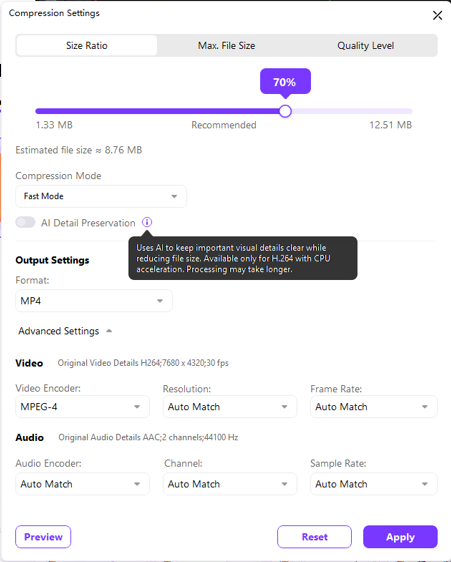
Step 4. Preview and Compress Your Video
Click Preview to check the result. If it looks clear enough, click Apply, choose a save location, and select Compress All. A progress bar shows the task status and estimated time remaining. When processing finishes, open Finished or the output folder and play the file before sharing it.
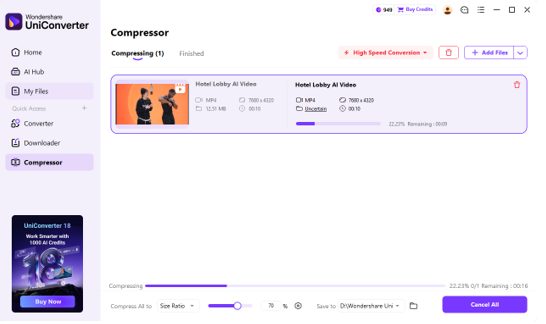
Tips for Keeping Your Video Clear After Compression
- Start with the original file. Avoid compressing an already compressed copy when the source is available.
- Do not chase the smallest size. A slightly larger file can keep faces, text, and movement clearer.
- Preview the details that matter. Check subtitles, small text, faces, and fast motion before sending.
- Change advanced settings only when needed. Keep resolution and frame rate unless a sharing or compatibility requirement calls for a change.
- Use document sharing for the original. If inline playback is not required and the file fits WhatsApp’s document limit, compression may not be necessary.
Conclusion
Check how you plan to share the clip, set a realistic target, and preview the result. UniConverter gives you flexible controls to reduce file size while keeping as much useful detail as possible.
FAQs About Compressing Videos for WhatsApp
Why can’t I upload my video to the online compressor?
The online compressor currently accepts uploads up to 50 MB. If your source is larger, use the desktop Compressor instead. For a file within the limit, check your connection and make sure the upload has finished before trying again.
Why is my video still too large after compression?
The target may still be above WhatsApp’s current media limit, or the Quality Level may be too high for the size you need. Check whether you are sending a video or a document, then lower Max. File Size or adjust Size Ratio. Leave a margin below the limit.
Why does my compressed video look blurry?
The target may be too small, the Quality Level too low, or the source already compressed. Allow a larger output file, move Quality Level toward High Quality, and use Preview to check faces, text, and movement. AI Detail Preservation may help on supported H.264 files with CPU acceleration, but cannot restore detail missing from the source.
Why doesn’t the output match the size I entered?
Max. File Size is an upper limit, not an exact-size command, so the finished file may be smaller. Size Ratio estimates are also guides. The result depends on the source video and encoding settings.
Why is AI Detail Preservation unavailable?
AI Detail Preservation works only with H.264 and CPU acceleration. If the source or processing setup does not meet those conditions, the option may be unavailable. You can still adjust Quality Level or choose a less aggressive target.
Can I compress multiple videos at once?
Yes. In the desktop Compressor, use Add Files or Add Folder, choose your compression settings, and click Compress All. Each clip may finish at a different size because video content varies
Read More From Techbullion
Previously in Business news: FC 27 Ultimate Team: How to Make Progress When You Have Limited Time