
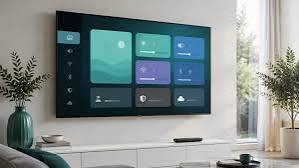
More households now watch live TV through an app instead of a cable box. The question most people get stuck on is not which service to pick, but which screen to run it on. Should you install the app directly on your smart TV, or plug in an Android TV device? The answer depends on your TV’s age, its operating system and how much control you want over playback.
This guide compares the two options and gives a simple checklist for a setup that streams smoothly from day one.
Why the device matters as much as the internet plan
A fast connection does not guarantee smooth playback. The device decoding the stream has to keep up too. Budget TVs often ship with slow processors and as little as 1 to 1.5 GB of RAM, shared with the TV’s own menus and background services.
When that memory fills up, the app stutters, channel switching slows down and 4K streams drop to a lower quality. A separate streaming device with its own processor avoids most of these problems. That is why many viewers keep their TV for the picture and let a small box do the work.
Option 1: Android TV and Google TV devices
Android TV is the most flexible platform for IPTV. Devices such as the Nvidia Shield, Chromecast with Google TV and many Android boxes give access to the Google Play Store, where most popular IPTV players are available. These include TiviMate, IPTV Smarters Pro and XCIPTV.
The main advantages are:
- Choice of players. You can switch apps if one does not suit you, without changing hardware.
- Better codec support. Recent devices decode HEVC (H.265), and some support AV1, which keeps 4K streams efficient.
- Regular updates. Google and device makers push security and app updates more often than many TV brands.
- Ethernet options. Many boxes have an Ethernet port, or accept a cheap USB adapter.
Setup usually takes under ten minutes. You install a player, choose Xtream Codes login or paste an M3U playlist link, and let the app load the channel list and programme guide. For a step-by-step walkthrough, this guide to setting up Eagle IPTV on Android TV covers the process from installing the player to loading the first channel.
Option 2: Apps installed directly on a smart TV
If your TV is a recent Samsung (Tizen) or LG (webOS) model, you may not need an extra device at all. Both app stores offer compatible IPTV players, such as IBO Player, SmartOne IPTV and, in some regions, IPTV Smarters.
This route has clear benefits: one remote, no extra cables and no extra device to buy. It also has limits worth knowing:
- Fewer apps. Tizen and webOS stores carry far fewer players than Google Play.
- Activation fees. Some smart TV players charge a small one-time fee, separate from your TV subscription.
- Device ID activation. Many players show a device ID and key on first launch. You then upload your playlist on the player’s website instead of typing it on the TV.
- Older models struggle. TVs more than four or five years old may not get app updates at all.
If you have a Samsung TV and want to try this route first, a clear setup guide for Samsung smart TVs explains which apps to install and how device-ID activation works.
Quick comparison
| Android TV device | Smart TV app | |
| Extra hardware | Yes, from about $30 | No |
| Choice of IPTV players | Wide | Limited |
| 4K and HEVC performance | Strong on recent devices | Depends on TV model |
| Ethernet | Common | Built into most TVs |
| Best for | Heavy use, 4K, older TVs | Recent TVs, simple setups |
A five-step checklist for smooth playback
Whichever option you choose, these steps solve most streaming problems before they start:
- Test speed on the viewing device, not the router. Run a speed test inside the TV or box. Plan for about 25 Mbps per 4K stream.
- Use Ethernet or 5 GHz Wi-Fi. The 2.4 GHz band is slower and more crowded, especially in apartments.
- Keep the player updated, and clear its cache. Many “channel not loading” errors disappear after a cache clear.
- Set a buffer size if the app allows it. A medium buffer smooths out short drops in the connection.
- Test before you commit. Check picture quality, channel switching and the programme guide on your own TV and network first.
That last step matters most. Every home network and TV behaves differently, so a short test tells you more than any review. Many providers let you check compatibility first; Eagle IPTV, for example, offers a free trial on request so you can confirm your device and connection work before subscribing.
Which should you choose?
If your TV is less than three years old and you mainly watch HD, start with a smart TV app. It is the simplest setup and costs nothing extra.
If your TV is older, you watch a lot of 4K, or you want the widest choice of players, an Android TV device is the better long-term choice. It also moves with you if you change TVs later.
Either way, a wired or 5 GHz connection, an updated player and a quick test on your own screen will do more for picture quality than any single setting.