
Converting a PDF to a Word document sounds like a one-click task. Although it usually is, the result depends heavily on which tool handles it. Some preserve fonts, tables, and spacing almost perfectly. Others flatten the page into an image that happens to open in Word, with nothing underneath that can actually be edited.
This guide covers ten ways to get a free pdf to word conversion without sacrificing the formatting that made the original document worth converting in the first place. Each one works a little differently, so the right choice depends on the kind of file being converted and the device it needs to happen on.
How To Tell If A Converter Actually Preserves Quality
A good conversion keeps text selectable, tables intact, and page layout close to the original. A poor one often looks fine at first glance but turns out to be a flattened image once you try to click into it. This is why checking a tool’s approach to OCR and layout reconstruction matters more than how fast it claims to be. A scanned document is the clearest test case: without OCR, the converter has no actual text to work with, only a picture shaped like one.
- PDF to Word Free
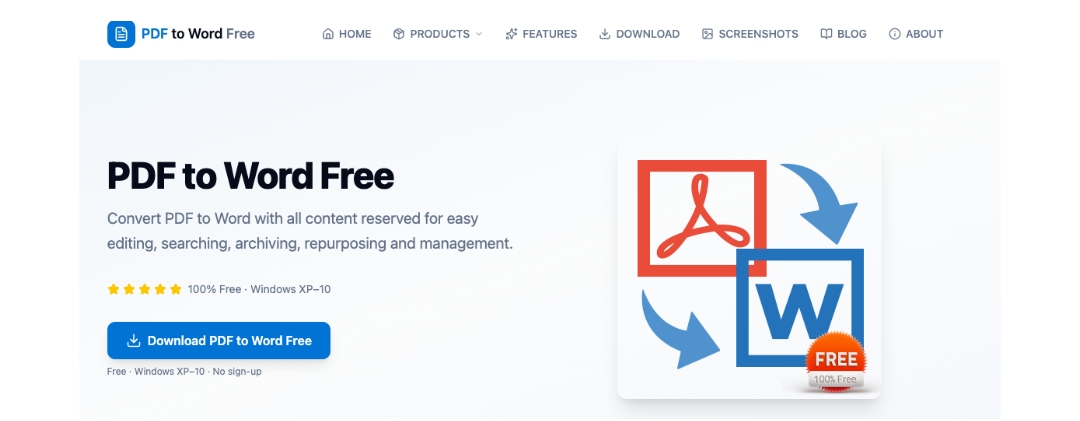
PDF to Word Free takes a different approach from most tools on this list: it’s a desktop application rather than a browser upload. Files are processed locally, with three rendering modes available, an exact replica of the original layout, a version that mimics manually typed text, or a hybrid of the two, and batch conversion handling up to 500 pages per minute. Pages can also be selected individually rather than converting an entire document.
Key features: offline desktop processing, three rendering modes, batch conversion up to 500 pages/minute, selective page-range conversion, no registration.
Price: Completely free, no OCR included.
- PDFCap
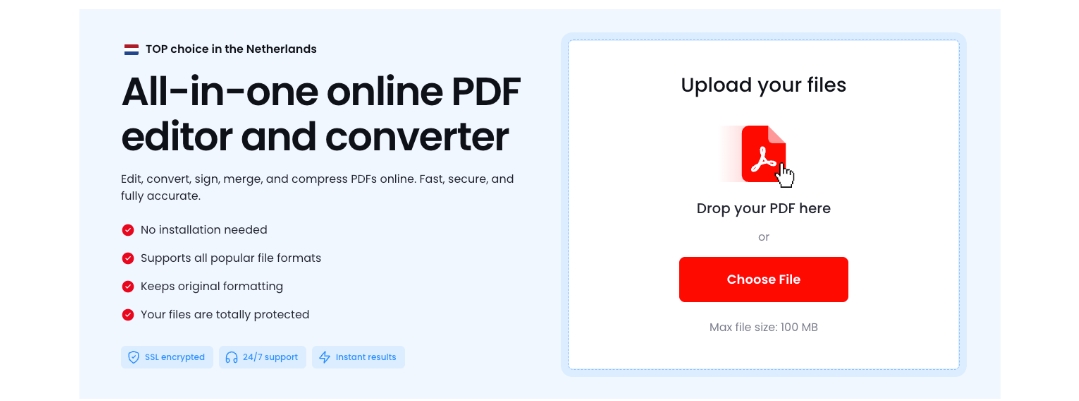
PDFCap runs in the browser rather than on the desktop, edits text directly, and includes OCR recognizing more than 95 languages at a claimed 99.8% accuracy. The service states it meets GDPR and PCI DSS requirements, which matters for anyone converting contracts or client paperwork rather than a public document.
Key features: direct text editing, OCR, page management, browser-based on any device.
Price: Free to start, with paid plans for extended use.
- PDFgear
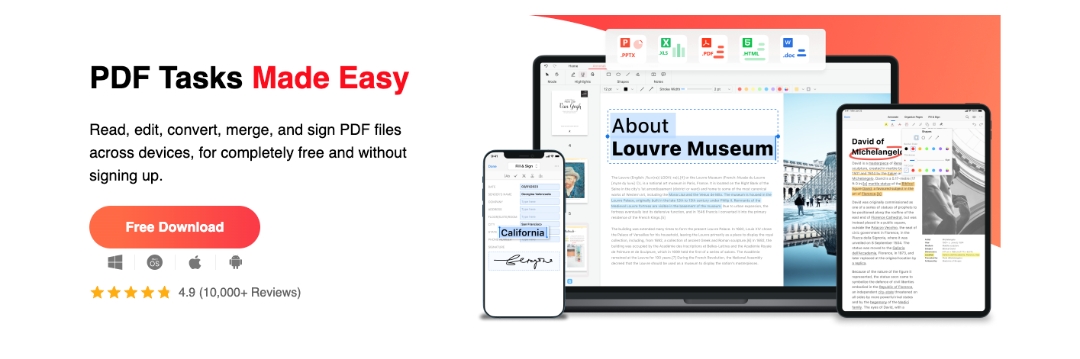
PDFgear includes OCR at no cost rather than reserving it for a paid tier, and it works both as a browser tool and an offline desktop app. Files up to 100MB are supported without creating an account.
Key features: free OCR, browser and offline app, no account required.
Price: Completely free.
- PDF24
PDF24 is entirely ad-supported rather than subscription-based, with no registration and no time restrictions on use. It also exposes adjustable settings for DPI and image quality that most competitors hide from the user entirely.
Key features: adjustable conversion settings, no installation, SSL-secured transfer.
Price: Completely free.
- Adobe Acrobat
Acrobat reconstructs multi-column layouts, tables, and footnotes rather than approximating them, which is useful for documents where the structure matters as much as the words. However, full conversion sits behind a daily limit on the free tier.
Key features: layout reconstruction, OCR, cross-platform.
Price: Free with daily limits, paid subscription for unlimited use.
- Smallpdf
Smallpdf lets a single file convert without creating an account, producing a standard DOCX that opens cleanly in Word or Google Docs. Once your file is ready, OCR is available but reserved for the paid tier.
Key features: no login for one file, cross-platform, automatic file deletion.
Price: Free for limited use, paid Pro plan adds OCR and unlimited conversions.
- iLovePDF
iLovePDF runs on Solid Documents conversion technology and offers OCR in 14 languages for scanned files. Here are a few recommendations worth noting: files can be pulled directly from Google Drive or Dropbox instead of only a local device.
Key features: multi-language OCR, cloud upload, high-accuracy engine.
Price: Free basic conversion, premium plan available.
- Sejda
Sejda offers a dedicated “Keep Layout” mode built specifically to preserve the original structure during conversion. Although its free tier is tighter than most competitors, the layout accuracy is a real trade-off worth considering.
Key features: “Keep Layout” and legibility modes, handles password-protected files.
Price: Free (3 tasks/hour, 50MB, 50 pages/file), paid plans for higher limits.
- PDF Candy
PDF Candy applies OCR automatically and processes multiple files in one batch rather than one at a time.
Key features: automatic OCR, batch conversion, cloud storage integration.
Price: $6/month, $4/month billed yearly, or $99 one-time lifetime plan.
- CloudConvert
CloudConvert handles PDF to Word as part of a much wider format-conversion system, which shows in how carefully it treats tables and layout across formats beyond just these two.
Key features: layout and table preservation, broad format support, API access.
Price: Freemium, credit-based.
How These Ten Compare
| Tool | Processing | OCR Included Free | Price |
|---|---|---|---|
| PDF to Word Free | Offline desktop | No | Free |
| PDFCap | Browser, any device | Yes | Free to start, paid plans |
| PDFgear | Browser and desktop | Yes | Free |
| PDF24 | Browser | No OCR offered | Free |
| Adobe Acrobat | Browser | Yes | Free with limits, paid plan |
| Smallpdf | Browser | No, paid only | Free limited, paid Pro |
| iLovePDF | Browser | Yes | Free basic, premium available |
| Sejda | Browser | Not supported | Free with caps, paid plans |
| PDF Candy | Browser | Yes | $6/mo, $4/mo yearly, $99 lifetime |
| CloudConvert | Browser | Varies | Freemium, credit-based |
Which One To Pick
PDF to Word Free stands out for anyone who would rather not upload a document to a server in the first place. Processing happens entirely on the device, batch conversion handles large volumes quickly, and there’s no registration at any point. The trade-off is no OCR, so it’s built for native digital files rather than scans.
PDFCap is the strongest second option for the opposite case. When a file needs OCR, works across devices, or has to meet a stated compliance standard like GDPR, its browser-based editor and high-accuracy text recognition cover ground that a purely offline tool doesn’t attempt.
The other eight tools still have their place. Sejda’s layout preservation suits a document where structure is critical. Adobe Acrobat handles the most complex layouts. CloudConvert fits a workflow that needs more than just PDF and Word, and PDF Candy’s flat monthly pricing suits anyone converting files often enough that per-file limits would become a nuisance.
Frequently Asked Questions
Is free PDF to Word conversion actually safe?
Yes, for a reputable tool with a stated privacy policy. Most of the browser-based services on this list state that files are encrypted during upload and deleted from their servers within a set time. A tool like PDF to Word Free avoids the question entirely, since the file never leaves the device.
Will a free tool always preserve formatting as well as a paid one?
Not always. Several free tools on this list, including PDF to Word Free, PDFgear, and PDF24, preserve formatting as well as paid competitors. Others reserve features like OCR or layout preservation for a paid tier, so the free version alone may not be enough for a scanned or heavily formatted document.
Do these tools require installing any software?
Most don’t. PDF to Word Free is the exception, running as a desktop application rather than in a browser, which matters for anyone converting large batches offline. PDFgear also offers an optional offline app alongside its browser version.
What should I check before trusting a conversion?
Open the result and confirm the text is still selectable rather than part of a flattened image, and check that tables and columns match the original layout. A conversion that looks right at a glance can still have lost its underlying structure.