
Students and researchers sometimes need to access online resources for coursework or projects, but school network restrictions can block certain websites or services based on their IP address. This can limit your ability to reach essential educational materials, research databases, or even global news sites. When facing these restrictions, you might consider using an IP proxy service to route your connection differently.
However, choosing a dependable proxy for school can be confusing. With many options available, it’s crucial to understand which services offer security, consistent performance, and compatibility with school devices like Chromebooks. Not all proxies for school needs are the same, and factors like anonymity, speed, and ease of use matter significantly. This guide explains key considerations and reviews the best proxies for school, such as IPcook and SOAX, to help you make an informed choice for your specific requirements. Dive in for more info!
Common Reasons Schools Block IP Addresses and Certain Content
Schools implement IP blocking and content restrictions to maintain network security, comply with legal requirements, and ensure academic focus. Common reasons include:
- Network Security Threats: Suspicious activities, such as port scanning, malware distribution, or brute-force attacks, trigger automated IP blocks to prevent external threats from compromising campus infrastructure. Infected devices (e.g., those spreading ransomware) are often isolated to protect broader network integrity.
- Legal Compliance: Laws like the Children’s Internet Protection Act (CIPA) require schools to filter inappropriate content, including adult material and violent sites. GDPR and regional policies further mandate restrictions on platforms violating student privacy or age-appropriate access rules.
- Resource Protection: Academic databases like journals and research tools enforce download limits to prevent data scraping. Violations result in IP bans that disrupt campus-wide access to licensed resources.
- Bandwidth Management: Schools prioritize educational traffic by throttling high-bandwidth activities, such as streaming, gaming, etc. Some physically disconnect external networks during peak hours to conserve resources.
- Academic Focus Policies: Social media, entertainment, or gaming sites are blocked to minimize distractions. Device restrictions, like phone bans during classes, reinforce these policies.
1. IPcook
User Rating: 4.8
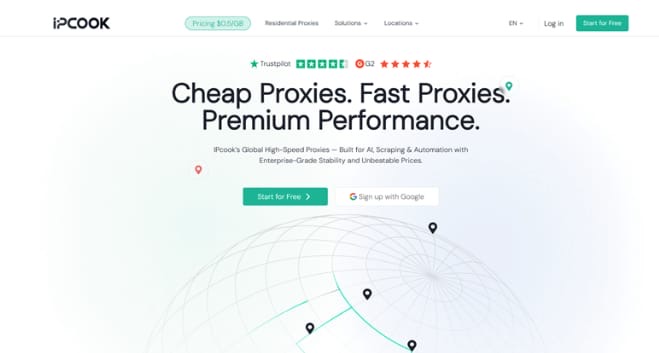
IPcook provides reliable proxies for schools designed for diverse online access needs, including educational environments. Its core offering includes a global pool of over 55 million IP addresses across 185+ regions, sourced exclusively from real residential networks to ensure high legitimacy and low blockage rates. It supports academic use cases, such as elite anonymity (verified by tools like Whoer.net), GDPR/CIPA compliance for student data protection, and flexible IP rotation policies to bypass school firewalls.
IPcook’s unblocked proxies for school emphasize compatibility with Chromebooks and other campus devices through HTTP/HTTPS/SOCKS5 protocol support. Its high-speed infrastructure (average response <0.5 seconds) and support for up to 100,000 concurrent threads enable smooth access to academic resources like research databases or video lectures. The residential proxy service also includes additional tools like real-time traffic monitoring and 10 free sub-accounts for team collaboration.
Pros:
- Massive global IP pool – 55M+ residential IPs across 185+ locations.
- Elite anonymity & compliance – Zero header leaks, GDPR/CIPA-certified.
- High-speed performance – <0.5s response time, 100k concurrent threads.
- Flexible Sticky Sessions – Session persistence from 1 minute to 24 hours.
Cons:
- Limited pricing – Only pay-as-you-go plans available for now.
- Lack of browser integration – Chrome extension still under development.
2. Oxylabs
User Rating: 4.7
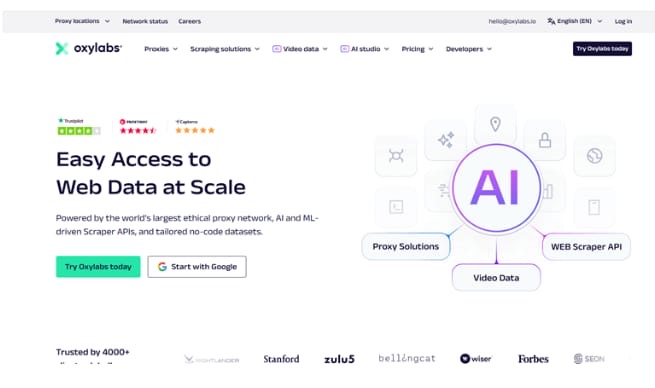
As one of the best proxy websites for school, Oxylabs offers professional-level proxy solutions, including residential, datacenter, and ISP IPs, designed for large-scale data collection. Its network spans 195+ countries with over 177 million IPs, providing extensive geographic coverage to bypass regional restrictions. Key features include HTTP/HTTPS/SOCKS5 protocol support, customizable IP rotation, and sticky sessions tailored for high-demand tasks like academic research or accessing global educational resources.
For school environments, Oxylabs emphasizes compliance and high concurrency capabilities, enabling seamless access to blocked platforms or databases. Its web scraper API is efficient for parsing online data for any academic research without IP blocks. However, its focus on enterprise clients may impact accessibility for individual students.
Pros:
- Massive IP pool – 177M+ residential IPs spanning 195+ regions, ideal for bypassing geo-blocks.
- High-speed performance – Optimized for low-latency tasks, suitable for data-intensive academic scraping.
- Advanced customization – Granular control over IP rotation, sticky sessions, and location targeting.
Cons:
- Premium pricing – Higher cost than competitors, less budget-friendly for students.
- Technical complexity – API-centric setup requires coding knowledge.
- Auto-renewal policies – Subscriptions auto-renew without reminders, risking unexpected charges.
3. Soax
User Rating: 4.6
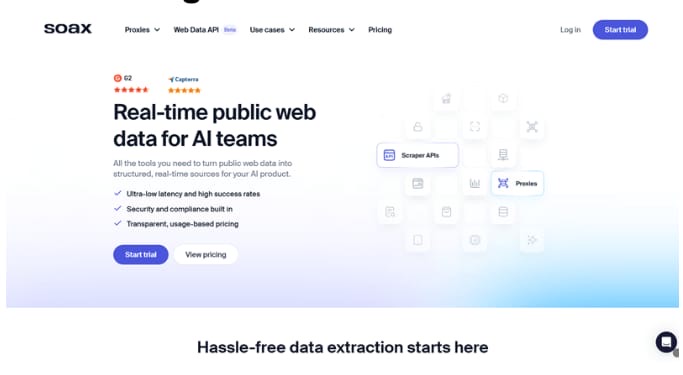
Another proxy site for school is SOAX, a UK-based proxy provider offering residential, mobile, and datacenter proxies since 2019. Its network spans 195+ countries with over 191 million IPs, emphasizing granular geo-targeting capabilities with country, city, state, or ISP-level precision, as well as flexible rotation settings. It features HTTP(S) and SOCKS5 protocols, automated IP rotation, and a user-friendly dashboard for managing proxies.
For academic use, SOAX focuses on reliability with a claimed 99.5% success rate and 0.55-second average response time, suitable for accessing geo-restricted research databases. However, its infrastructure prioritizes large-scale data collection over individual student needs, and setup relies on API/SDK integration without a dedicated browser extension.
Pros:
- Precise geo-targeting – Country, city, state, or ISP-level IP selection across 195+ regions.
- Flexible session control – Custom sticky sessions (90s to 60min) for short tasks or extended research.
- Anonymity & compliance – Residential IPs from real devices, fully GDPR-compliant.
Cons:
- Inconsistent speed – Average response time ranges from 1.19–2.52s, slower than competitors.
- High entry cost – Starter plan priced at $90/25GB, less budget-friendly for students.
- No browser extension – Requires API/SDK setup, challenging for non-technical users.
4. ProxyEmpire
User Rating: 4.4
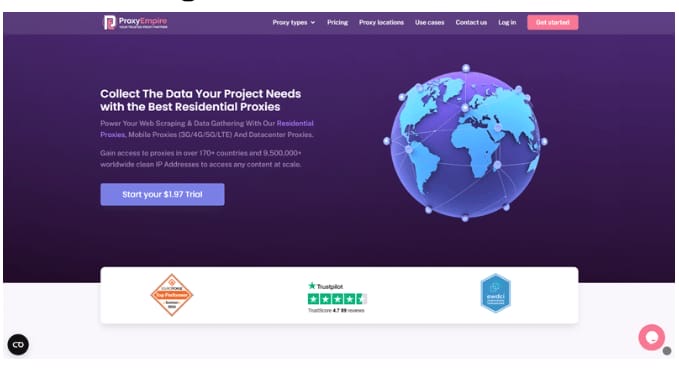
ProxyEmpire is a trusted proxy service provider, offering residential, datacenter, and mobile proxies for schools. Its network spans 170+ countries with over 9.5 million real IPs, focusing on precise geo-targeting at a country or city level. The service supports HTTP/SOCKS5 protocols and provides authentication via username/password or IP whitelisting.
The service provides customizable sticky sessions and bandwidth-based pricing starting at $5.71/GB for residential proxies. While lacking a browser extension, it offers API/SDK integration for automated tasks. ProxyEmpire emphasizes compliance (e.g., GDPR) but does not provide free trials, though a $1.97 test option is available.
Pros:
- Extensive geo-targeting – Covers 170+ countries with city/ISP-level precision.
- Multi-proxy support – Provides residential, mobile, and datacenter proxies for diverse use cases.
- Flexible pricing – Offers various subscription plans for students to choose from.
Cons:
- Limited proxy pool – Only 9.5M+ IP addresses available.
- High mobile proxy costs – Starts at $9/GB, less budget-friendly for students.
- Slow complex support – Delayed responses for technical issues.
5. FloppyData
User Rating: 4.3
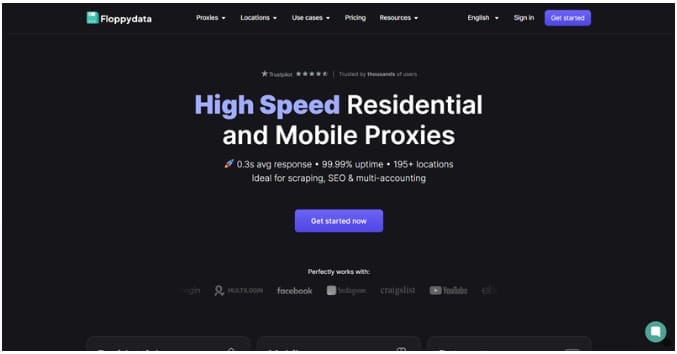
FloppyData is a global proxy provider offering datacenter, residential, and mobile proxies for schools, with an IP pool exceeding 1 million addresses across 195+ countries. Its services emphasize anonymity, 99.5% uptime, and flexible pricing—starting at $0.90/GB for datacenter IPs and $2.95/GB for residential/mobile proxies.
The platform supports HTTP/HTTPS/SOCKS5 protocols and features automated IP rotation, low latency, and a user-friendly dashboard for real-time management. A Chrome extension simplifies proxy integration for browsers, and its lightning response time of less than 0.3 seconds saves you a lot of time.
Pros:
- Fast response speed – Less than 0.3 seconds for its proxies to respond.
- Budget-friendly pricing – Datacenter proxies from $0.90/GB.
- Chromebook-ready tools – Chrome extension for instant browser proxy setup.
Cons:
- Limited proxy number – Only 1M+ IP addresses available.
- Few payment options – No PayPal/Apple Pay; cards and cryptos only.
- No sub-accounts – Lacks team management features for group projects.
Bonus: How to Set Up Proxies for School Chromebooks
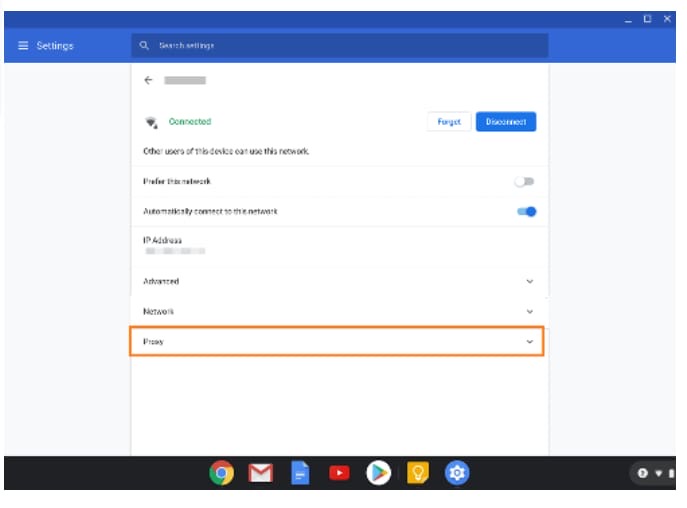
Some schools may offer devices like Chromebooks for students to use. If you are one of the students in these campuses wanting to use proxies, you need to know how to set up proxies for school Chromebooks. In fact, configuring proxies in ChromeOS is easier than you may imagine. After you obtain a proxy, follow these steps:
- Open Network Settings: Click the system tray (bottom-right clock) > Click the gear icon > Choose “Network”.
- Access Proxy Configuration: Under your active Wi-Fi/Ethernet connection, click the network name → Scroll down and click “Proxy” → Switch to “Manual proxy configuration”.
- Enter Proxy Details: Fill in proxy hostname/IP, port, and credentials (if required).
- Close and Verify: Click “Close” → Open any website to test the connection.
Summary
In this guide, we’ve explored why schools enforce IP restrictions, from security compliance to bandwidth management, and reviewed reliable proxies for school environments. Key considerations include anonymity, speed, geo-targeting ability, and compatibility with devices like Chromebooks.
Among the solutions discussed:
- Residential proxies such as IPcook and Oxylabs offer high legitimacy for accessing academic resources.
- Budget options like FloppyData suit lighter needs, while enterprise tools prioritize scale.
- All services require careful protocol setup on school networks.
For a balanced blend of global IP coverage, Chromebook support, and compliance-focused infrastructure, IPcook remains a robust choice. Its emphasis on educational use cases without compromising security makes it a practical option for students and researchers alike.