
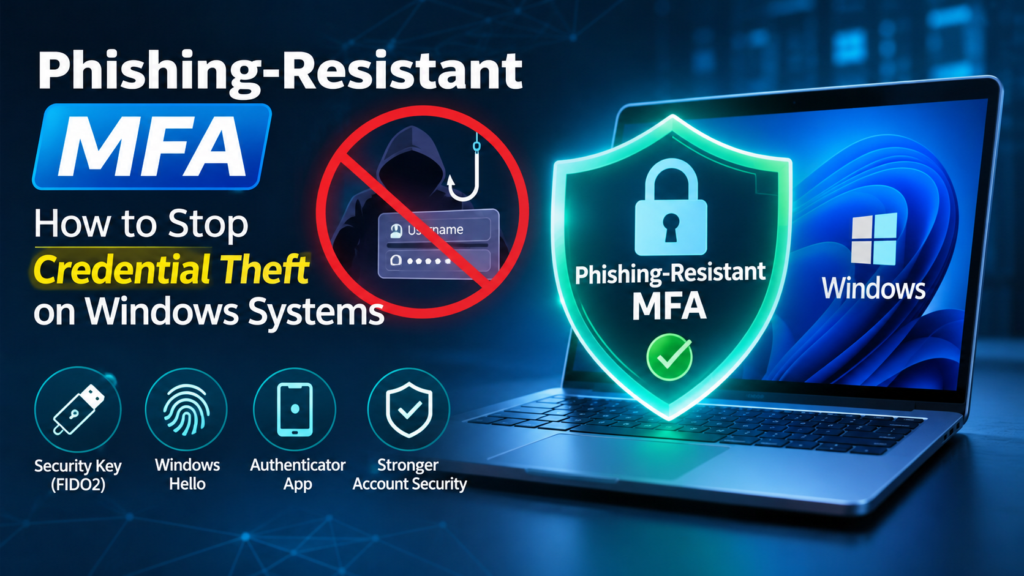
Windows systems sit at the center of business operations, from employee workstations and administrator endpoints to remote desktops and servers. That makes Windows credentials a prime target for attackers seeking access to corporate networks, cloud applications, and sensitive data.
Multi-factor authentication (MFA) is an essential defense, but not every MFA method protects equally. Attackers now use convincing fake login pages, adversary-in-the-middle (AiTM) phishing proxies, and stolen session cookies to get past conventional MFA. An organization can have MFA switched on and still lose an account to phishing.
In short: Phishing-resistant MFA uses public-key cryptography to bind a sign-in to a specific device and web domain. A fake login page cannot capture or relay the credential, which blocks AiTM and credential-harvesting attacks that defeat SMS codes and standard push approvals.
This guide explains how phishing-resistant MFA works, why traditional MFA can fail, which methods suit Windows, and how to deploy stronger authentication without disrupting employees.
Why Windows Credential Theft Remains a Serious Security Risk
A compromised Windows account rarely stops at one workstation. Depending on its permissions, a stolen credential can open business applications, shared files, remote desktop sessions, and administrative tools across the network.
Attackers commonly go after Windows credentials in these ways:
- Credential phishing: Fake Microsoft 365, VPN, or corporate login pages collect usernames and passwords.
- Adversary-in-the-middle attacks: Reverse-proxy pages relay traffic between the victim and the real service, capturing credentials and session cookies.
- Password spraying and credential stuffing: Attackers test common passwords or credentials leaked in earlier breaches.
- Credential replay and session theft: Captured authentication material is reused to impersonate the user.
- Lateral movement: After one account or endpoint falls, attackers pivot to more privileged identities.
Consider a common scenario. An employee receives an email about a shared document. The link opens a page that looks exactly like the company’s Microsoft 365 sign-in. They enter their password and approve the MFA request. The attacker relays everything to the real service and captures the authenticated session.
The employee completed MFA, and the attacker still got in.
That is the key lesson: MFA is not automatically phishing-resistant just because it asks for two steps. What matters is how the authentication protocol establishes trust between the user, the authenticator, and the service.
Why Traditional MFA Can Fail Against Modern Phishing Attacks
Traditional MFA is far safer than passwords alone. But many common methods depend on codes or approval prompts that attackers can trick users into handing over or relaying in real time.
SMS and Email One-Time Passwords
The user must still type a code into the login flow. A phishing proxy can capture that code and submit it to the real service before it expires. SMS adds risks such as SIM swapping, and email codes are only as safe as the mailbox that receives them.
Push Notifications and MFA Fatigue
Push approvals can be abused by flooding a user with requests until one gets approved out of frustration or confusion. Number matching and added context reduce some of the risk, but a standard push approval is still not phishing-resistant.
Time-Based One-Time Passwords (TOTP)
Authenticator app codes are useful when nothing stronger is available. But the user still types the code into a website, so it can be relayed instantly. A short expiry window does not stop a real-time attack.
Why “Password Plus a Code” Is Not Enough
A password with a verification code may satisfy a basic MFA requirement without meeting a phishing-resistance requirement. If both the password and the second factor can be captured or relayed, the extra step does not stop the attack. Evaluate methods by their security properties, not by how many factors they ask for.
What Is Phishing-Resistant MFA?
Phishing-resistant MFA is designed so that users cannot disclose reusable secrets or valid authentication responses to an impostor service. The U.S. National Institute of Standards and Technology (NIST) describes this as preventing secrets and valid authenticator outputs from reaching an impostor verifier, without depending on the user’s ability to spot a fake.
Most modern implementations rely on public-key cryptography:
- During registration, the authenticator creates a unique key pair for the legitimate service.
- The public key is registered with the service. The private key stays protected on the device or security key.
- At sign-in, the service sends a challenge that the authenticator must answer cryptographically.
- With FIDO2 and WebAuthn, the service’s identity is part of that exchange, so a credential created for one site cannot be used on a lookalike site.
A fake page cannot collect a private key, and there is no reusable code for the user to type into it.
How Phishing-Resistant MFA Prevents Credential Theft
Three mechanisms do the work:
- Cryptographic credentials replace shared secrets. The authenticator proves it holds a private key instead of sending a password or code.
- Authentication is bound to the legitimate service. Credentials will not respond on lookalike domains.
- Responses are challenge-based. A fresh challenge each time means a captured response cannot be replayed.
For organizations that want these controls under one policy layer, a phishing-resistant MFA solution can support methods such as FIDO2 and passkeys alongside existing identity infrastructure.
These protections sharply reduce credential harvesting and real-time phishing-proxy attacks. They do not eliminate every identity risk. Malware, compromised endpoints, malicious enrollment, session theft, and weak account recovery can still cause damage, so strong authentication should sit inside a wider security program.
Which Phishing-Resistant MFA Methods Work for Windows Systems?
The right choice depends on what you are protecting: interactive Windows sign-in, Microsoft Entra ID access, remote desktop connections, or applications tied to an identity provider.
FIDO2 Security Keys
Physical authenticators, such as YubiKeys, use public-key cryptography and connect over USB, NFC, or other supported interfaces. They typically require a touch, PIN, or biometric check, and authentication is bound to the legitimate domain.
Security keys suit privileged administrators, contractors, shared workstations, and anyone who needs a portable authenticator. Confirm compatibility with your identity provider, supported Windows sign-in scenarios, and recovery process before rollout.
Windows Hello for Business
Windows Hello for Business gives passwordless sign-in through device-bound credentials protected by the TPM. Users unlock the credential with a facial scan, fingerprint, or device-local PIN. The PIN is not sent to the identity provider; it only unlocks the key on the device.
It fits managed Windows environments where devices, policies, and provisioning are configured centrally. Note that Windows Hello for Business and Microsoft Entra passkeys on Windows are related but different capabilities, with different provisioning and device-association models. Choose based on your join state and identity architecture.
Passkeys
Passkeys are FIDO2 credentials that let users sign in without a conventional password, with authentication tied to the legitimate domain. Depending on the implementation, they may be device-bound or synced across devices. Check which passkey types your identity provider accepts and whether they satisfy your required authentication strength.
Not every passwordless experience is phishing-resistant. Evaluate the underlying protocol, credential storage, and policy support instead of trusting the label.
Certificate-Based Authentication (CBA)
CBA uses digital certificates, often stored on smart cards (such as PIV or CAC cards), to establish identity. It suits organizations with an existing public key infrastructure (PKI) or regulated environments. Whether a specific CBA setup is phishing-resistant depends on the protocol, how the private key is protected, and how the identity provider validates it, so confirm it meets your policy rather than assuming it does.
Comparing Common Authentication Methods
| Authentication method | Phishing-resistant? | Key consideration |
| SMS OTP | No | Codes can be intercepted or relayed |
| Email OTP | No | Codes can be phished; the mailbox may already be compromised |
| TOTP authenticator code | No | Codes can be captured and relayed in real time |
| Standard push approval | Not inherently | Open to social engineering and MFA fatigue |
| FIDO2 security key | Yes, when correctly implemented | Needs compatible keys and supported sign-in flows |
| Windows Hello for Business | Yes, in supported configurations | Needs suitable device and identity setup |
| Passkey | Yes, via a supported phishing-resistant protocol | Verify credential type and provider support |
| Certificate-based authentication | Depends on configuration | Validate the certificate flow and policy requirements |
Security Keys vs. Windows Hello: Which Should You Choose?
Most organizations use both. Windows Hello for Business suits users on dedicated company Windows devices. Security keys suit shared devices, mobile workers, and privileged accounts. CBA suits environments that already run PKI. Whichever you pick, register at least two authenticators per user, such as Windows Hello plus a backup security key, so a lost device does not become a lockout.
How to Enforce Phishing-Resistant MFA on Windows with Microsoft Entra ID
Protecting Microsoft 365 through Entra ID is not the same as protecting every local Windows logon or remote desktop session. Start by mapping where your users and admins actually authenticate, then enforce policy where it applies.
Step 1: Map Your Windows Authentication Environment
Document whether your systems are Entra joined or hybrid joined, connected to on-premises Active Directory, used through local or domain accounts, reached over RDP or VDI, tied to VPNs and internal apps, or dependent on legacy protocols. This shows which controls can be enforced centrally and which need separate Windows, domain, or application-level work.
Step 2: Plan Emergency Access Accounts
Create at least one monitored break-glass administrator account and exclude it from strict MFA policies, so a misconfiguration or an authenticator outage cannot lock everyone out. Store its credentials securely offline, alert on every sign-in, and test it regularly. Keep exclusions this narrow. Broad, unmonitored exceptions defeat the purpose.
Step 3: Choose Authenticators and Enroll Users First
Pick methods based on device compatibility, identity architecture, and risk. Prioritize administrators and other privileged users, since one compromised admin account exposes far more of the environment. Make sure users have registered an approved method and know how to recover access if a device or key is lost, before you enforce anything.
Step 4: Configure Authentication Strengths
In the Microsoft Entra admin center, go to Protection > Authentication methods and enable the methods you want to allow. Then use the built-in Phishing-resistant MFA authentication strength, or create a custom strength that permits only FIDO2 security keys, Windows Hello for Business, and certificate-based authentication. Disable SMS, voice, and standard app notifications for the users you are targeting.
Step 5: Build a Conditional Access Policy
- Go to Entra ID > Conditional Access > Policies > New policy.
- Under Users, target administrative roles first, or all users when you are ready. Exclude your break-glass account.
- Under Target resources, select All cloud apps.
- Under Grant, choose Require authentication strength and select Phishing-resistant MFA.
A policy like this only applies to the sign-ins and resources in its scope. It does not automatically secure every local Windows logon or legacy application.
Step 6: Test in Report-Only Mode, Then Enforce
Run the policy in report-only mode first. Review sign-in logs to see who would be blocked, confirm enrollment, and fix compatibility gaps with a pilot group that includes realistic devices and access scenarios. Test lost keys, device replacement, and recovery. Once results look right, switch the policy to On and expand in stages.
Step 7: Secure Enrollment and Recovery
A strong policy is undermined if an attacker can impersonate a user during passkey registration, or talk a help desk into resetting an account to a weaker method. Use identity verification appropriate to the risk, controlled recovery procedures, and, where suitable, Microsoft Entra Temporary Access Pass to bootstrap new credentials.
Why Cloud MFA Alone Is Not Enough for Windows Security
One of the most common deployment mistakes is treating identity-provider MFA as a universal control. An organization may require phishing-resistant MFA for Microsoft 365, yet users can still reach an on-premises server, a legacy app, or a local Windows account through a separate mechanism. A protected VPN login can sit beside an unprotected admin path. The result is uneven security: some doors are locked tightly, others accept weak credentials.
To close these gaps, think in three layers:
- Identity-provider authentication: Sign-ins to apps and resources integrated with your identity provider, controlled through Conditional Access.
- Windows device and domain authentication: Interactive logon and access to on-premises resources, shaped by your domain design, sign-in method, and supported protocols.
- Remote access and application authentication: RDP, VPNs, gateways, and apps that may use their own authentication and enforcement points.
Map each layer and verify the controls that apply to it. If you want stronger verification at the Windows logon itself, you can evaluate a dedicated Windows MFA approach alongside your existing identity provider, deployment model, and supported scenarios.
Protect Windows Sign-In, RDP, and Remote Access
- For Windows login, confirm whether users authenticate through Windows Hello for Business, domain credentials, or local accounts, and apply controls that fit each path.
- For RDP and VDI, check support across the client, the target operating system, and your identity setup. Phishing-resistant options vary by connection method and version.
- Never expose RDP directly to the internet. Place it behind a VPN or gateway, restrict who can connect, and limit administrative access to approved users and devices.
- For VPNs and internal apps, confirm that the gateway supports your required method. A strong cloud login does not protect a legacy VPN that accepts weaker credentials on its own.
Close Legacy Authentication and Fallback Gaps
- Review NTLM usage. NTLM is exposed to relay and pass-the-hash attacks. Audit where it is used, remove dependencies, then restrict or block it where compatibility allows. Kerberos is a different protocol and should be hardened rather than switched off.
- Remove weak fallbacks. If users can drop back to SMS or an email code, attackers will push them there. Keep recovery paths as strict as normal sign-in.
- Reduce standing privilege. Limit permanent admin rights, remove stale accounts, secure service accounts, and monitor privileged group changes.
- Protect credentials on endpoints. Use endpoint protection and Windows credential protections such as Credential Guard where supported.
- Modernize applications. Move apps toward modern authentication and centralized enforcement so fewer independent login systems remain.
How to Measure the Effectiveness of Phishing-Resistant MFA
A rollout is not finished when the policy is on. Track evidence that controls cover the right users and systems:
- Enrollment coverage: Share of in-scope users who have registered an approved authenticator.
- Enforcement coverage: Share of intended apps, users, and privileged roles covered by policy.
- Method usage: Share of sign-ins completed with phishing-resistant methods.
- Exceptions and fallbacks: Accounts or paths still relying on weaker methods.
- Privileged account protection: Share of admin accounts under enforced phishing-resistant MFA.
- Enrollment and recovery events: Unusual registrations or resets that may signal account takeover.
- Support impact: Blocked sign-ins, device incompatibility, and lockouts after policy changes.
Review these alongside endpoint alerts and identity risk signals. Fewer successful phishing compromises is a good outcome, but no single metric proves every credential theft scenario is gone.
Common Mistakes to Avoid During Deployment
- Treating all passwordless methods as phishing-resistant. Verify the protocol and policy support of each method.
- Enforcing before users are enrolled. Unenrolled users get blocked. Plan enrollment first.
- Ignoring RDP and legacy apps. Test every authentication path and document what cannot yet support stronger methods.
- Keeping weak fallbacks indefinitely. Recovery should not become the easy way around your policy.
- Skipping break-glass planning. A poorly tested policy can lock out your own administrators.
- Overlooking compromised endpoints and sessions. Phishing-resistant MFA does not replace endpoint detection, least privilege, or incident response.
- Failing to test recovery. Users need a secure, practical way to replace a lost key or device.
Conclusion
Credential theft stays a major risk for organizations that depend on Windows workstations, servers, remote access, and cloud apps. Traditional MFA lowers that risk, but codes and approval prompts can still be intercepted or relayed in real time.
Phishing-resistant MFA changes the equation by using cryptographic authentication tied to the legitimate service. FIDO2 security keys, passkeys, Windows Hello for Business, and properly configured certificate-based authentication all help remove the reusable secret attackers depend on.
The strongest rollouts combine the right authenticators with enforced policies, protected Windows and remote-access paths, secure enrollment and recovery, controlled privileged access, and ongoing monitoring. A good MFA strategy does not stop at the cloud login page. It protects every important route into your Windows environment.
Frequently Asked Questions
What is phishing-resistant MFA?
Phishing-resistant MFA is multi-factor authentication that uses public-key cryptography to bind a login to a specific device and domain. Because there is no code or password to type, read out, or relay through a fake page, it blocks phishing and AiTM attacks.
Which MFA methods are phishing-resistant on Windows?
FIDO2 security keys, Windows Hello for Business, passkeys, and properly configured certificate-based authentication. SMS codes, email codes, TOTP codes, and standard push approvals are not.
Does phishing-resistant MFA stop AiTM attacks?
It stops the typical AiTM approach, because the authenticator will not respond to a domain that does not match the one it registered. You should still add endpoint protection, session monitoring, and strong recovery controls for defense in depth.
Is Windows Hello for Business phishing-resistant?
Yes, in supported configurations. It uses TPM-protected, device-bound keys unlocked by a biometric or PIN, so there is no shared secret to phishing.
How do I enforce phishing-resistant MFA in Microsoft Entra ID?
Enable the allowed methods under Protection > Authentication methods, create a Conditional Access policy, and under Grant choose Require authentication strength with Phishing-resistant MFA. Exclude a monitored break-glass account, test in report-only mode, then turn the policy on.
Does a cloud MFA policy protect local Windows logins and RDP?
Not automatically. A policy covers the resources and sign-ins in its scope. Local logons, RDP, VPNs, and legacy apps need their own controls, which is why you should map each authentication path separately.
Do passkeys replace passwords completely?
Passkeys enable passwordless sign-in, but full replacement depends on your applications, legacy systems, and recovery processes. Most organizations move in phases.