

Practically every app and feature of an iPhone relies on some sort of screen gesture, swiping, or touch contact. Whenever your screen shows “iPhone unavailable” or the ability to use a screen is removed , it makes it much harder to use our iPhones for anything.
That is why learning how to unlock iPhone with unresponsive screen is important. This way, you can reclaim all of your iPhone’s abilities without risking your data privacy. Here are some of our best solutions.
Best Method: Use iDelock to Unlock Unresponsive Screen
If none of those methods seem to work with your particular situation, the best option is to download a copy of iDelock from WooTechy. This robust software works by getting around any device locks, passcodes, or biometric information you have in place. It has an easy-to-follow prompt that guides you through the process so you can get access back to your device in no time.
Features of iDelock:
- Works to unlock Apple ID, screen lock, and Screen Time.
- Allows you to remove any MDM profile with only 3 steps.
- Works with all versions of Apple OS and devices, including the iPhone, iPad, and iPod Touch. (iOS 16 Included)
- The highest success rate among the competitors.
Video guide: https://youtu.be/ELBeOTLQ1xA
How to use iDelock:
- Launch iDelock in Unlock Screen Passcode mode. Plugin your device into your computer and hit Start.

- Use a data transfer cable to connect your device to the PC. Then, click Next. iDelock will auto-detect your device model. Then follow the guide your screen to download firmware.
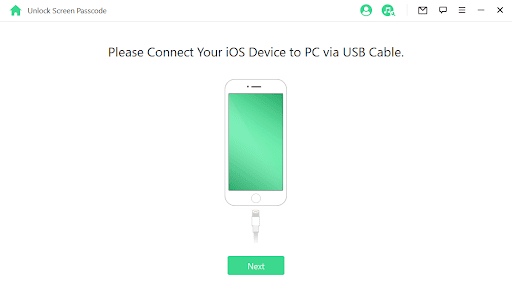
- After verifying and extracting the firmware, click Unlock and you need to enter 000000 to confirm your action.


Relax while your device enters Recovery Mode automatically. Afterward, iDelock will remove the iPhone passcode on the device.
Alternative Solutions to Unlock an Unavailable/Unresponsive iPhone
1) Force Restart Your iPhone
A likely reason your iPhone’s screen is locked out is because of software or processes operating in the background and conflicting with one another. This could have happened during an update or when you activated a new app from the App Store. To get around this, all you really need to do is hard reset your iPhone.
- For iPhone 8 and newer devices: Press and quickly release the Volume Up button, then do the same with the Volume Down button before holding the Power button until the Apple logo appears.
- For iPhone 7/7+: Press and hold the Volume Up and Side buttons until the Apple logo appears.
- For iPhone 6 and Earlier: Press and release the Side and Home buttons until the Apple logo appears.


2) Unlock Screen via Recovery Mode on iTunes
Simply connecting to iTunes for your backups and repairs is still one of the primary methods of ensuring your iPhone can operate fully.
However, if your iPhone cannot be recognized iTunes as it is locked, you have to put it into recovery mode first.
Note that this method will reset your device back to factory settings.
- Put your iPhone into Recovery Mode, then launch iTunes on your computer.
–For iPhone 8 or later: With your iPhone connected to your PC, press the Volume Up button, press the Volume Down button, and then hold down the Side button until you see the recovery mode screen.
–For iPhone 7/ 7 Plus, and iPod touch (7th generation): Press and hold the Top (or Side) and Volume Down buttons at the same time. Keep holding them until you see the recovery mode screen.
–For iPhone 6s or earlier, including iPhone SE, and iPod touch (6th generation) or earlier: Press and hold both the Home and the Top (or Side) buttons at the same time. Keep holding them until you see the recovery mode screen.
- Connect your iPhone to iTunes on your computer.
- Confirm your decision on the pop-up and click on Restore.

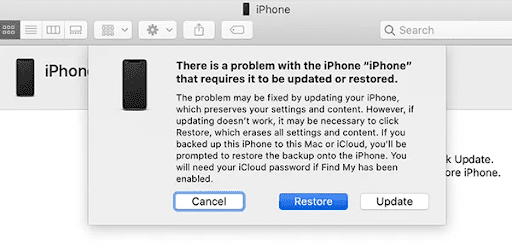
Wait for a few minutes and you can reset your iPhone from the “Hello” screen.
3) Restore iPhone from iCloud
Another surefire method for how to unlock iPhone with unresponsive screen is to reengage your iCloud backup. This won’t erase your data, but it will reset it back to the time of your most recent backup. That can remove some more recent messages, photos, or videos. The goal is to unlock your device without needing the backup option, but to use the Find My iPhone system instead.
- Open a browser and go to http://www.icloud.com.
- Log into your Apple account.
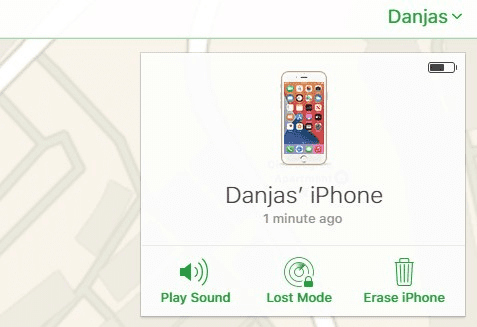
- Click on Find iPhone, and select All Devices. Locate your locked iPhone.
- Click on Erase iPhone to remove all content and passcodes from your iPhone.

4) Use an External Keyboard
Whenever your iPhone’s screen is not responding to physical touch, you can get around this via a connected keyboard. You will need to purchase an OTG, which is a dangle that attaches to your iPhone and the USB connection of your external keyboard.
- Connect your iPhone to the OTG and to your keyboard before pushing the power button.
- Hit any key to activate the lock screen.
- Enter your passcode via the keyboard and unlock your iPhone.
Wrapping it Up
With proper methods mentioned above, now you can fix your iPhone unavailable issue or unlock iPhone with unresponsive screen on your own. No matter you are going through a forgotten password, mistaken operation or accidental drops, iDelock will work for the unlock process.
Downlaod iDelock right now to test the compatibility with your device first. Then, when you are ready, upgrade to the premium version to enjoy all the incredible features!