
Cord-cutting stopped being an experiment years ago. For many households in the USA and Canada, the monthly cable bill has been replaced by a mix of streaming apps, and IPTV has become a popular way to bring live channels, sports and on-demand content into one place.
The problem is that IPTV services all look the same from the outside. Every pricing page promises thousands of channels, 4K quality and “zero buffering.” None of that tells you how the service will behave at 8:30 p.m. on a Sunday when the whole country is watching the same game.
That is why the free trial is the most important part of choosing a provider. But most people waste it. They log in, flip through a few channels, see a picture and decide it “works.” Then the problems start a week after they pay.
This guide gives you a structured way to use a trial period properly, so you find the weak points before you commit any money.
Why the Trial Matters More Than the Channel Count
Channel numbers are the easiest thing for a provider to inflate and the least useful thing for you to compare. A list of 20,000 channels includes many regional duplicates, backup feeds and international channels you will never open.
What actually decides whether you will be happy is much simpler:
- Do the channels you watch every week load fast and stay stable?
- Does the stream hold up during peak hours and big live events?
- Is the TV guide accurate enough to use every day?
- Does someone answer when something breaks?
You can only answer these questions by using the service in real conditions. A good trial gives you enough time to do that. A 24-hour window is tight. A 36- or 48-hour window lets you cover one full evening peak and a daytime session, which is the minimum you need for a fair test.
Before You Start: Set Up a Fair Test
Many “bad” IPTV experiences are really bad home setups. Fix these first, so you are judging the service and not your Wi-Fi.
Check your internet speed. Run a speed test on the device you will use, not on your phone in another room. As a rule of thumb, HD streaming needs around 10 Mbps, and 4K needs 25 Mbps or more per stream. If several people stream at once, add those together.
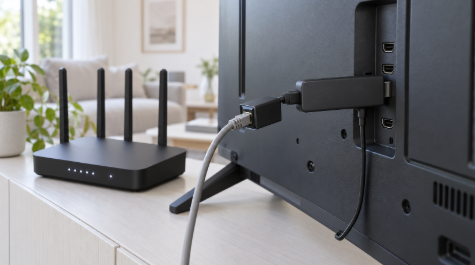
Use a wired connection or 5 GHz Wi-Fi. A Firestick behind a TV, far from the router, on 2.4 GHz Wi-Fi will buffer with any provider. If you can, use an Ethernet adapter for the test.
Pick a proper player app. Most providers deliver your login as Xtream Codes details (server URL, username, password) or as an M3U playlist link. Apps like TiviMate and IPTV Smarters Pro handle both well and give you a full electronic program guide (EPG). Using a solid player removes another variable from your test.
Write down your “must-have” list. Before you log in, list the 10 to 15 channels and events you actually care about. For most people in North America, that is a mix of local news, major sports networks, a few entertainment channels and any international channels for family or language reasons. This list is what you will test against.
The 36-Hour Test Plan
Here is how to spread your testing across a trial window so you see the service at its best and its worst.
Hours 0–2: Setup and Channel Speed
- Time how long activation takes. A well-run service sends login details within minutes, not hours.
- Load the playlist in your player and check how long the channel list and EPG take to appear.
- Open each channel on your must-have list. Note how many seconds each one takes to start. Under three seconds is good. Anything that regularly takes ten seconds or fails to load is a warning sign.
- Switch quickly between five or six channels. Some services handle zapping well; others freeze or kick you out of the stream.
Evening Peak (7 p.m. – 11 p.m.): The Real Test
This is the most important part of the trial. Server load is highest when everyone is home, and that is when weaker providers fall apart.

- Watch a live sports event from start to finish if you can. Big games are the hardest test because thousands of users hit the same channel at once.
- Count the buffering events. One short pause in two hours is acceptable. Repeated freezing during key moments is not.
- Check the delay. Compare the stream to a live score app. A delay of 30 to 60 seconds is common for IPTV. Several minutes behind means you will see spoilers on your phone before the play happens on screen.
- Try the same channel in 4K or FHD and in HD. If the 4K version constantly drops, check whether the HD feed is more stable. A good provider offers stable backup feeds.
Next Day: Guide, Catch-Up and On-Demand
- EPG accuracy. Pick five channels and compare the guide with what is actually airing. Wrong or missing listings make daily use frustrating.
- Catch-up TV. If the provider advertises catch-up, go back to a show from the previous evening and play it. Check that it starts at the right time.
- Movies and series. Search for three titles you want to watch. Check that they play smoothly, that seeking forward and backward works, and that subtitles load if you need them.
- A second device. Log in on another device, such as a phone or Smart TV, if your plan allows multiple connections. Check that both streams work at the same time without one kicking the other off.
Anytime: Test the Support
Send the support team a simple, real question, such as how to add the service to a second device or why a specific channel is not loading. Note how long the reply takes and whether it actually solves the problem.
Support quality matters more than people expect. At some point a channel will go down or an app will update and break something. A provider that answers in minutes over email, live chat or Telegram is worth far more than one that takes two days.
Quick Reference: Pass or Red Flag
| What to check | Pass | Red flag |
| Activation | Login details within minutes | Hours of waiting or manual approval |
| Channel start time | Under 3 seconds | Regularly 10+ seconds or fails |
| Peak-hour live sports | One or two short pauses at most | Repeated freezing during the game |
| Stream delay | 30–60 seconds behind live | Several minutes behind |
| EPG | Matches what is airing | Wrong or empty listings |
| Catch-up and VOD | Plays and seeks smoothly | Errors or endless loading |
| Multiple devices | Both streams stable | One stream drops the other |
| Support | Useful answer within the hour | No reply or copy-paste answers |
How to Check the Provider Itself
A smooth trial is only half the picture. You also want to know who you are paying. Before you buy, look for these signs of a serious business:
- Clear policies. A real provider publishes terms of service, a privacy policy, a refund policy and a DMCA or copyright policy, and makes them easy to find.
- A refund window. A money-back guarantee of at least seven days shows the provider expects you to stay because the service works, not because you are locked in.
- No “lifetime” deals. Running servers costs money every month. A one-time “lifetime” price is usually a sign the service will not be around long.
- Real contact options. Look for a business email, a support channel and a company location, not just a contact form.
- Normal payment methods. Be careful with providers that only accept untraceable payments and offer no way to dispute a charge.
Reading the Pricing Without Getting Caught Out
Once a service passes your test, compare plans by cost per month, not by the headline price. Annual and multi-year plans are usually far cheaper per month than a monthly plan. For example, a provider that charges $39 for three months but $79 for a full year is offering the year for about half the monthly rate.
That said, a long plan only makes sense once you trust the provider. A sensible approach is:
- Use the free trial to run the checklist above.
- If it passes, start with a three-month plan.
- If the service holds up through a full sports weekend or two, move to an annual plan for the better price.
Also check how many devices each plan covers. A cheap single-device plan becomes expensive if your household needs three connections and has to buy them separately.
If you are in North America and want a starting point, you can run this exact checklist on a provider such as WeSellIPTV, which offers an IPTV subscription for the USA and Canada with multi-device plans, an EPG, catch-up and a 7-day money-back guarantee. Their 36-hour IPTV free trial does not require a credit card, which gives you enough time to cover an evening peak and a daytime session before you decide.
Frequently Asked Questions
How long should an IPTV free trial be? At least 24 hours, but 36 to 48 hours is better. That is long enough to include one evening peak, when servers are under the most pressure, and one daytime session to check the guide, catch-up and on-demand content.
Why does IPTV buffer on my Firestick? The most common causes are weak Wi-Fi, a slow internet plan, an overloaded provider server or a poor player app. Test with a wired connection or 5 GHz Wi-Fi first. If buffering only happens during peak hours across many channels, the problem is likely the provider’s servers.
What internet speed do I need for 4K IPTV? Plan for 25 Mbps or more per 4K stream. HD streams need around 10 Mbps. If several people stream at once, add up the speed each stream needs.
Should I choose a monthly or yearly IPTV plan? Start short. Use the trial, then a three-month plan if you are unsure. Once the service has proven itself through busy live events, a yearly plan usually saves you a lot per month.
Final Thoughts
The best IPTV service for you is not the one with the biggest numbers on its homepage. It is the one that loads your channels quickly, stays stable when the big game is on, keeps an accurate guide and answers you when something goes wrong.
A free trial is your chance to find that out for free. Treat it like a test, not a quick look. Spend one evening on live sports, one session on the guide and on-demand content, and send at least one question to support. Thirty-six hours of careful testing can save you a year of frustration.