

Unquestionably, the most popular platform is the music sector, which is renowned for its abilities, pleasure, and entertainment. However, let’s say you wish to use social media to listen to your favorite solo song or Karaoke music without vocals. In that scenario, you must take the song’s vocals out. On television, vocal isolation may appear simple, but in reality, it takes time, and the results are frequently unpredictable. In such cases, vocal removers must be used to remove the song’s lead and backup vocals. As a result, we are here to describe the most reliable vocals remover tools and how to use it.
What is Wondershare UniConverter
Wondershare UniConverter is an AI-powered video converter for Mac and Windows users (formerly Wondershare Video Converter Ultim. It can quickly and accurately convert practically any video to other formats. You can download numerous videos at once with UniConverter and batch converts them to your chosen video or audio format. The program offers quick conversion times and high output quality for various video and audio formats.
You may also modify your videos using the built-in editor in UniConverter. When editing films in batch mode, you can remove extraneous material, crop the video frame, and apply watermarks or subtitles. Advanced features of the program include lossless conversion, quick processing, and high-quality output. Additionally, it has some extra tools like a background remover, advanced video editing with clipping and cropping choices, and an AI-powered vocal remover to remove vocals from songs.
How to Remove Vocal with Wondershare UniConverter
WondershareUniConverter enables AI to read voices automatically, remove vocal sections, and extract vocals and musical instruments. The BGM and audio tracks used in videos can be readily edited, and you can even make music files for karaoke (instrumental tracks)! In this section, we’ll explain how to remove vocals.
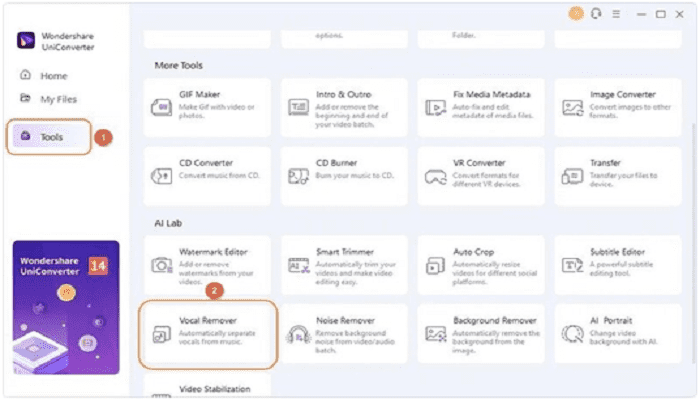
Step1:Select Vocal Remover.
Openthemain interface of UniConverter after installing it on your PC. Go to the AI Lab area by selecting the Tools tab on the Home screen. To continue, choose Vocal Remover from this option.
Step 2: Add your file
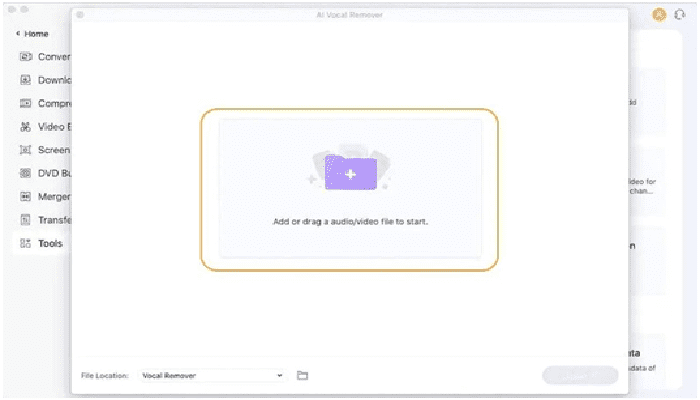
Just drag any file onto the interface or use the Add File option to upload it.
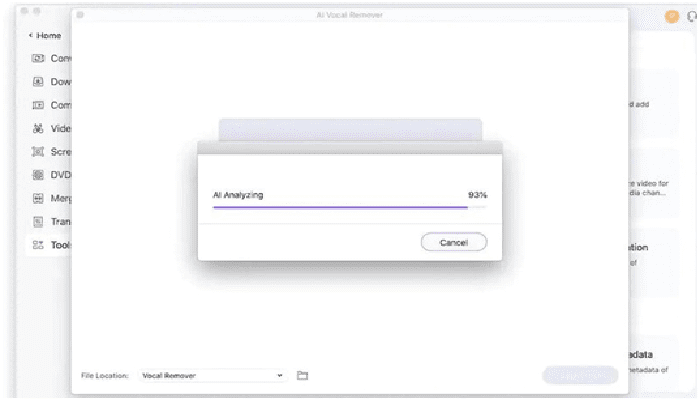
Depending on the size of the added file, you might have to wait a few minutes for analysis. AI automatically analyzes the added file and extracts vocals.
Step 3: Save the Vocals.
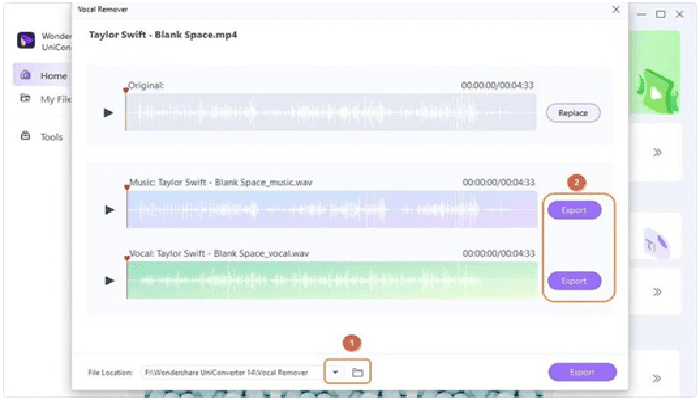
Tap the Export button next to the instrumentals file to save the audio file without vocals. Additionally, you can store both voice and instrumentals on your device.
New feature – AI audio function
AI Vocal Remover
Because Vocal Remover AI uses AI technology to remove vocals from the audio file, it is very compatible with iPhone users. The user can play the high-quality audio files using its built-in player. Additionally, it creates the finished product in a supportive ecosystem in just a few seconds. Checkout a way to convert YouTube to MP3.
Pros
- Without the user’s assistance, its AI technology automatically isolates the vocals and instrumentals.
- Vocals and music files are instantly downloadable to your iPhone.
- The created audio files can be effectively saved to your device as MP3s.
- The vocals or instrumentals can also be exported to other platforms by the user.
Other New Features in UniConverter
- Offers video formats for output, including MP4, AVI, WMV, MOV, MKV, MPEG, FLV, FS4, and ProRes (for Mac);
- Enables conversion between more than 1000 different formats;
- Enables video downloads from social media;
- Enables in-flight screen recording;
- Offers the most flexible screen capture toolkit in addition to audio;
- Enables in-app subtitle search and addition to your video;
- Enables removing DRM;
- It can play practically every type of media file, even 8K ones.
- Offer DVD, Social Media, Creative Design, Photography, and Movie users hints and tips;
- A 20 percent speed gain has been made possible by adding Win 64- Bit Support.
- You can stop the audio/video conversion at any time;
- Simple blending of many videos;
Video Compression
- Reduce video size by compressing videos with settings that can be change for bitrate, output format, and resolution.
- More than 1,000 audio and video formats can be compressed.
- Batch compress several files.
- Check the quality of the resulting video by previewing a compressed video.
- It supports HD video compression, including 1080P, 4K, and 8K films.
Play Video
- A video player with an 8K resolution capability is available from UniConverter.
- The player is an autonomous process that enables playing videos in over 1000 different formats.
Conclusion
You must know whether this program meets your conversion needs to this point. If not, I advise you to go to the website and take advantage of the Free Trial. One of the better third-party converters I’ve used, in my opinion, is UniConverter; it’s worth a look. For me, its layout’s simplicity is a significant bonus because it makes processing files simple. The file management mechanism is also deserving of praise. Its tremendous capacity for conversions in a single batch is possible by how quick and straightforward it is to use. After everything is consider, I can’t help but suggest WondershareUniConverter to anyone. It can remove vocals audacity which is a very flexible and user-friendly converter that works well with the current digital workflows.