
Have you updated your iPhone to iOS 17 and lost some or all of your data? If so, you are not alone. Many iPhone users have experienced data loss after updating to the latest iOS version. Data loss can happen due to various reasons. However, there is no need to worry.
In this article, we will show you how to recover lost data after iOS update using iCloud or iTunes backup and more. Also, we’ll share with you some tips on how to prevent data loss in the future and how to back up your data regularly. Follow our guide and learn how to recover lost data after iOS 17 update!
Why My iPhone Data Lost After iOS 17 Update?
One of the possible reasons why your iPhone data lost after iOS 17 update is that the update process was interrupted or failed due to some factors, such as low battery, unstable network, insufficient storage space, or software glitches. This can cause your iPhone to enter a recovery mode or a loop of iOS update requested, which can erase some or all of your data.
To recover lost data on iPhone, you can rely on iTunes or iCloud backup. However, this may not always work, so you must rely on third-party platforms. Hope on below to learn more!
How do I Recover My Data After iOS 17 Update?
There are different methods and tools that you can use to recover lost data after iOS 17 update, depending on whether you have a backup or not. Here are some of the options that you can try:
Method 1: Recover Your Data Via iCloud
iCloud backup is a feature that allows you to store and restore your iPhone data and settings in the Cloud. If you have backed up your iPhone before updating to iOS 17 you can use iCloud to recover lost data after iOS update. Here are the steps to recover your data via iCloud backup:
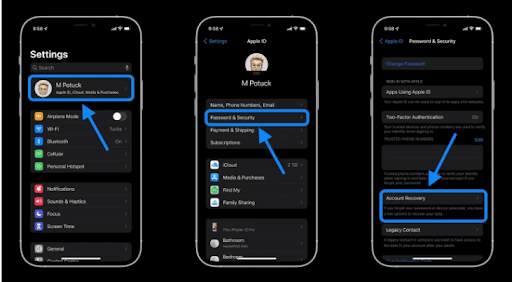
- Turn on your iPhone and follow the setup steps until you see the Apps & Data screen.
- Tap Restore from iCloud Backup and sign in with your Apple ID and password.
- Choose the backup that contains your data and wait for the restore process to complete. Make sure your iPhone is connected to a Wi-Fi network and plugged into a power source during the restore process.
- After the restore process is done, you can access your data on your iPhone.
Method 2: Restore iPhone Data Via iTunes
You can also use iTunes backup for iPhone 14 data recovery. Here are the steps to recover lost data after iOS update via iTunes backup:
- Connect your iPhone to the computer you normally sync with using a USB cable.
- Open iTunes on your computer. If you don’t have it on your computer, download iTunes from here.
- Select your iPhone in iTunes. Learn what to do if your device doesn’t appear on your computer.
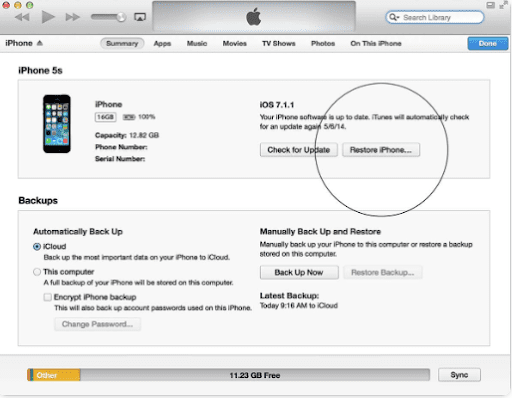
- Click Restore Backup in the Backups section.
- Choose the backup that contains your data and wait for the restore process to complete.
Method 3: Use Recover Data Software -UltData(Most Efficient/Without Backup)
If you want to recover lost data after iOS 17 update without backup, you can use a third-party data recovery software called Tenorshare UltData. It is a powerful and reliable software that can help you recover deleted or lost data from your iPhone, iPad, or iPod touch. It supports more than 35 file types, including photos, contacts, messages, notes, and more.
The best part is that it is compatible with the latest iOS 17 and iPhone 14 models and doesn’t require backing up your data. It also allows you to preview and select the data that you want to recover before restoring them to your device or computer. Here are the steps for using Data Recovery Software- Ultdata:
- Download and install UltData on your computer from here.
- Launch UltData and connect your iPhone to the computer using a USB cable.
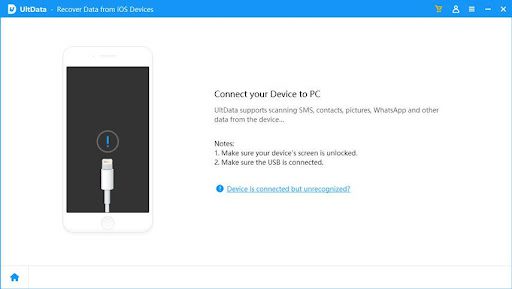
- Select Recover Data from iOS Devices on the main interface of UltData.
- Click Start Scan and wait for UltData to scan your iPhone for lost data. The scanning time depends on the amount of data on your device.
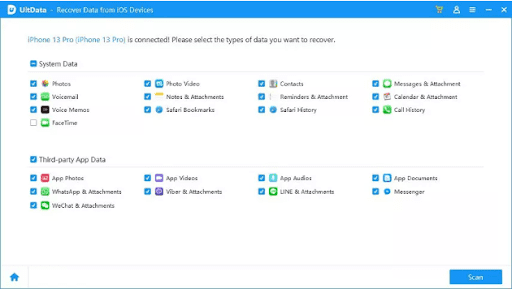
- After the scan is completed, you can preview the data that UltData has found. You can filter the data by file type, size, date, or status (deleted or existing). Select it!
That’s it! You have successfully recovered data after iOS update using UltData. You can also watch this video for a visual demonstration of How to Recover Lost iPhone Data after iOS 16/15 Update with UltData!
Method 4: Contact Apple Support
The last method to recover your lost data on your iPhone after updating to iOS 17 is to contact Apple support. Apple Support is a service that provides technical assistance and guidance for Apple products.
You can get in touch with it if you encounter any errors or issues during the update or recovery process or if none of the other methods work for you. Apple Support may be able to help you fix your iPhone or recover your data using advanced techniques or tools.
Tips: iOS 17 Bugs & Problems
Here are the top tips that you should know for successful installation of iOS 17 and fixing bugs:
- Tip 1: Make sure your device can run iOS 17 and has enough space for it. You can check this on Apple’s website. If you need more space, you can delete some apps or files that you don’t use.
- Tip 2: Don’t forget to backup your data before you install iOS 17 with iCloud or iTunes. This way, you won’t lose anything important if something goes wrong. You can also get your data back if you have any issues after the installation.
- Tip 3: Keep your apps updated after you install iOS 17. This will make sure they work well with the new system. You can update them from the App Store. You can also set them to update automatically in Settings > App Store > App Updates.
- Tip 5: Watch out for your device’s performance and battery life after you install iOS 17. If you notice anything weird or wrong, you can try some of the solutions that we mentioned before, like resetting network settings, or resetting face data. You can also contact Apple support or visit an Apple store for help.
Recap!
In this article, we have shown you how to recover lost data from iPhone after iOS 17 update using different methods and tools. If you are looking for the best method to recover lost data after iOS update, we recommend using UltData software.
It is a powerful and reliable software that can help you recover lost data on iPhone without any backup. We hope that this article has helped you solve your problem and restore your data!
FAQs
Here are some popular FAQs that can help you during recover lost data after iOS update process.
How do I Manually Recover My iPhone Data?
To manually recover your iPhone data, you can use iTunes or Finder. You need to connect your iPhone to a computer that has iTunes or Finder, select your device, and choose the backup that contains your data. Then, click Restore Backup and wait for the process to complete
Can Data be Recovered From an iPhone That Won’t Turn ON?
Yes, data can be recovered from an iPhone that won’t turn ON, as long as the device is not physically damaged or encrypted. You can use third-party data recovery software, such as UltData, to scan and recover your data directly from your iPhone without backup.