

Your computer’s drivers are like the unsung heroes of your system, quietly working in the background to ensure that all your hardware components function smoothly. However, outdated or incompatible drivers can lead to a myriad of issues, from sluggish performance to system crashes.
In this guide, we’ll show you how to make sure drivers are up to date, enabling your computer to run at its best.
Why Keeping Drivers Updated Matters
Before diving into the steps on how to update drivers on PC, let’s understand why it’s crucial to do so. Outdated drivers can result in the following problems:
- Performance Issues: Updated drivers often come with performance improvements and bug fixes. Using outdated drivers can lead to slower performance and decreased efficiency.
- Compatibility Problems: New software and hardware may not work properly with old drivers. This can result in malfunctions or complete failure of certain components.
- Security Vulnerabilities: Outdated drivers may contain security vulnerabilities that hackers can exploit to gain access to your system. Keeping drivers up to date is an essential part of maintaining a secure PC.
- Stability Issues: Updated drivers are more stable and less likely to cause system crashes or blue screens of death (BSOD).
Now that we understand the importance of driver updates, let’s explore how to ensure your PC drivers are always current.
Method 1: Manual Driver Updates
Before we dive into the details, let’s take a look at the manual process of updating drivers.
Updating drivers manually can be a time-consuming process, but it gives you full control over which drivers are updated and when. Here’s how to update Windows drivers manually:
Step 1: Identify the Driver You Need to Update
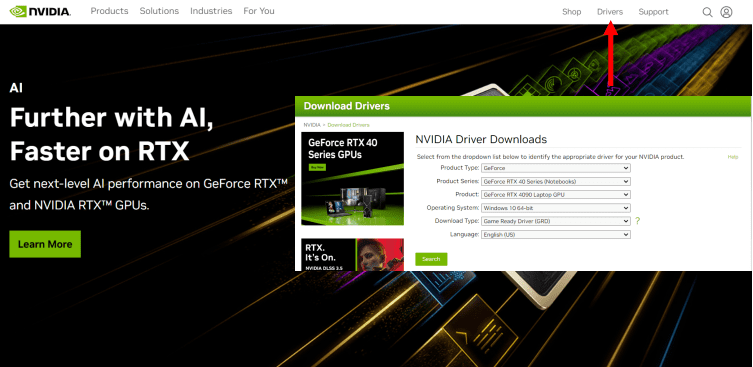
- Go to the manufacturer’s website: To find the latest drivers, visit the website of your computer’s manufacturer (e.g., Dell, HP, Lenovo) or the hardware component’s manufacturer (e.g., NVIDIA, Intel).
- Locate the drivers section: Look for a section on the website dedicated to drivers and downloads. It may be labeled as “Support” or “Drivers.”
- Enter your device information: Provide your computer’s model number or hardware component details to find the appropriate drivers for your system.
Step 2: Download and Install the Driver
- Download the driver: Once you’ve identified the correct driver, download it to your computer. Make sure to choose the version compatible with your operating system (e.g., Windows 10).
- Install the driver: Run the downloaded file and follow the instructions on the screen to install it. Reboot your computer if prompted.
Step 3: Verify the Update
After installing the driver, it’s essential to ensure that the update was successful. Check the Device Manager for any remaining outdated drivers.
While this method provides you with full control over the driver update process, it comes along with a set of drawbacks:
- Manual Process: Requires manual search, download, and installation for each driver.
- Time-Consuming: Takes a lot of time to update multiple drivers individually.
- Frequent Checking: Need to periodically check for new driver updates.
- Risk of Errors: Potential for downloading and installing incorrect or outdated drivers.
- Inconsistent Experience: Different manufacturers’ websites may have varying procedures.
In summary, this method can be inconvenient as manual updates require time-consuming, error-prone, and repetitive tasks for each driver. Additionally, it relies on user awareness and availability of driver updates from manufacturers.
Method 2: Using Auslogics Driver Updater
Manually updating drivers can be a daunting task, especially if you have multiple devices and components that require updates. Fortunately, there are intelligent, time-saving, and efficient software solutions like Auslogics Driver Updater that streamline this process.
Step 1: Download and Install Auslogics Driver Updater
- Visit the official Auslogics Driver Updater page to download the software.
- Install the program by running the file you downloaded and following the installation wizard. You can use the software for free, but the full version provides you with extra features.
Step 2: Scan Your PC
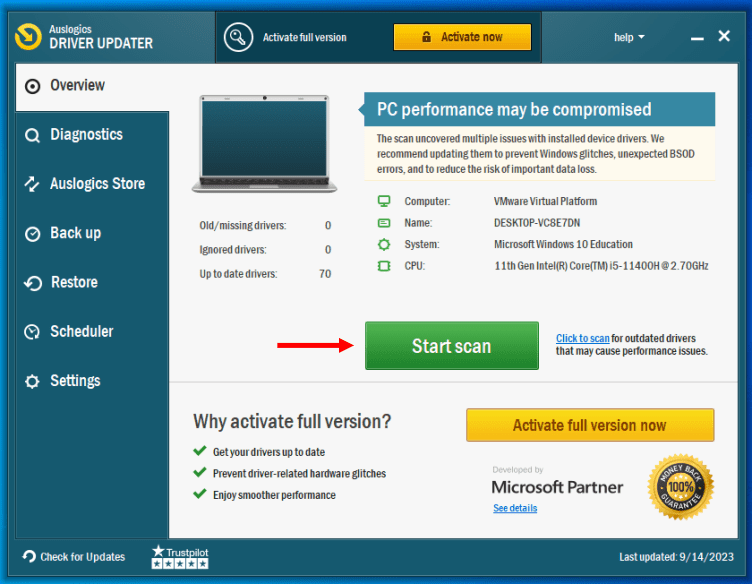
- Launch Auslogics Driver Updater.
- Click the “Start scan” button to initiate a comprehensive scan of your system’s drivers.
Step 3: Review and Update
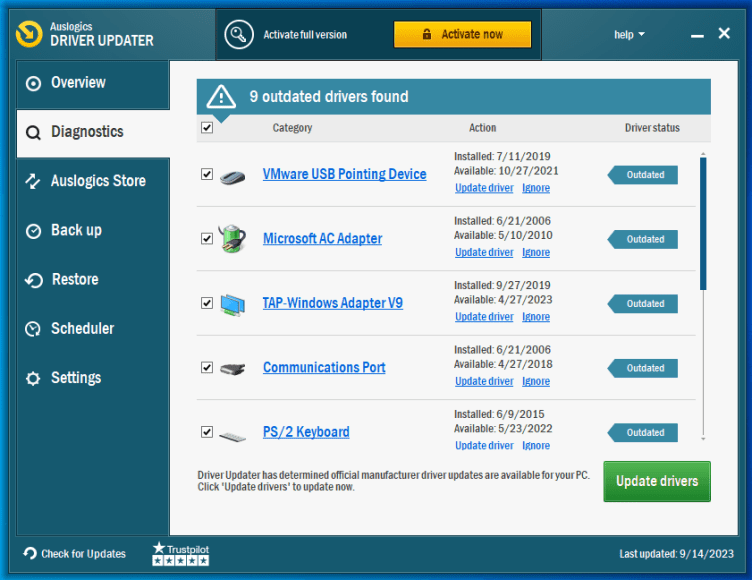
- The program will list all the outdated drivers it finds on your computer.
- Click the “Update” button next to each driver to download and install the latest versions or “Update drivers” to update all outdated drivers automatically.
- Auslogics Driver Updater will automatically create backups of your existing drivers in case you need to roll back to a previous version.
Step 4: Reboot Your Computer
After updating all the drivers, it’s advisable to restart your PC to ensure that the changes take effect.
Auslogics Driver Updater is the right choice for those who want to ensure their drivers are up to date with minimal hassle. The program examines all your installed drivers, checking for outdated or missing versions. During the scanning process, it compares your existing drivers with a vast database of official manufacturer-recommended updates.
Once the scan is complete, the software presents you with a list of drivers that require updates and provides you with an option to update all the drivers with a single click.
However, while Auslogics Driver Updater’s free version can identify malfunctioning and outdated drivers, you will need to update each driver individually. To enjoy the convenience of a one-click update and scheduled scans for required driver updates, you would need to upgrade to the full version.
In summary, this method simplifies driver maintenance, making it easier to ensure your PC operates smoothly. Additionally, you can initiate a new scan by pressing the “Start scan” button again whenever you suspect driver updates are needed.
Method 3: Windows Update
Windows Update is a built-in tool allowing you to keep your operating system and essential drivers up to date. Here’s how to use it:
Step 1: Open Windows Update
In Windows 10:
- Go to “Settings” by pressing the Windows key + I.
- Select “Update & security.”
- Select “Windows Update” in the left sidebar.
In Windows 11:
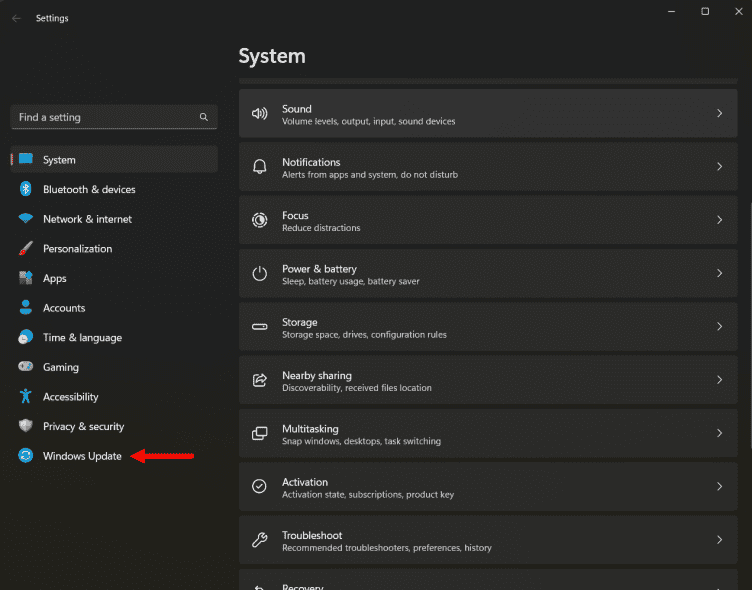
- Go to “Settings” by pressing the Windows key + I.
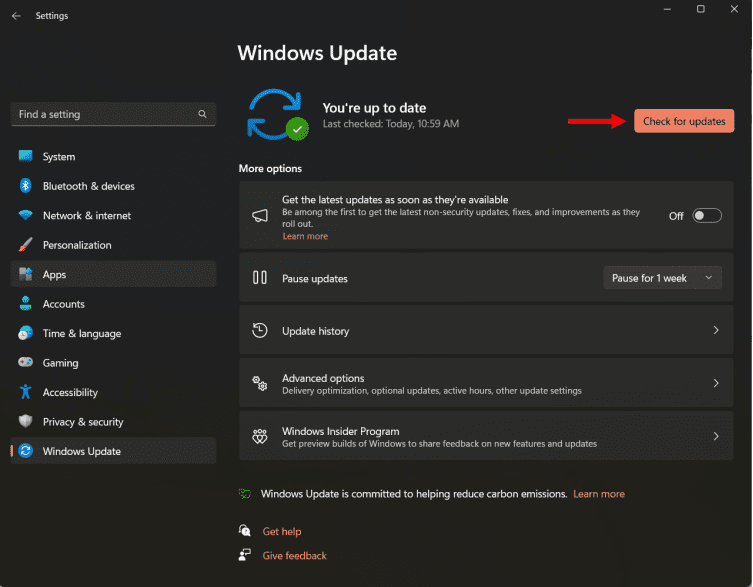
- Select “Windows Update” in the left sidebar.
Step 2: Check for Updates
- Click the “Check for updates” button. Windows will search for driver updates, along with other available updates.
- If updates are found, click “Install” to start the process.
Step 3: Restart Your PC
After updates are installed, restart your computer to apply the changes.
While Windows Update offers some convenience for updating drivers, it’s essential to be aware of its limitations and disadvantages:
- Limited driver coverage: Windows Update primarily provides updates for essential system drivers but may miss third-party hardware.
- Delayed updates: New drivers can be delayed compared to manufacturer releases, affecting timely performance improvements.
- Limited control: Users have minimal control over driver updates, potentially causing compatibility issues.
- Lack of detailed information: Windows Update lacks detailed release notes for driver updates, making it hard to assess their relevance.
- Compatibility concerns: Driver updates may not always be compatible with specific hardware configurations.
- Dependency on Windows Update schedule: Updates are subject to Microsoft’s release schedule, affecting availability.
- Limited rollback options: Reverting to previous driver versions can be challenging after Windows Update installations.
While Windows Update offers a degree of convenience for driver updates, it comes with several limitations and disadvantages. It’s not suitable for users who require the latest drivers for specialized hardware or those who prefer more control over their driver update process.
Check out Microsoft’s Guide on Updating Drivers for more information regarding this method.
Method 4: Using Driver Manufacturer Tools
Some hardware manufacturers provide their own software tools for driver updates. For example, NVIDIA and AMD offer tools like NVIDIA GeForce Experience and AMD Radeon Software, respectively, for updating graphics drivers. These tools can be useful for users who primarily need to update graphics card drivers.
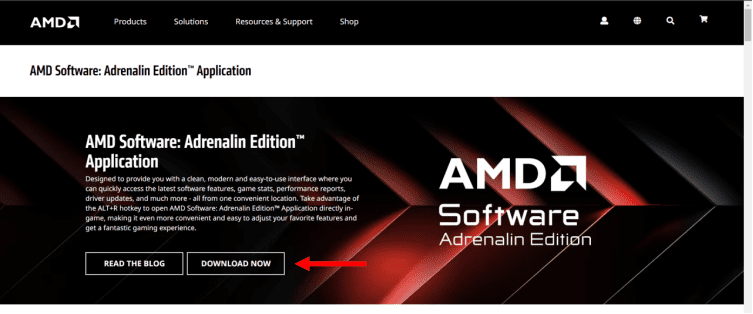
While updating a certain driver using manufacturer tools can be useful, this method has clear disadvantages:
- Multiple Tools: Need to use different tools for various hardware components.
- Time-Consuming: Takes a lot of time to update multiple drivers individually.
- Complexity: Can be complex for users with limited technical knowledge.
- Lack of Automation: Requires manually checking and updating each driver.
- Potential Conflicts: Risk of driver conflicts when managing many updates.
- Compatibility Issues: Some manufacturer tools may not work with all versions of Windows.
Using manufacturer-specific tools for driver updates can be complex and time-consuming, especially when updating multiple drivers on your computer. It also lacks automation, increases the risk of driver conflicts, and may not work with all versions of Windows.
Method 5: Windows Device Manager
Windows Device Manager can also be used to update drivers manually:
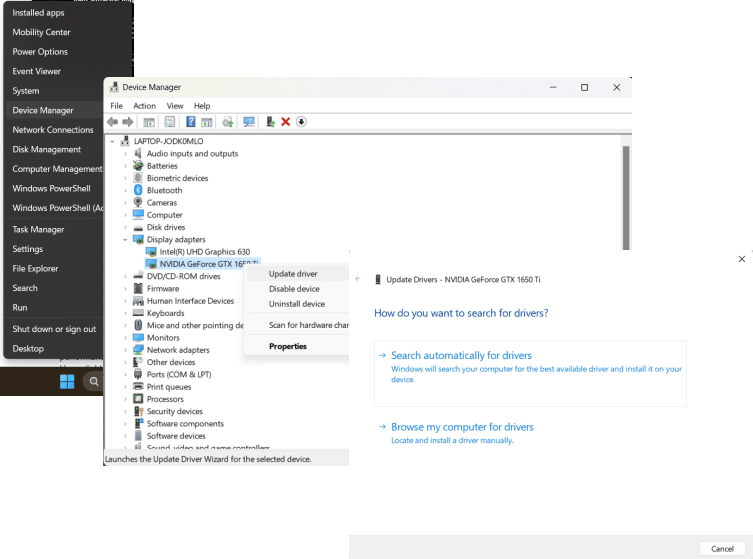
- Right-click on the Start button and select “Device Manager.”
- Expand the category of the hardware device you want to update.
- Right-click on the device and select “Update driver.”
- Select “Search automatically for drivers” and follow the instructions on the screen.
Just like the previous one, this method has drawbacks and limitations:
- Manual Process: Requires manual search and update for each driver.
- Limited Coverage: May not identify all outdated drivers.
- Complex for Novices: Not user-friendly for those with limited technical skills.
- Time-Consuming: Can be time-intensive when updating multiple drivers.
- Risk of Errors: Potential for accidental driver installations or conflicts.
- No Backup Functionality: No built-in backup option for existing drivers.
- No Automation: Lacks automation for quick, one-click updates.
- Dependency: Relies on user awareness and driver availability.
- Lack of Details: Limited information on driver updates within Device Manager.
To sum up, using Windows Device Manager for driver updates is time-consuming and lacks automation, making it less efficient for managing multiple drivers. It may also miss some outdated drivers and isn’t beginner-friendly.
Additional Tips for Driver Maintenance
In addition to explaining how to update device drivers, here are some extra tips for maintaining your PC:
- Regularly clean your computer: Dust and debris can accumulate inside your computer, leading to overheating and hardware issues. Periodically clean the internals to keep your system running smoothly.
- Install system updates: Alongside driver updates, don’t forget to install operating system updates. These updates often contain important security patches and performance improvements.
- Use reliable security software: Protect your PC from malware and viruses by using reputable antivirus and antimalware software. Regularly update them to stay protected.
- Back up your data: Regularly back up your important files to an external drive or cloud storage to prevent data loss in case of hardware failure or other issues.
By following these tips and learning how to make sure drivers are up to date, you’ll enjoy a stable and efficient computing experience. Remember that regular maintenance is key to hassle-free PC usage.
Conclusion
In this guide, we’ve explored the importance of keeping your PC drivers up to date. We’ve walked you through various methods, from the manual approach to leveraging powerful tools like Auslogics Driver Updater. Now, you have the understanding of how to check if your drivers are up to date and ensure that your computer runs at its peak performance.
Remember, knowing how to update drivers on Windows 10, or any other version of Windows, is a skill every PC user should possess. Regular driver updates contribute to a stable and secure computing experience, and with the right tools and know-how, you can effortlessly stay on top of your driver maintenance.
FAQ
How to identify if my drivers are outdated?
You can check for outdated drivers in the Device Manager on Windows. Look for yellow triangle icons or simply use driver updater software like Auslogics Driver Updater to identify and update them automatically.
Can I roll back to a previous driver version if an update causes issues?
Yes, you can. Windows allows you to roll back to a previous driver version if the new one causes problems. Alternatively, you can use driver updater software like Auslogics Driver Updater, which automatically creates backups of your existing drivers. Learn more about how to roll back any driver in Windows 10 in this guide.
What should I do if I can’t find a driver update for my hardware?
If you can’t find an official driver update, you may need to wait for the manufacturer to release one. In some cases, Windows Update can also provide generic drivers that work with your hardware.
Are third-party driver updater tools safe to use?
Reputable third-party driver updater tools like Auslogics Driver Updater are safe to use. They source drivers from official manufacturers and provide backup options for added security. However, be cautious of unknown or suspicious driver updater software.
Do driver updates improve gaming performance?
Yes, driver updates can enhance gaming performance by optimizing graphics and audio drivers. Gamers should regularly update GPU and sound card drivers to ensure the best gaming experience.