

If you’re upgrading to a new iPhone, one of the biggest concerns is making sure all your important WhatsApp Business data — including chats, contacts, and media — moves seamlessly to the new device. Unlike personal WhatsApp, WhatsApp Business often contains crucial customer messages, order details, and even transaction records. Losing this data could mean losing trust and business opportunities.
In this guide, we’ll explain how to transfer WhatsApp Business from iPhone to iPhone, covering official methods, iCloud solutions, and introducing a professional tool like MagFone WhatsApp Transfer that makes the entire process faster, safer, and more reliable.
Why Transferring WhatsApp Business Data Matters
WhatsApp Business is more than just messaging — it’s a customer relationship tool. When switching iPhones, you want to:
- Preserve customer chat history.
- Keep images, documents, and voice messages intact.
- Avoid downtime that could impact communication with clients.
- Ensure smooth migration without data loss.
That’s why knowing the right method is key.
Method 1: Transfer WhatsApp Business via iCloud Backup
The official method from WhatsApp is through iCloud backup. On your old iPhone, open WhatsApp Business. Go to Settings > Chats > Chat Backup. Tap Back Up Now to upload your data to iCloud. On your new iPhone, install WhatsApp Business. Log in with the same phone number and verify it. When prompted, tap Restore Chat History.
- Pros: Free, official, and secure.
- Cons: Requires enough iCloud storage, stable Wi-Fi, and can be slow with large data.
Method 2: Transfer WhatsApp Business via Quick Start
Apple’s Quick Start can migrate almost everything, including WhatsApp Business data, when setting up a new iPhone. Power up your new iPhone and keep it close to your old device. When the Quick Start screen appears, follow the on-screen instructions. Choose Transfer from iPhone and keep both devices nearby. Once the setup is done, install WhatsApp Business and log in.
- Pros: Transfers a lot of data at once.
- Cons: Requires both iPhones side by side and can take hours.
Method 3: Professional Tool – MagFone Chats Transfer
While iCloud and Quick Start work, they are not always practical, especially if:
- Your iCloud storage is full.
- Backup takes too long.
- You want a direct and selective transfer.
This is where MagFone Chats Transfer comes in. It’s a professional tool designed for WhatsApp and WhatsApp Business data migration across iPhones (and even Android).
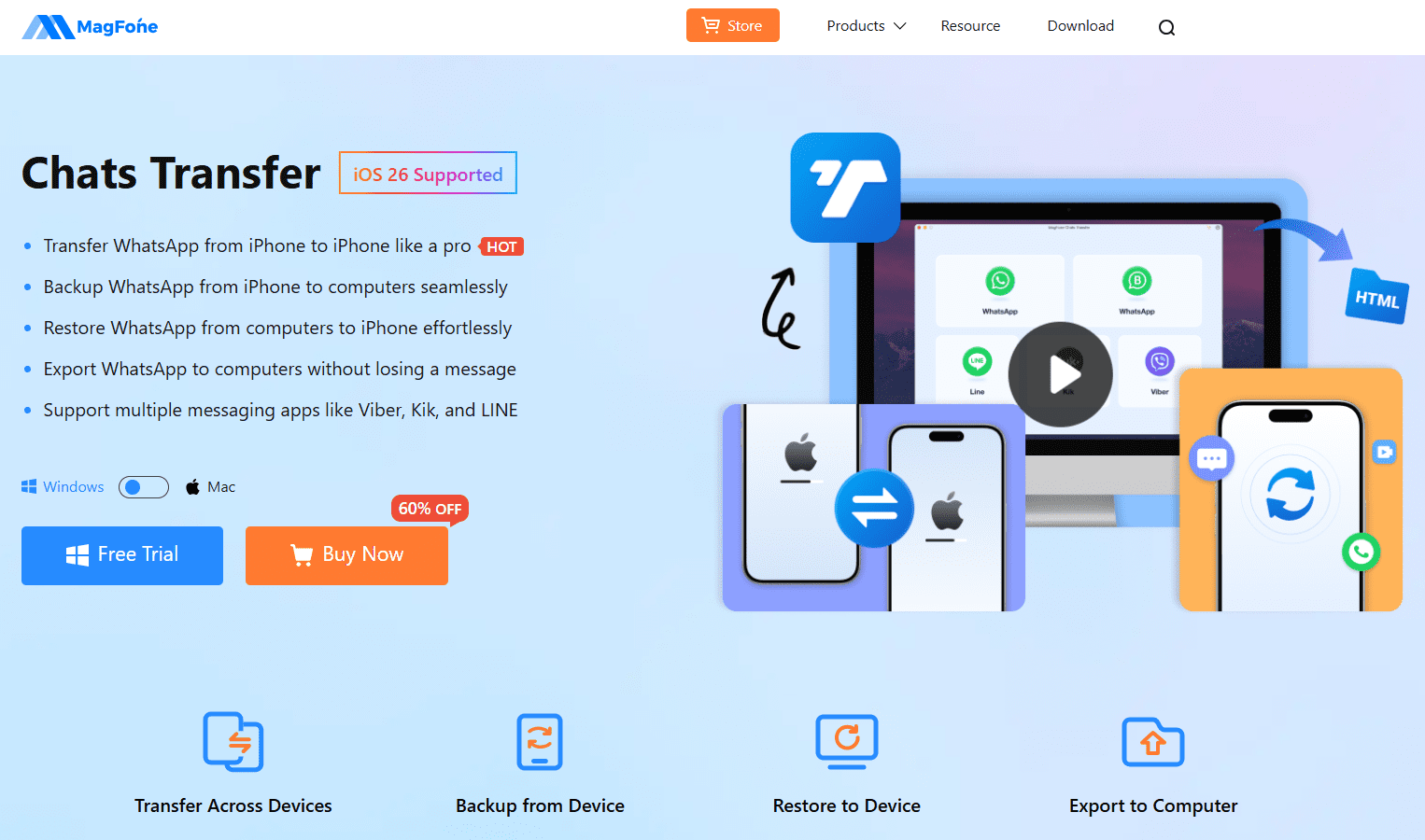
Key Features of MagFone Chats Transfer
- Transfer WhatsApp Business chats directly between iPhones with one click.
- No need for iCloud or iTunes.
- Keep messages, media files, and attachments 100% intact.
- Works with iOS 18 and latest iPhone models.
- Backup WhatsApp Business data to a computer and restore anytime.
How to Use MagFone Chats Transfer
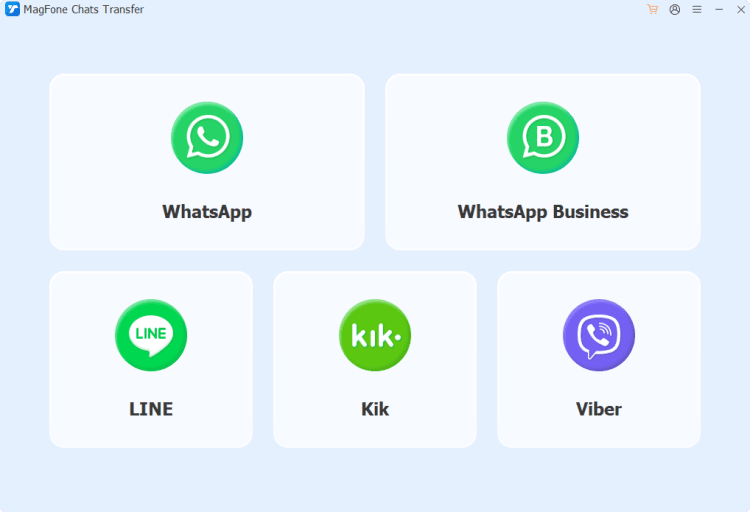
Step 1: Download & Install MagFone Chats Transfer on your computer. Connect both your old and new iPhones via USB. Launch the program and select WhatsApp Business Transfer.
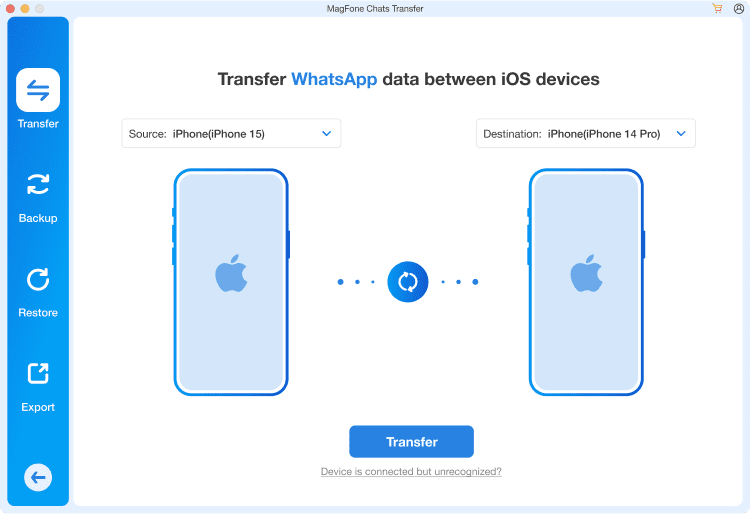
Step 2: Choose the source and target device. Click Start and wait for the process to complete.
Step 3: Within minutes, all your WhatsApp Business data will appear on your new iPhone exactly as before.
Comparing the Methods
- iCloud Backup – Free but slow, limited by storage.
- Quick Start – Convenient but only during setup.
- MagFone Chats Transfer – Fast, reliable, and works anytime without limitations.
If you need a professional, flexible, and hassle-free solution, MagFone Chats Transfer stands out as the best way to transfer WhatsApp Business from iPhone to iPhone. If you want to know how to transfer WhatsApp from iPhone to iPhone, it is also a good way.
Final Thoughts
When learning how to transfer WhatsApp Business from iPhone to iPhone, you have multiple options. iCloud and Quick Start are good for basic needs, but they come with storage and speed limitations.
For business owners who rely on WhatsApp Business every day, using MagFone Chats Transfer ensures a smooth, complete, and reliable migration without data loss. With its simple interface and powerful features, it’s the ultimate solution to keep your customer conversations safe and accessible on your new iPhone.