
Apple Watches are more than just timepieces. They are an extension of your style, personality, and daily routine. One of the most exciting features of the Apple Watch is the ability to customize its faces to suit your needs and preferences. In this guide, we’ll walk you through everything you need to know about customizing Apple Watch Faces, helping you make the most out of your wearable.
Why Customize Your Apple Watch Face?
Customizing your Apple Watch face is about more than aesthetics. It’s a way to:
- Enhance functionality: Add complications (widgets) to get important updates at a glance, like the weather, calendar, or fitness stats.
- Showcase your personality: Choose designs and colors that reflect your style.
- Adapt to your day: Create different faces for work, workouts, and downtime.
Whether you’re a fitness enthusiast, a busy professional, or someone who loves personal expression, there’s an Apple Watch face for you.
How to Choose the Right Apple Watch Face
With dozens of face designs and countless customization options, choosing the right one might seem overwhelming. Here are some tips:
1. Consider Your Routine
- Work: Use modular faces with complications for productivity tools like email, calendar, or reminders.
- Fitness: Choose faces that integrate with your fitness apps and display activity rings.
- Leisure: Opt for photo faces or minimalist designs for a relaxed vibe.
2. Focus on Functionality
- Add complications that provide quick access to the information or apps you use most.
- Keep it clean and avoid overloading your face with unnecessary widgets.
3. Pick a Style
- Analog or digital, bold or subtle, there’s an option for every taste.
- Match the face’s colors to your watch band or outfit.
Step-by-Step Guide to Customizing Apple Watch Faces
Ready to make your watch truly yours? Follow these steps to customize your Apple Watch Faces:
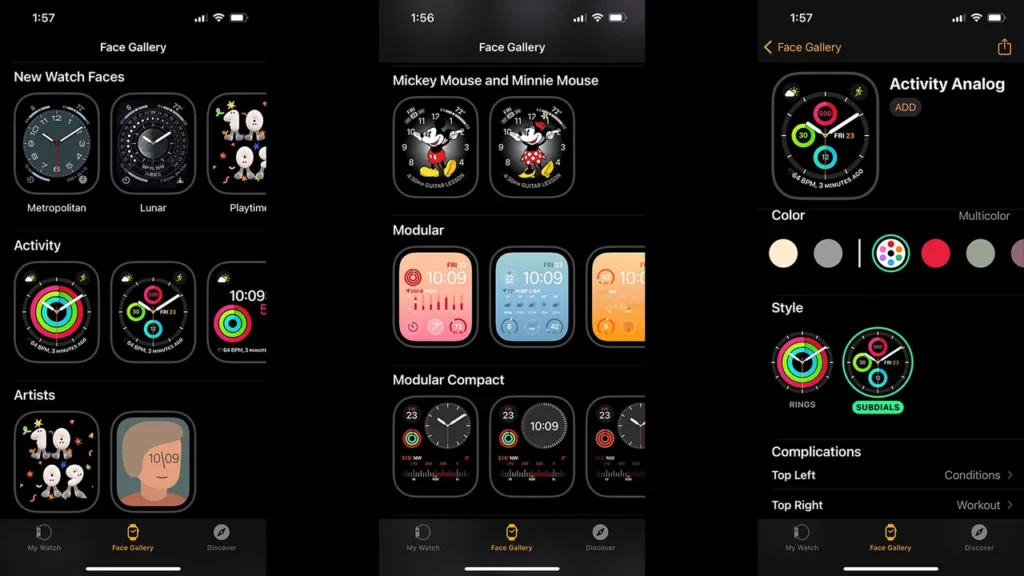
1. Access the Watch Face Gallery
- Open the Watch app on your iPhone.
- Tap on the “Face Gallery” tab at the bottom of the screen.
2. Browse and Select a Face
- Scroll through the gallery to explore various options, from classic to modern.
- Tap on a face to preview it.
3. Customize the Design
- Adjust colors, styles, and complications.
- Example: For the Modular face, you can change the central complication to display your activity rings or calendar.
4. Add Complications
- Choose complications from built-in apps like Weather, Activity, or Music.
- Use third-party complications from apps downloaded via the App Store.
5. Set It as Your Default Face
- Once satisfied, tap “Add” to sync it to your watch.
- Swipe between faces directly on your Apple Watch to switch as needed.
Popular Apple Watch Faces to Try
Not sure where to start? Here are some fan-favorite faces:
1. Infograph Modular
- Perfect for multitaskers.
- Includes up to six complications for essential apps and data.
2. Photos
- Display your favorite memories from your photo library.
- Rotate through images or keep a single one as the background.
3. Siri Face
- Automatically updates with relevant information based on your habits and location.
- Great for hands-free convenience.
4. California
- A clean, classic analog face with a modern twist.
- Ideal for a sophisticated look.
5. Chronograph Pro
- Features a built-in tachymeter for timing activities.
- Perfect for sports enthusiasts and those who love detailed designs.
Adding Third-Party Complications
Your customization options don’t end with Apple’s default settings. You can:
- Download compatible apps from the App Store.
- Enable complications for these apps in the Watch app.
- Choose placement: Add them to your preferred watch face.
Some popular apps with useful complications include:
- Carrot Weather for hyper-local forecasts.
- Fantastical for advanced calendar management.
- WaterMinder to track hydration.
Tips for Managing Multiple Watch Faces
Many users create multiple watch faces for different occasions. Here’s how to manage them effectively:
- Switch Faces Easily
- Swipe left or right on your Apple Watch to switch between saved faces.
- Organize in the Watch App
- Reorder faces by dragging them up or down in the My Watch tab.
- Delete Unused Faces
- Long-press on the watch face and tap the “Remove” button.
Troubleshooting Common Issues
If you run into problems while customizing your watch face, try these solutions:
- Complication Not Updating: Check if the associated app is updated.
- Face Won’t Sync: Restart both your iPhone and Apple Watch.
- Limited Options: Ensure your Apple Watch has the latest software update.
Unlock More Possibilities with the App Store
The Apple Watch ecosystem thrives on the integration of apps that enhance its functionality. By exploring the App Store, you can discover:
- New watch faces.
- Additional complications for third-party apps.
- Tools to boost your productivity and wellness.
Whether you’re looking for a new aesthetic or a feature to streamline your day, the App Store is your go-to resource.
If you want to stay updated on the latest trends, apps, and innovations around Apple devices, you can also check out Apple Magazine for in-depth coverage and insights.
Conclusion
Customizing your Apple Watch Faces is a rewarding way to make your smartwatch work for you. From selecting the perfect design to adding meaningful complications, every detail can be tailored to your lifestyle. Remember, your Apple Watch isn’t just a gadget—it’s a personal assistant, a fitness tracker, and a fashion statement rolled into one. Dive into the App Store today and unlock the full potential of your Apple Watch!
Read More From Techbullion