
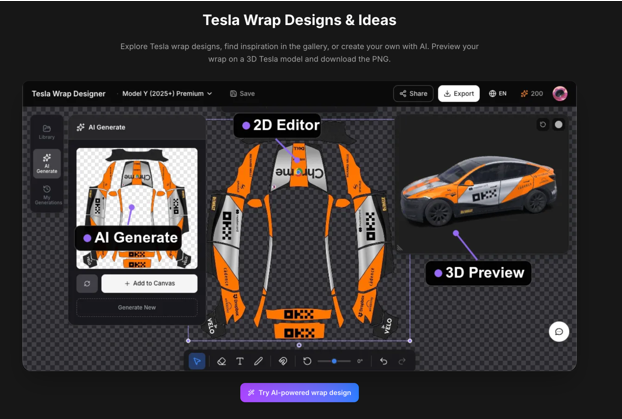
Customising a Tesla no longer has to begin with sketches, complicated design software, or a visit to a wrap shop. An AI-assisted workflow can turn a written idea or reference image into a digital wrap concept, place it on a model-specific vehicle template, and show the result from multiple angles before anything is produced.
This approach is useful for Tesla owners exploring personalisation ideas and for wrap professionals who need a faster way to communicate early concepts. The process still requires thoughtful decisions: a visually impressive image is only the starting point. Colours, graphics, text, panel transitions, and the intended output all need to work together.
The following tutorial uses a Cybertruck concept—matte charcoal with silver topographic lines and an electric-blue accent—to explain the complete process from prompt creation to export.
Start With a Clear Wrap Brief
Before opening a design tool, write a short brief describing what the finished vehicle should communicate. A focused brief helps the AI generate relevant concepts and gives you criteria for comparing the results.
Include five details:
- Exact Tesla model
- Main colour and finish
- Graphic theme
- Accent colour
- Intended use, such as personal styling, event display, digital Paint Shop visualisation, or a concept for a physical wrap
For this example, the brief could be:
Create a technical, modern Cybertruck wrap with a matte charcoal base, thin silver topographic contour lines, and restrained electric-blue accents. Keep the design clean enough for daily driving and avoid placing important details across panel edges.
A platform such as Tesla Wrap Designer brings the main stages of this workflow into a browser. Users can explore existing designs, generate a concept with AI, edit it on a model-specific template, inspect it in 3D, and export a compatible digital wrap file.
Turn the Brief Into a Better AI Prompt
AI image tools respond more reliably when a prompt describes the vehicle, visual hierarchy, materials, colours, and placement rules. Broad instructions such as “make a futuristic Tesla wrap” leave too many decisions undefined.
A more useful prompt for the Cybertruck example would be:
Matte charcoal Cybertruck wrap with fine silver topographic contour lines flowing from the front fenders toward the rear panels. Add a narrow electric-blue accent along the lower body. Minimal, technical, premium appearance, balanced on both sides, no logos, no text, no dense graphics near doors or panel seams.
This version gives the generator practical constraints. It identifies where the graphic should flow, how prominent the accent should be, and which elements to avoid.
The AI Tesla wrap generator can create wrap concepts from a text description. A reference image can also help define a colour palette, pattern, or overall mood. Before uploading a reference, confirm that you own it or have permission to use it, especially when the resulting design may support commercial work.
AI generation uses credits, while browsing designs, editing, viewing the wrap in 3D, and exporting the PNG are available without consuming generation credits. Creating several considered variations is therefore more efficient than repeatedly generating concepts without a defined direction.
Generate Variations With Specific Differences
Three to five variations are usually enough for an initial comparison. Each version should test a meaningful design decision rather than producing nearly identical images.
For example, one variation could use wide contour-line spacing for a restrained appearance. A second could concentrate the lines around the front quarter and rear panels. A third could increase the electric-blue accent to create a more noticeable motorsport influence.
Compare each option according to:
- Whether the focal point is clear
- Whether the design works across the full vehicle
- Whether the colour balance suits the intended use
- Whether major details avoid doors, seams, cameras, and trim
- Whether the concept will remain recognisable from a distance
AI-generated lettering, logos, repeated patterns, and small mechanical details should receive extra scrutiny. Distorted characters and inconsistent repetitions are common signs that an element should be removed or rebuilt in the editor.
Select the Correct Tesla Template
After choosing a direction, select the exact vehicle model in the editor. A wrap concept created for a Model 3 cannot simply be transferred to a Model Y or Cybertruck because their body proportions and panel layouts differ.
Model-specific UV templates connect a flat design to the vehicle’s three-dimensional surfaces. Choosing the correct template helps the preview represent the intended vehicle and makes the exported digital wrap compatible with the relevant workflow.
Confirm the model before making detailed adjustments. Changing templates late in the process may alter the position, scale, and continuity of the artwork.
Edit the Design on the Vehicle Layout
Place the generated image on the selected template and adjust its size and position. The goal is to make the artwork behave like one continuous composition rather than a picture placed independently on each panel.
For the Cybertruck example, align the silver contour lines so that they appear to flow naturally from front to rear. Keep the blue accent consistent along the lower body and check that its height does not change unexpectedly between panels.
If the design includes text, avoid placing important words across doors, panel gaps, or strongly curved areas. Large text may look correct on the flat layout yet become difficult to read after wrapping around the vehicle.
This editing stage is also the right time to simplify the AI output. Remove unnecessary textures, repair uneven repetitions, and enlarge details that become unclear when viewed at vehicle scale.
Inspect the Wrap in 3D
A flat template is useful for precise positioning, but it cannot show the complete visual effect of the wrap. Open the 3D preview and rotate the vehicle slowly through the front, rear, both sides, and three-quarter views.
Pay particular attention to:
- Graphics that stretch around corners
- Lines that stop abruptly at seams
- Patterns that change scale between panels
- Text that becomes distorted
- Important details hidden near wheels or trim
- Empty areas that weaken the overall composition
For the Cybertruck design, the front three-quarter view should reveal whether the contour lines lead the eye along the body. The side view should confirm that the blue accent remains level. The rear view should show whether the pattern ends intentionally rather than appearing cropped.
Return to the editor whenever a problem appears. Several short edit-and-preview cycles generally produce a better result than trying to perfect the flat template in one attempt.
Export the Digital Wrap
Once the design has passed the 3D review, export it as a PNG prepared for Tesla’s compatible Paint Shop workflow. Follow the displayed requirements for image dimensions, file size, and naming. Depending on the supported vehicle and software workflow, the file can then be transferred through the relevant Tesla App or USB process.
The exported PNG is a digital wrap asset. It changes how a compatible vehicle appears within supported Tesla visualisation features; it does not alter the car’s physical paint.
A digital Paint Shop file also differs from a production file used for vinyl installation. If the concept will become a physical wrap, send it to an experienced printer or installer. The production team should validate the template, dimensions, resolution, bleed, colour profile, panel overlap, cutting paths, and installation tolerances before printing.
A Faster Route From Idea to Reviewable Concept
AI makes the early creative stage faster, while the editor and 3D preview make the result easier to evaluate. The strongest workflow combines both capabilities: define a clear idea, generate controlled variations, refine the chosen design on the correct vehicle template, and inspect every angle before export.
For owners, this provides a practical way to explore custom Tesla styling without starting from a blank canvas. For wrap businesses, it can shorten early concept discussions and give customers a clearer visual direction before production preparation begins.
Frequently Asked Questions
What information should an AI Tesla wrap prompt include?
A useful prompt should identify the Tesla model, base colour, finish, graphic theme, accent colours, visual density, and preferred placement. It can also define exclusions such as logos, text, or dense details near panel seams. Clear constraints make generated concepts easier to compare and refine.
Can I use a reference image to generate a Tesla wrap concept?
A reference image can help communicate a colour palette, pattern, texture, or visual mood. Users should upload material they own or have permission to use, particularly when a generated concept may support commercial work. The result should still be reviewed for unwanted text, distorted details, and inconsistent repetition.
Which Tesla Wrap Designer features use generation credits?
AI generation consumes credits. Browsing existing designs, editing a selected concept, inspecting it in the 3D preview, and exporting the Paint Shop-compatible PNG do not consume AI generation credits. Defining the creative direction before generating several variations can therefore make credit use more efficient.