
If you use an iPhone and have a Windows PC, you’re probably aware of Apple’s focus on maintaining their ecosystem. Much of Apple’s brand is built on the experience the user has when they use all of Apple’s devices with each other. Apple makes it very easy to connect its devices, while at the same time also purposefully making it hard to connect its devices to other platforms. This ensures that once you use one Apple device, you are enticed into the Apple ecosystem and buy more of their products.
If you have a Windows PC and want to connect your iPhone to it, you’ll have to use Apple’s iTunes app to do so. You can backup your iPhone to your computer so if something happens to your iPhone, your data will be safe. So if you’re wondering how to connect iPhone to PC, here’s how to do it. If after following these steps you’re having connection issues, you can check out this article on iPhone not showing up on PC.
1) Install iTunes on your PC
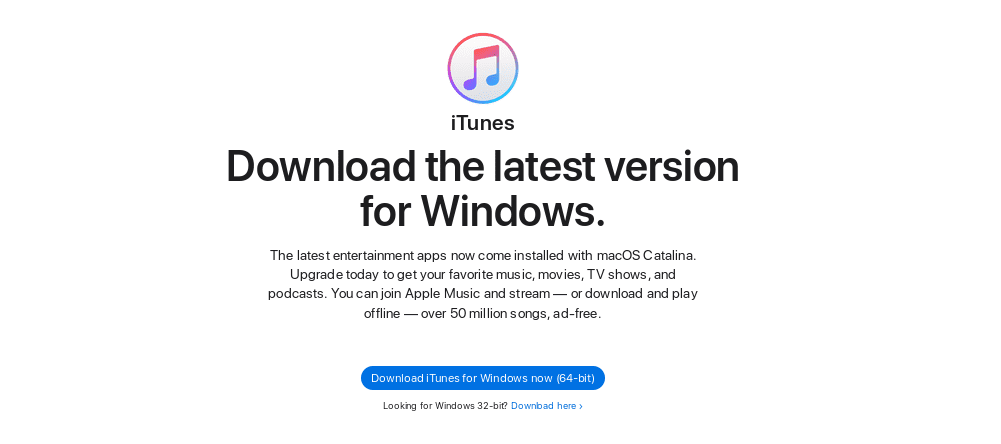
- Open your web browser, and go to apple.com/itunes/
- Click on Download iTunes. Your browser should show you a prompt asking whether to Open the file or Save it. Select Save. The file should now be downloaded to your Downloads folder.
- Once the Download is finished, Open the File Explorer and go to your Downloads folder.
- You should see a file named iTunes64Setup.exe. Double-click on the file to run it.
- The standard Windows Installer dialog should open and start installing iTunes. Follow the on-screen instructions to install iTunes.
Open iTunes to confirm that its installed, and open it to make sure its working correctly.
Now that you have iTunes installed on your PC, we can go ahead and connect iPhone to PC. You will need your Lightning cable the first time you connect an iPhone to a PC, but you can connect wireless from the next time.
2) Connect iPhone to PC and backup data
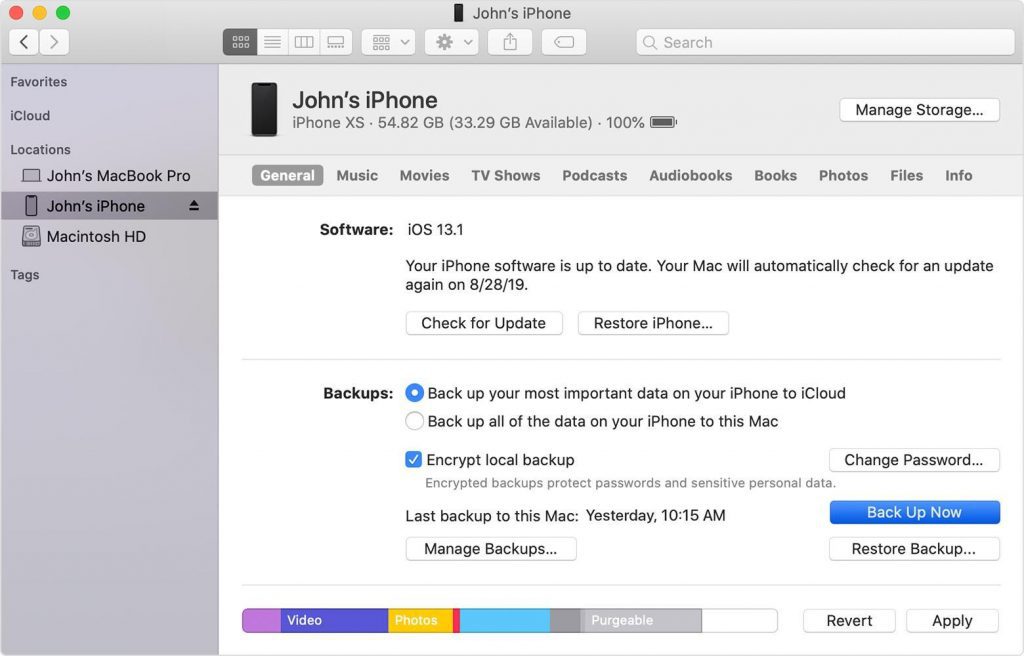
Image Credit: support.apple.com
- Connect your iPhone to your PC.
- If this is your first time doing so, you should see a prompt on your iPhone asking if you Trust this computer. Tap on Trust.
- You should also see a prompt on Windows asking whether Windows should access the data on this device. Click on Continue.
- Your iPhone and PC are now connected to each other. Now, open iTunes on your PC via the Start Menu.
- Your iPhone should show up in the Devices list. Select it.
- The first time you connect it, iTunes will ask you to give it a name. Your iPhone will be identified by this name from the next time.
- You should now see general information about your iPhone like Battery percentage, free storage etc.
- In the Backups subsection, choose whether you want to backup all data, or only important data. You can also encrypt your backup with a password. Encrypting your backup is required if you want to store Health and other private data.
- Click on Back Up Now.