
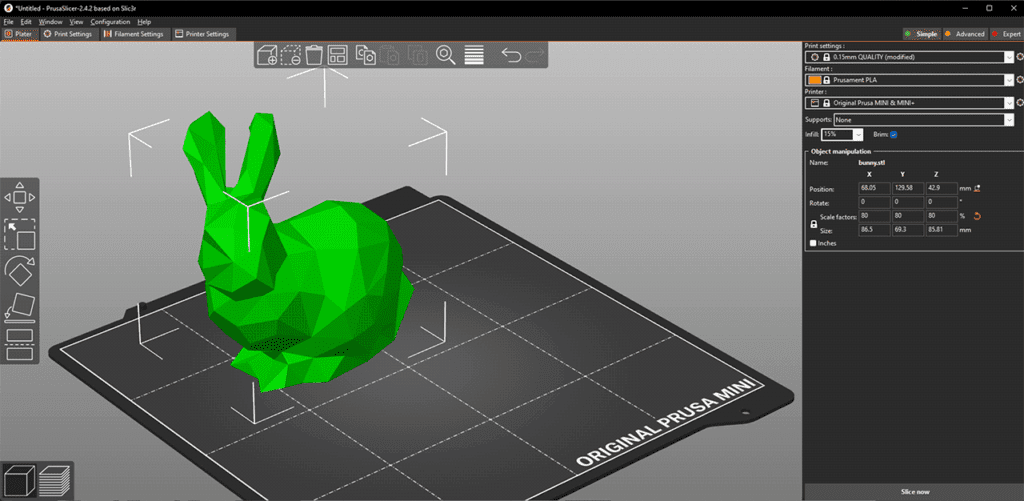
Previewing your 3D model before printing is one of the most important steps in achieving a successful print. Creality Slicer software download is available for free and allows users to easily load, configure, and preview their 3D models before sending them to the printer. By downloading and using this slicer, you can visualize your model, check supports, and simulate print paths, ensuring that your print will succeed on the first try.
Why Previewing Your Model Is Important
Previewing a model in Creality Slicer helps you:
- Identify potential print issues such as overhangs or weak supports.
- Check layer height and print path to optimize quality and time.
- Verify print orientation for the best structural integrity.
- Avoid wasted filament by spotting errors before printing.
Previewing ensures your print will come out correctly the first time, saving both material and effort.
Step-by-Step Guide: Previewing a Model in Creality Slicer
1. Open Creality Slicer and Import Your Model
- Launch Creality Slicer on your computer.
- Click File → Import → Add STL/OBJ/3MF to load your 3D model.
- The model will appear on the virtual build plate in the software.
2. Adjust Model Orientation and Placement
- Rotate, scale, or move the model to fit the printer bed correctly.
- Ensure the model is centered and within the printer’s maximum build volume.
- Proper orientation can reduce the need for supports and improve print strength.
3. Configure Print Settings for Your Creality 3D Printer
- Choose your Creality 3D printer from the profile list.
- Select filament type, layer height, infill density, and supports.
- These settings will affect how the preview is generated and how the layers are displayed.
4. Switch to Preview Mode
- Click the Preview button (usually at the top toolbar).
- Creality Slicer will generate a layer-by-layer visualization of the model.
- You can scroll through layers to inspect details like supports, infill, and shell thickness.
5. Analyze the Preview
- Check supports: Make sure all overhangs have adequate supports.
- Layer paths: Look at the movement of the print head to identify potential issues.
- Infill pattern: Ensure the chosen infill type and density match your design requirements.
- Gaps or errors: Preview mode can reveal areas where the model might fail or print incorrectly.
6. Make Adjustments if Needed
- Rotate the model to reduce overhangs.
- Increase supports for weak areas.
- Adjust layer height or infill density to improve quality or reduce print time
- Re-preview after making changes to confirm improvements.
Tips for Effective Model Previewing
- Zoom in on details: Use the zoom feature to inspect small features.
- Use layer slider: Scroll through individual layers to detect potential weak points.
- Check multiple orientations: Preview from different angles to ensure accuracy.
- Simulate print time: Creality Slicer shows estimated print duration, helping with planning.
- Save preview images: Useful for sharing with team members or for reference before printing.
Common Mistakes to Avoid
- Skipping preview mode: Not checking the model before printing often leads to failed prints.
- Ignoring support placement: Unsupported overhangs can cause warping or incomplete prints.
- Overlooking bed alignment: Misaligned models may not fit the printer bed properly.
Conclusion
Previewing your 3D model in Creality Slicer is an essential step in achieving high-quality prints. By carefully inspecting each layer, checking supports, and analyzing the print path, you can prevent errors, save filament, and reduce failed prints. Whether you are using a Creality 3D printer or another compatible machine, Creality Slicer’s intuitive preview features make it easy to visualize your model accurately before printing.