
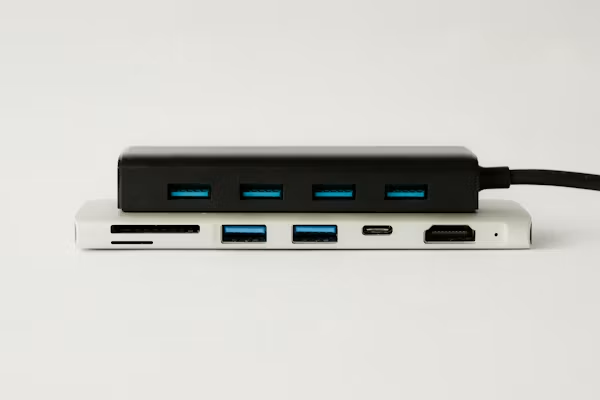
Laptop users often move between a compact mobile setup and a desk with several screens. Reconnecting each monitor, keyboard, network cable, and accessory takes time and invites missed connections.
A docking station gives those devices a fixed connection point, so the laptop can move without disturbing the rest of the workspace. When the dock is compatible with the laptop and connected equipment, users can return to a familiar workstation without repeatedly arranging their devices.
Choose a Dock Around Display Tasks
A dock creates a repeatable connection point for a laptop, displays, and desk peripherals. Instead of reconnecting cables each time, staff can connect the laptop to computer docking stations while monitors, a keyboard, and network equipment stay in place.
Plan the screen arrangement around daily tasks. A wide spreadsheet, a video meeting, and a reference document each need a different share of desk space. Giving each screen a clear purpose reduces window switching and helps keep work organized.
Check Display Compatibility First
The number of external screens a setup supports depends on the laptop, dock, operating system, and connection type. Check the computer’s specifications to confirm how many displays it supports, then compare those details with the dock’s capabilities.
The connection type between the laptop and dock matters just as much. Many laptops send video through a USB-C port that supports DisplayPort Alt Mode, while others use Thunderbolt or USB4, which carry video and data over the same cable.
Older laptops may offer only USB-A, which requires a dock that produces video through driver software. Confirm that the laptop and dock support compatible video connections. A physical fit does not confirm that multiple screens will work as intended.
Match Ports to Daily Equipment
A desk setup might include a mouse, keyboard, webcam, storage device, and network cable. List the equipment used each day to identify the ports the dock needs. This also helps identify any connection gaps that could require additional adapters, even after the dock is installed.
Check the monitors’ available inputs before choosing a dock. If the displays use different connection types, confirm that the dock supports the required combination. A simple cable plan makes it easier to connect a replacement laptop or troubleshoot a blank screen.
Keep Power and Charging Simple
A dock can reduce desk clutter by bringing laptop power and peripheral connections to one place. Before relying on it to charge the laptop, check whether it supplies power and whether that power suits the computer. Otherwise, the laptop may still need its own charger and outlet.
Place the dock where its cable reaches the laptop without crossing a walkway or pulling on a port. Keep power cables clear of the area used to move a mouse or adjust a monitor. A tidy layout makes docking easier and reduces accidental disconnections.
Reduce Setup Errors During Handoffs
Shared desks and temporary workstations benefit from a consistent cable layout. Label cables by device or display so people can reconnect equipment correctly after a desk change. A simple diagram near the workstation can show which monitor belongs on each side.
When a screen goes blank, check the connection chain in order: laptop connection, dock power, monitor input, and display settings. Testing one screen at a time helps isolate the cause without disturbing the rest of the setup. Documenting the working configuration also gives support staff a useful reference when equipment needs to be replaced, moved, or reconnected.
Arrange Screens for Focused Work
Screen position affects how easily people move between tasks. Place the main display directly in front of the user, then position secondary screens beside it for reference material or communication. Put frequently used windows on the screen that is easiest to view.
Set consistent display scaling and text sizes across monitors where practical. Different settings can make windows look mismatched or require extra adjustments when moving content between screens. Check the setup after connecting the laptop to catch display issues before a meeting or focused work session.
Conclusion
A reliable multi-monitor workstation requires the laptop, dock, displays, power needs, and desk layout working together. Before choosing a setup, record the laptop model, monitor inputs, number of screens, and daily peripherals. Then check compatibility against those requirements.
After installation, test the complete arrangement and document the cable connections. This gives staff a reliable reference when they return to the desk or switch computers.
Previously in Technology: What Should Repair Shops Check Before Buying Cell Phone Parts Wholesale?