
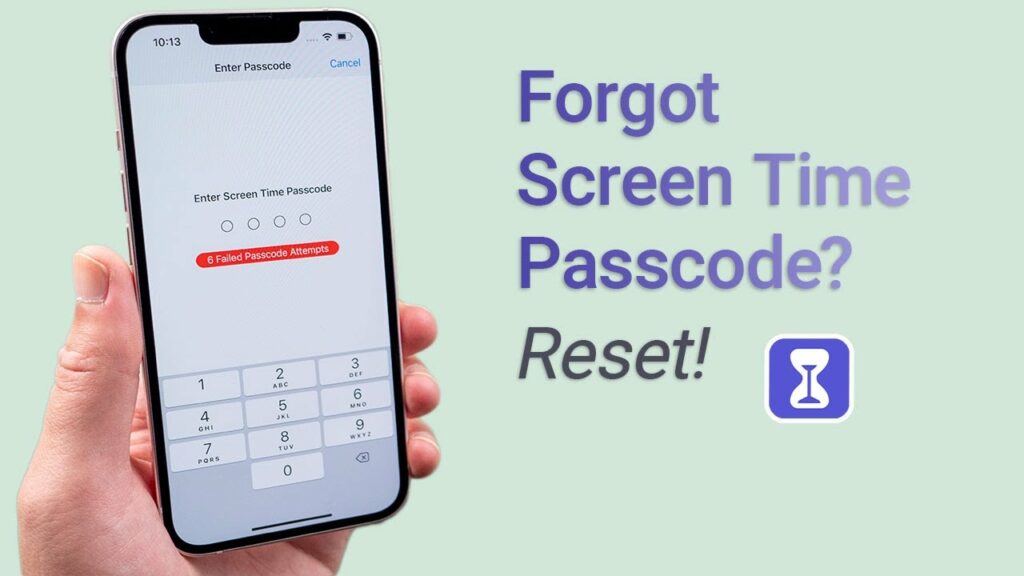
Screen time passcode is an important privacy aspect that one should apply to prevent accidental or intentional settings change. If you forgot screen time passcode or purchased a mobile with the screen time passcode and are now unable to contact the previous owner. Fret not, there are certain strategies; you can opt to reset the screen time passcode. Hop on below to learn about a few of them!
All You Should Know About Screen Time Lock.
Before delving deep into how to reset screen time passcode, you should first know in-depth about what the screen time passcode is.
What is Screen Time Passcode?
Screen time passcode refers to locking the restrictions one has set in screen time. The restrictions include app restrictions along with content and private ones. If you have applied a screen time passcode, you will need to enter the passcode every time you want to alter the settings or perform any other related function.
With it, you can control your children’s screen time – it’s a great parenting control passcode!
How Many Times Can You Enter the Passcode?
There is no fixed number explaining how many failed attempts will lead to the device’s locking or data loss. However, on the 6th failed attempt, you can re-enter the passcode after one minute. On the 7th attempt, the time will increase to 5 minutes; on the 8th, it will become 15 minutes; and on the 9th attempt onward; you won’t be allowed to enter a passcode before 60 minutes!
How to Reset Screen Time Passcode?
Let’s now move on to the guides to reset screen time passcode! Keep in mind Some methods will require Apple ID and password .
Method 1: How to Remove Screen Time Passcode without Losing Data
If you can’t access Apple ID and Password, Tenorshare 4uKey is here to save the day! With it, you can efficiently reset screen time passcode,and bypass any iOS passcode in a few minutes . Besides this, it also helps bypass MDM login screen.
Some of its features include:
- Bypass and reset the forgotten screen time passcode without losing data
- Fix disabled iPhone, iPad, and iPod touch without the need for iTunes or iCloud
- Bypass the MDM screen and remove the MDM profile
- Compatible with the latest iOS 16/iPadOS 16 and iPhone 14
Let’s now move on to the steps to reset the screen time passcode:
- Go to Tenorshare 4uKey’s official website to download and install the software.
- Once the installation terminates, launch the software and hit the Remove Screen time passcode option.
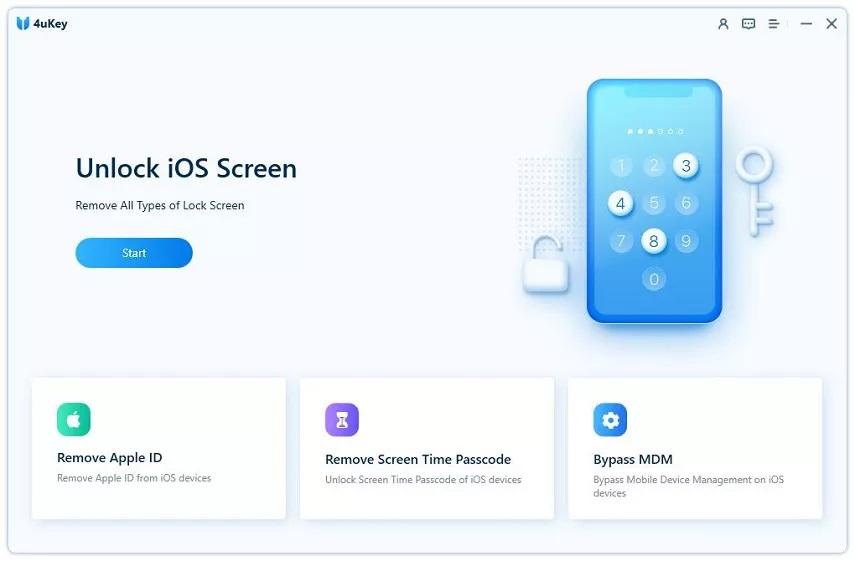
- Proceed with connecting your device to the computer and hit the Start button.
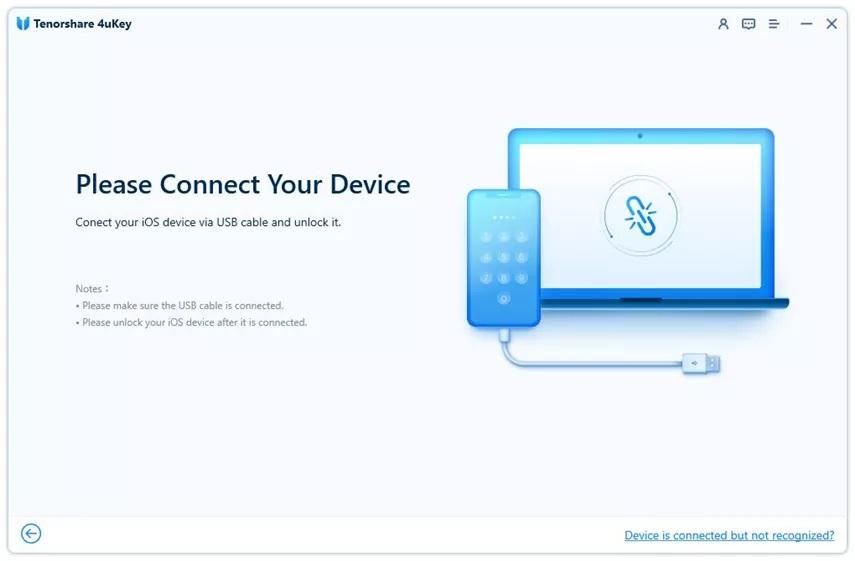
Key Tip: If you haven’t trusted your computer. Do so by unlocking your device and hitting the Trust option in the pop-up message.
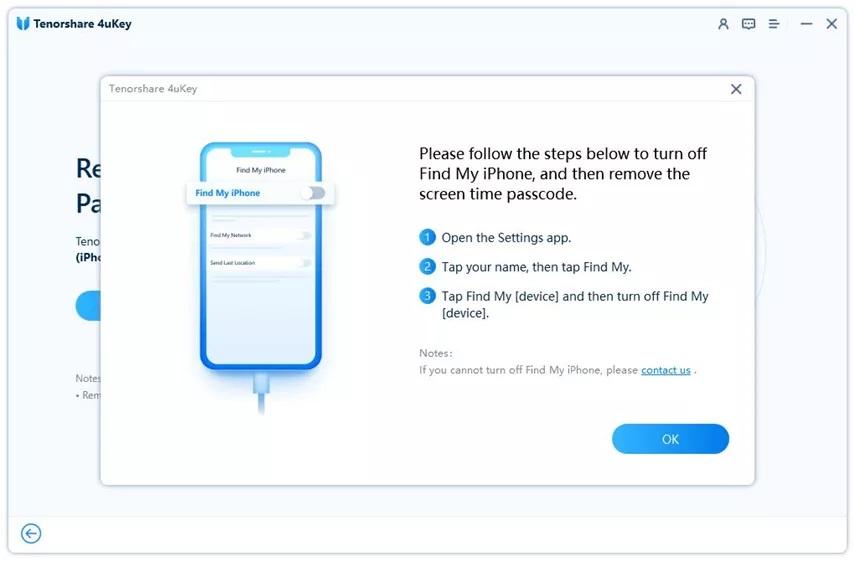
- Now, stick to the online instructions to turn OFF Find My iPhone.
- The software will begin to remove the passcode; you can also see the progress bar on the screen.
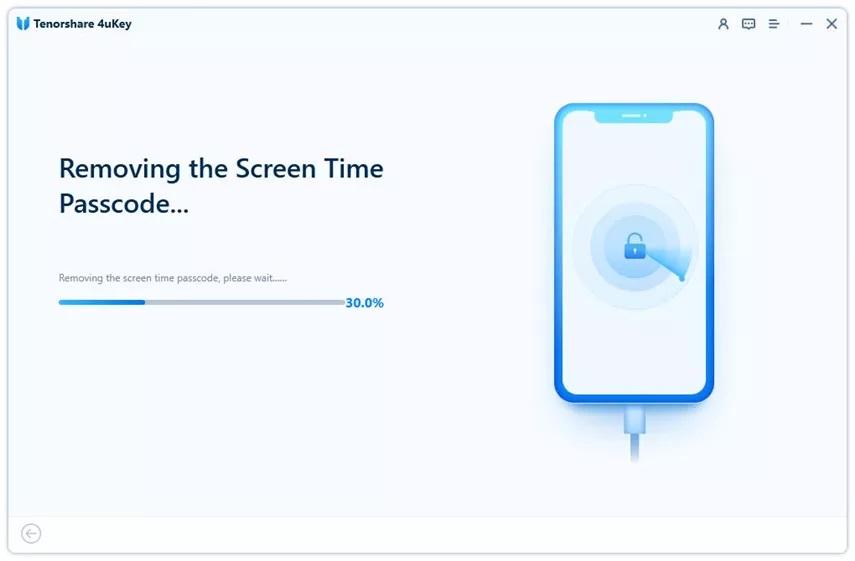
- Your device will restart on successful removal of the screen time passcode.
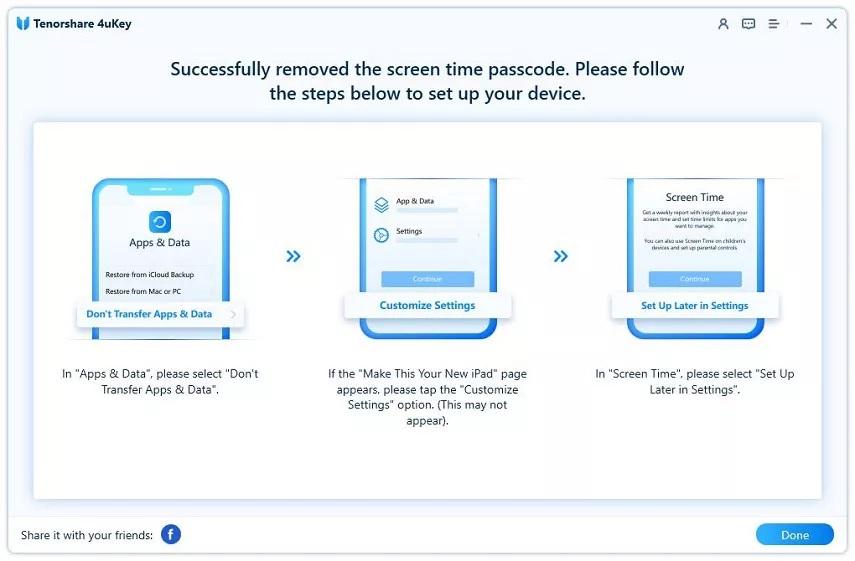
Tip: To ensure no data loss, select Don’t Transfer Apps & Data when setting up the device. Also, when setting Screen Time, choose Set Up Later in Settings.
Method 2: How to Change Screen Time Passcode via Setting
Here is how to change screen time passcodes via settings:
- Grab your device and go to Settings.
- Select Screen Time, hit Change Screen time passcode, and again select Screen time passcode from multiple options.
- Hit Forgot Passcode option and enter your Apple ID and Password when prompted.
- Once reset, enter the new screen time passcode and hit Confirm to confirm it when prompted.
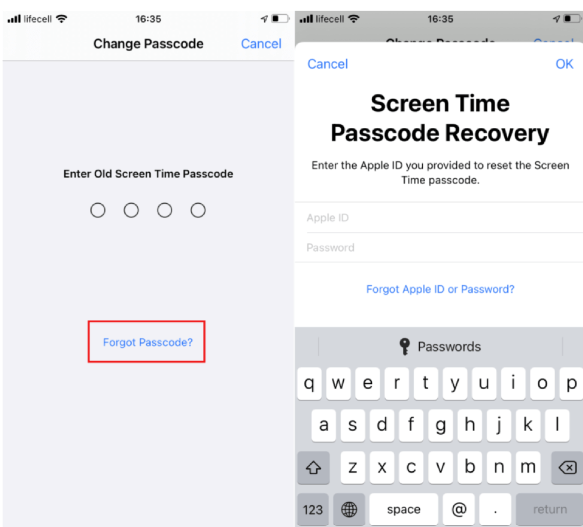
Note: As mentioned earlier, you will require Apple ID and Password to use this guide.
Method 3: How to Reset Screen Time Passcode via Family Organizer’s Device
You can also rely on Family Organizer’s device to reset Screen time passcode. Here is what you will need to do:
- Grab your iPhone, iPod Touch, or iPad, unlock it, and navigate to Settings.
- Go to Screen Time and select the name of the child whose screen time passcode you want to bypass and reset.
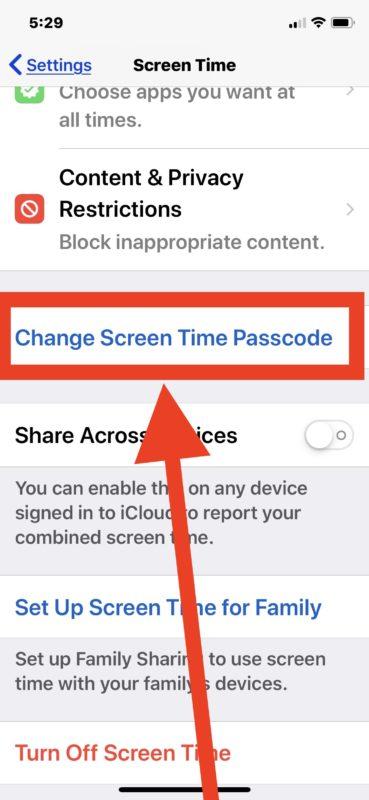
- Hit Change Screen time passcode and choose the same option again.
- Proceed with entering your Face ID and Passcode to authenticate your identity.
- When asked, enter your new screen time passcode and confirm it.
Note: You will be required to enter the Apple ID and Password. Also, ensure that your family organizer’s iOS device is updated to iOS 13.4 or iPadOS 13.4.
Method 4: How to Remove Screen Time Passcode via Restore iPhone with iTunes
This is the riskiest method. Resetting the screen time passcode with iTunes where doesn’t ensure a 100% success rate; it also deletes all of your data. So, before hopping onto the guide below, back up your data.
- Open iTunes on your computer and connect your Apple device via a charging cable.
- From the devices available, select your iPhone by hitting your iPhone’s icon.
- In the right panel menu, select the Restore iPhone option > Restore.
- Follow the on-screen instructions to complete the process.
How to Avoid Forgetting Screen Time Passcode?
They say Prevention is always better than cure. So, isn’t it better to avoid forgetting the screen time passcode instead of indulging in the hassle of resetting it? Below, we have highlighted three strategies to leave behind no option for forgetting the screen time passcode for your convenience; let’s give them a quick read!
- Ensure Your Passcode is Easy to Remember – Creating a strong yet simple password ensures you don’t forget the screen time passcode.
- Rely on iCloud Keychain – Apple has developed an app that helps users create, store, and sync passcodes, iCloud Chain. With it, you can skip forgetting passwords.
- Install Password Manage Tools – These tools aid you in keeping track of all of your passwords, including the screen time passcode. They can come in handy if you manage multiple passwords on multiple devices. Where they can suggest strong passwords, and they can help you cope with password-forgetting habits too.
What is Your Best Choice to Reset Screen Time Passcode?
Although all of the methods for resetting the screen time passcode mentioned above have a considerable success rate, except for the ones including the use of iTunes, as it deletes all the data, however, when using the Settings method and Family Organizer’s device, you will need access to the device’s passcode, Apple ID, and passcode.
One method not bound to any of these requirements involves using Tenorshare 4uKey. So, be sure to check this out!