

CHKDSK, also known as ‘Check Disk,’ is a built-in utility in Windows designed to check for and repair file system errors. However, when used on a RAW drive, you may encounter the perplexing error message: ‘The type of the file system is RAW. CHKDSK is not available for RAW drives.’
This error can be a roadblock in accessing or recovering data from your storage drives. In this article, we’ll delve into the root causes behind this issue and provide five straightforward solutions to resolve it. Let’s get started!
Part 1: Understanding the ‘CHKDSK Is Not Available for Raw Drives’ Error
1.1 What is a Raw Drive?
A “raw drive” typically refers to a storage device, such as a hard drive or SSD, that has not been formatted with a file system or is experiencing file system corruption. In other words, when a drive is in a raw state, it means it doesn’t have a recognized file system. Consequently, the operating system is unable to access the data stored on the drive.
1.2 Common Reason behind ‘CHKDSK Is Not Available for Raw Drives’
In fact, the CHKDSK commend requires a recognizable and intact file system to function properly. When a drive or partition is in RAW file system format, it’s not surprising to receive the error message ‘The type of the file system is RAW. CHKDSK is not available for RAW drives.’ There are various reasons why your drive is in RAW file system:
- File System Corruption
- Improper Ejection
- Virus or Malware Infection
- Bad sectors or other hardware issues
- Incompatible or Outdated Drivers
- Unsupported File System
Part 2: How to Fix ‘CHKDSK Is Not Available for Raw Drives’
Phase 1: Repair RAW partitions Before Formatting
Some users on the Microsoft support community often ask questions like ‘The type of the file system is raw. SD card.’ The most common advice they receive is to address this issue by formatting the disk. However, failure to back up data before formatting can result in permanent data loss.
That’s where 4DDiG Partition Manager comes in! This powerful tool can assist users in fixing the ‘CHKDSK not available for raw drives’ error without formatting. Additionally, it also offers various features, including partition formatting, partition recovery, OS migration, disk cloning, and more. Let’s explore some of its key features:
- Easily repair RAW/corrupted partitions on various devices, including external hard disks, SD cards, USB flash drives, and more.
- Boasts an intuitive and user-friendly interface, making it suitable for computer novices.
- Supports a wide range of file systems, including FAT, FAT32, NTFS, exFAT, etc.
- Offers robust data backup and cloning features, providing comprehensive data protection.
Given below is a guide on how to repair RAW partitions with the help of 4DDiG Partition Manager:
Step 1: Install and launch 4DDiG Partition Manager on Your PC. Connect your external hard drive if needed. Then, choose “Partition Recovery” from the left navigation bar and select “Repair Partition(s).”

Step 2: Click “Repair now” after choosing the disk containing the partition you wish to fix.

Step 3: Once the partition repair is successful, click “Finish.”

Phase 2: Try Using the Error Checking Tool
Before resorting to formatting, you can also try using the Error Checking tool to repair the RAW partition. Although the success rate of this method is not high, it is still worth a shot. To do so, follow these steps:
Step 1: Press the Win + E keys to open File Explorer.
Step 2: Find the RAW drive, right-click on it, and select “Properties.”
Step 3: Under the “Error checking” section, simply click on the “Check” button.
Phase 3: Formatting As the Last Resort
If the above steps fail to resolve the ‘check disk is not available for raw drives’ isuse, formatting the RAW drive can be the last option. Formatting can not only clear file system errors on your drive but also assign a new file system to it. You can complete the necessary actions as follows:
Method 1: Disk Management
Step 1: Press Win + X on your keyboardand choose “Disk Management” from the menu.
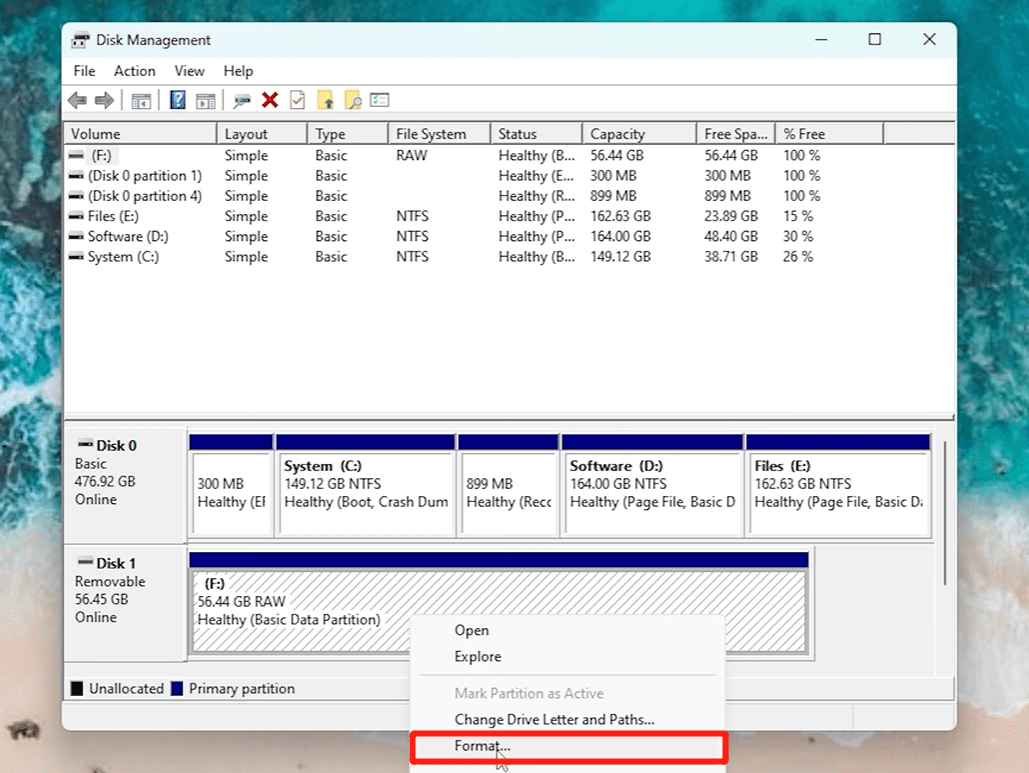
Step 2: Locate your RAW drive. Then, right-click on the it and select “Format.”
Step 3: Choose a file system (e.g., NTFS, FAT32) and allocate a volume label.
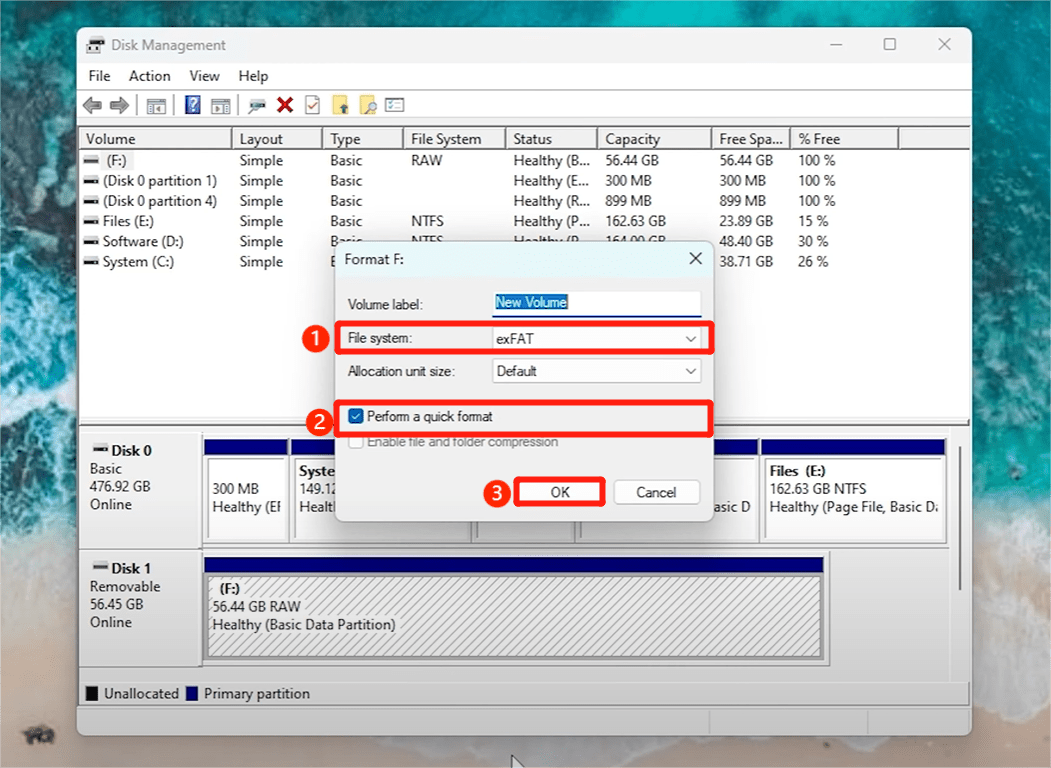
Step 4: Ensure the “Perform a quick format” option is checked, then click “OK” to proceed.
Step 5: After the formatting is complete, your drive should be accessible.

Method 2: Command Prompt
For tech-savvy users, the diskpart utility in Command Prompt can be used to accomplish this task:
Step 1: Choose “Command Prompt (Admin)” after pressing the Windows keys.
Step 2: Type diskpart and press Enter.
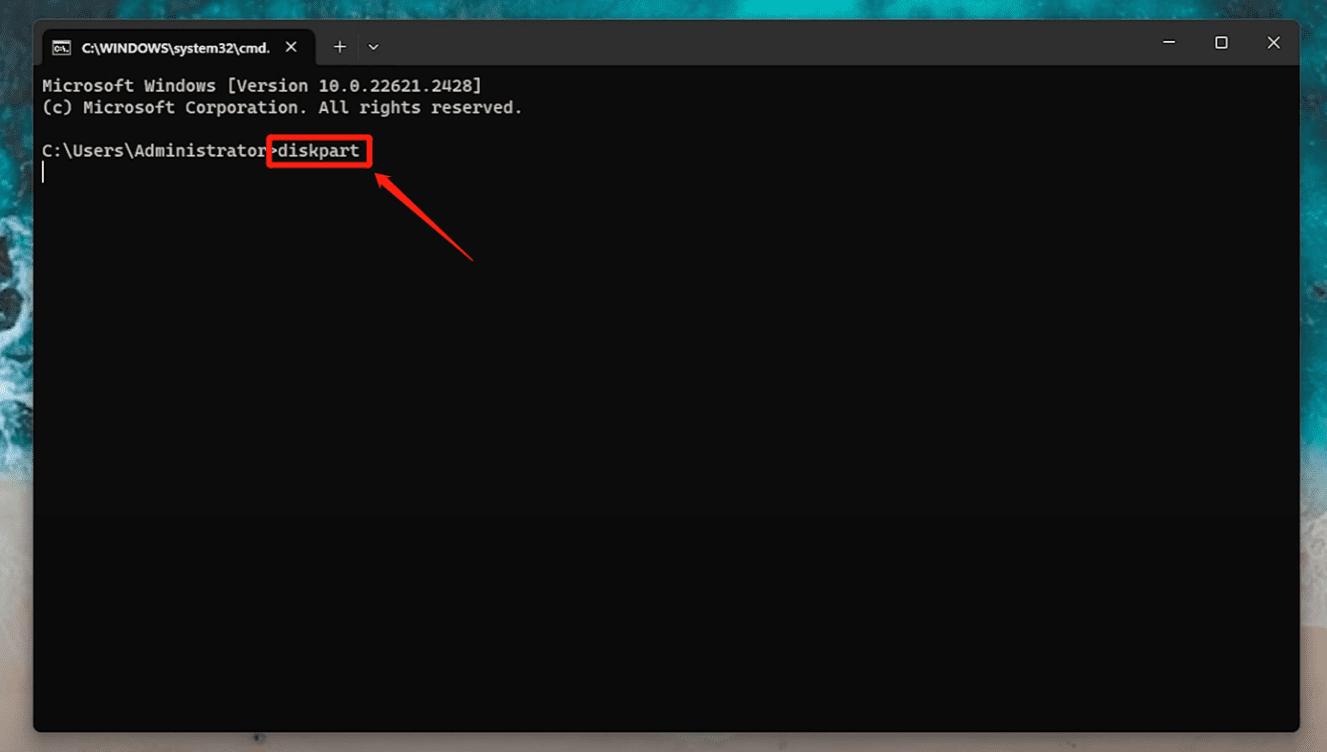
Step 3: Enter the following commands one by one, pressing Enter after each:
- list volume
- select volume 1 (replace 1 with the actual volume number of your RAW drive)
- format fs=ntfs quick (Replace ntfs to fat32 if needed)
- exit

Method 3: Third-Party Tool
To solve the ‘check disk is not available for raw drives’ problem, you can also utilize 4DDiG Partition Manager to format the problematic drive:
Step 1: Open the 4DDiG Partition Manager tool. Click “Partition Management” from the left sidebar. Then, perform a right-click on the RAW partition and select “Format.”

Step 2: Adjust the volume label, file system, and cluster size for the partition. Next, click “OK” to proceed.

Note: Choose the “Full Format” option with caution.
Step 3: Click “Yes” to confirm your selection.

Step 4: Preview the formatted partition result. If satisfactory, click “Execute 1 Task(s)” and then “OK” to start the formatting process.

Step 5: Once the RAW partition is successfully formatted, click on the “Done” button.

Part 3: Recover Lost Data After Fixing the ‘CHKDSK not Available for RAW Drives’ Error
Sometimes, important files stored on the drive may be lost after converting RAW to NTFS. In such cases, immediately stop using the formatted drive and resort to the following data recovery methods:
- Restore from Backup: If you regularly back up your data, this is the safest and most reliable method. Check your other storage devices and cloud storage services to see if there are any available backups.
- Use Data Recovery Software: Dedicated data recovery tools can be the most cost-effective choice when you don’t have a backup or your backup is lost. Some popular options include Tenorshare 4DDiG, Recuva, Disk Drill, TestDisk and PhotoRec.
- Professional Data Recovery Services: In general, data recovery services are only considered when your storage device is physically damaged or when the operating system is unable to detect the drive. Reputable data recovery services often offer a free assessment and take about one week to one month to get back lost files.
That’s it! Say goodbye to any worries about the error message ‘the type of the file system is raw’.
Bottom Line
Now, you’ve learned the meaning of RAW drives and how to fix the ‘chkdsk is not available for raw drives’ error. The most straightforward solution is to format your RAW drive, but there is a risk of data loss. Therefore, before formatting, consider using the 4DDiG Partition Manager tool to repair RAW parititions or convert RAW to NTFS. This powerful software won’t let you down.