
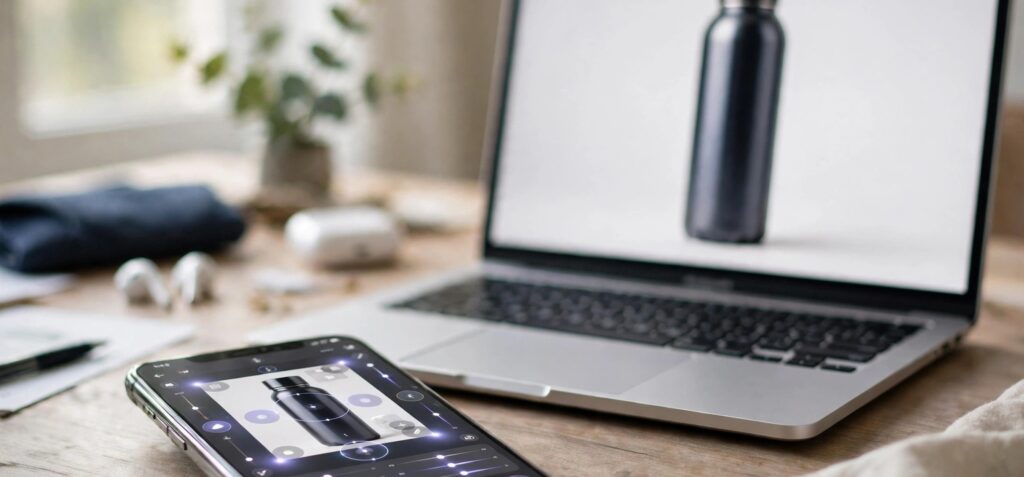
Every photo you post in 2026 competes with thousands of others for the same three seconds of attention. A flat product shot, a grey wall behind a portrait, a stranger in your travel photo — small flaws decide whether someone stops scrolling. Not every fix is worth opening a desktop editor for, though. That's why a free AI photo editor has become the first stop: you describe the change, and the tool does the work.
Whether you're a creator shipping ten posts a week, a shop owner shooting your own stock, or someone who wants a better profile picture, the right tool saves hours without a subscription. Here's why these editors matter, five free AI photo editor tools worth trying, and the steps to a natural result.
Why You Need a Free AI Photo Editor
Editing used to be a separate job with its own software. Now it is part of publishing: the photo, the caption, and the post go out together.
Social Content That Has to Look Good Fast
Creators know the rhythm: a launch, a reel, a carousel, all due tomorrow. Recolouring, cleaning a background, or swapping a dull sky used to mean an evening in Photoshop. With a free AI photo editor, one sentence replaces a stack of adjustment layers — and a batch of images keeps one visual mood, so the feed looks intentional.
Product Shots Without a Studio
Small sellers rarely have a backdrop or lighting rig — just a phone, a window, and forty products. An AI editor closes most of the gap: remove clutter, place the bottle on a clean surface, warm the light, export at marketplace size. Buyers judge from the thumbnail, so clean images affect conversion — and a free AI photo editor makes that possible without a photographer.
Everyday Photos You'd Otherwise Delete
Some photos are flawed and still worth keeping: the stranger crossing the frame, the portrait that came out soft, the holiday shot with a power line through the sky. These are the cases where a free AI photo editor earns its place. You are not faking a masterpiece; you are rescuing a memory.
Top 5 Free AI Photo Editor Tools in 2026
Not all of these solve the same problem. Based on my own use and feedback from other creators, here's how the five stack up.
1. AI Photo Editor – Describe Any Edit in Plain English
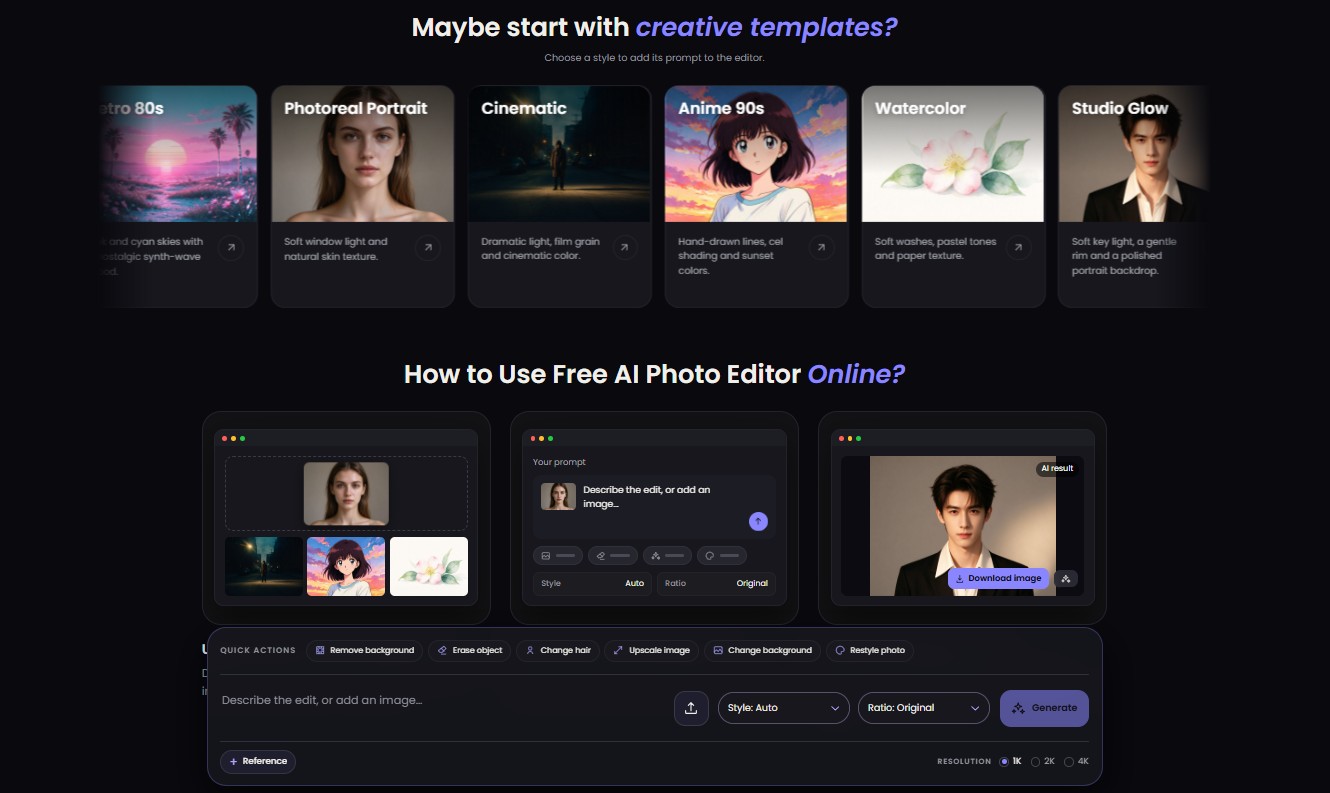
I used AI Photo Editor for a product refresh last month, and what surprised me was how much one sentence could do. Eight photos of the same candle, one prompt — "replace the grey wall with a sunlit Mediterranean terrace and warm the skin tones" — and the set looked shot in the same afternoon. A style reference image can replace a long description, quick actions cover background removal, object erasing, and upscaling, and a dozen templates let you start from a look instead of a blank prompt. One tip: say what to keep, not only what to change. For creators and sellers who want one browser tab instead of five apps, it is a real time-saver.
Key feature: Natural-language editing + style reference uploads
2. Photoroom – Clean Product Photos in Seconds
Photoroom is what I reach for when I need a marketplace-ready product image. It cuts the product out of a messy background, drops it onto a clean surface, and adds a soft shadow that makes the cutout believable. Its templates follow the proportions online stores use, saving a resize step later. If the same bottle has to look identical across platforms, this is worth trying. Free starting point, paid tiers for heavier use.
Key feature: Background removal + e-commerce templates
3. Fotor – All-in-One Retouching and Enhancement
Fotor feels like a Swiss Army knife: enhance a dark photo, smooth a portrait, remove a background, add text, export for social. I like it for rescue jobs on photos that are almost good — a little underexposed, a little soft. AI tools sit next to ordinary adjustments, so you can fix what the model missed by hand. For quick fixes without a specialist tool per task, Fotor is a reliable choice.
Key feature: AI enhancement + manual adjustments in one place
4. Pixlr – Browser Editing with Layers and AI Tools
Pixlr is the closest thing to a desktop editor that still runs in a browser. Layers, masks, and blend modes are all there, with AI cutout and generative fill beside the manual tools. That matters when a result is 80% right and you want to finish the last 20% yourself. It is not the fastest option for a one-sentence edit, and the free version has limits, but for control without installed software it is worth the learning curve.
Key feature: Layer-based editing + AI cutout and fill
5. Canva – Design Templates with AI Inside
Canva is less a photo editor than a design workspace that includes one. Magic Studio can remove a background, erase an object, or expand an image, and the result drops straight into a template for a post, story, or pitch deck. If the photo is one piece of a larger layout, working inside Canva removes the export-and-reimport loop. The free plan has limits and fine retouching is not its strength, but for teams that build whole posts, it is the practical choice.
Key feature: AI photo tools + ready-made design templates
How to Edit a Photo with a Free AI Photo Editor – Step by Step
The process uses AI Photo Editor as the example; the same logic applies to the rest of the list.
Upload Your Photo or Pick a Template
Drag a PNG, JPG, or WEBP file in — up to 10 MB — or open a look template and let it load the matching prompt. Editing an outdoor portrait? Starting from Golden Hour gives you a sensible light direction before you type anything.
Describe the Edit in Plain English
Write it as you would explain it to a retoucher: what changes, what stays, what the light feels like. "Replace the background with a quiet beach at sunset, keep the jacket colour, soften the shadows under the eyes" beats "make it better." Prompts run up to 500 characters — enough for two or three specific instructions. Prefer not to type? Use a quick action for background, object removal, or upscaling.
Choose Resolution, Preview, and Download
Generate at 1K while you decide on wording, then switch to 2K or 4K for the version you publish. Compare with the original at full size before downloading — AI edits look convincing at thumbnail scale and reveal small artefacts up close. Exports come without a watermark.
Best Practices for Natural Results
- Name the light source and direction, not just "better lighting"
- Keep one or two original details: freckles, fabric texture, a logo
- Change one thing per pass; stacking five edits hides which one broke the image
- Check hands, hair edges, and text before exporting
Pro Tips for Better AI Photo Edits
The difference between an edit that looks generated and one that looks photographed is usually a handful of words.
Say What to Keep, Not Only What to Change
Models are good at adding, less careful about preserving. If a face matters, put the preservation instruction in the same sentence: "swap the background for a studio grey, keep the same face and skin tone." Think of it as a boundary for the model to work inside.
Match the Light in the Prompt
Most unnatural edits fail on light, not content. A subject lit by soft window light looks pasted against a hard noon beach. Describe light the way a photographer would — "soft window light from the left, warm highlights" — and the composite holds together.
Use Templates as a Starting Point
A template is a prompt someone already tested. Open one, read what it asks for, then edit the parts that do not fit your photo. Faster than writing from zero, and it teaches the vocabulary these models respond to.
Integrating AI Edits into Your Workflow
- Client previews: generate at 1K, send the draft after the direction is approved
- Final delivery: re-render at 4K from the approved prompt, not a rewritten one
- Batch consistency: reuse one prompt across a product set, changing only the background
- Archive: save the prompt beside the exported file so the look can be repeated
FAQs about Free AI Photo Editor Tools
Can I Edit Photos with AI Without Paying?
Yes. All five tools have a free starting point, and AI Photo Editor is free to use for browser-based edits. Heavy daily use usually meets limits somewhere — credits, resolution caps, or export rules — so check current terms before planning a large batch.
What File Types and Sizes Can I Upload?
AI Photo Editor accepts PNG, JPG, and WEBP up to 10 MB, with prompts up to 500 characters and exports at 1K, 2K, or 4K. Other tools set their own limits, and most raise them on paid plans.
Can AI Remove Objects or Replace Backgrounds?
Yes. Both are standard now. For the cleanest result, describe the surrounding area too — "remove the bin, continue the brick wall and shadow line behind it" — so the fill has something to match.
Do I Need Design Skills to Use These Tools?
No. Prompt-based editors are built for people who have never touched a layer panel. Want manual control? Pixlr and Canva let you take over after the AI pass.
Conclusion
In 2026, a free AI photo editor is no longer a novelty — it is the sensible first step before anything heavier. AI Photo Editor, Photoroom, Fotor, Pixlr, and Canva each solve a different slice of the job: a sentence-based edit, a clean product shot, a fast retouch, manual control, and a finished design.
Start with one photo, describe the change in plain language, keep what matters, and export at the size you need. So don't let a good photo sit unused — upload it, write one clear sentence, and see how far that gets you.
Previously in Latest News: Rolex GMT-Master II Super Clone: Pepsi vs Batman Bezel Design and Movement Comparison