
You might already know the immense power of video content in digital marketing, lead generation, and creating brand awareness. While video content can help you drive more traffic to your products and services, you might find it hard to come up with effective demo or marketing videos. Don’t worry – in this post, I’m going to help you create engaging video marketing content that would certainly be a hit. Let’s begin!
Why Record your Webcam or Screen?
These days, a lot of people record their meetings, product demos, and even gaming tutorials to share all sorts of content with others. Ideally, there could be infinite reasons for recording your screen or webcam videos as well.
- Recording a meeting: If you have organized an important meeting, then you can consider recording it for taking notes or sharing it with others.
- Video lectures: Are you an educator who would like to grow your presence or share your knowledge? Then making a video lecture would be the best approach.
- For marketing: Needless to say, marketers can come up with all kinds of product demos and sales material with the help of a screen recorder.
- Personal reasons: Besides that, there could be all kinds of personal reasons for recording your screen and sharing it with your audience on social media.
What Kind of Videos you can Create with a Screen Recorder?
As you can see, there can be all kinds of reasons for recording your screen or a webcam. Therefore, it doesn’t matter if you are a marketer or an educator, you can use a screen recorder in different scenarios. Here are some types of videos that you can create with an online video recorder.
- Marketing Material: A screen recorder can help you come up with the overall demo of your website, create how-to guides, video ads, and all kinds of marketing material. You can also come up with customer testimonials with a screen recorder quite easily.
- Training Videos: If you are onboarding new employees, then you can simply create video material to train and educate them about your company.
- Online Lectures and Courses: With the rise in eLearning, online courses have become more popular than ever. Therefore, you can easily record your lectures and post them online for your audience.
- Presentations: From students to professionals hailing from different industries, almost anyone can come up with a stunning video presentation using a screen recorder.
- Customer Support: You can also provide engaging support to your customers, resolve their doubts, or troubleshoot any problem via video recordings.
- And More: Besides that, you can also record gaming tutorials, video interviews, code reviews, and create all kinds of interesting content with a screen recording tool.
DemoAir: A Free Online Screen Recording Solution
While there are plenty of screen recording tools out there, I would recommend trying Wondershare DemoAir. The best part is that it is a freely available online solution, which means you don’t have to install anything on your computer. All you need to do is add the DemoAir extension to Chrome and use it whenever you wish to record your screen or webcam.
- 3 Recording Modes
DemoAir has a user-friendly intuitive interface with three dedicated modes – Desktop, Browser Tab, and Webcam. Using them, you can record activities on your browser, desktop, selective applications, or a webcam.
- Webcam and Audio Integration
While recording your system’s screen (desktop or browser), you can choose to include or exclude input from your webcam, microphone, or system’s sound.
- Drawing Tool
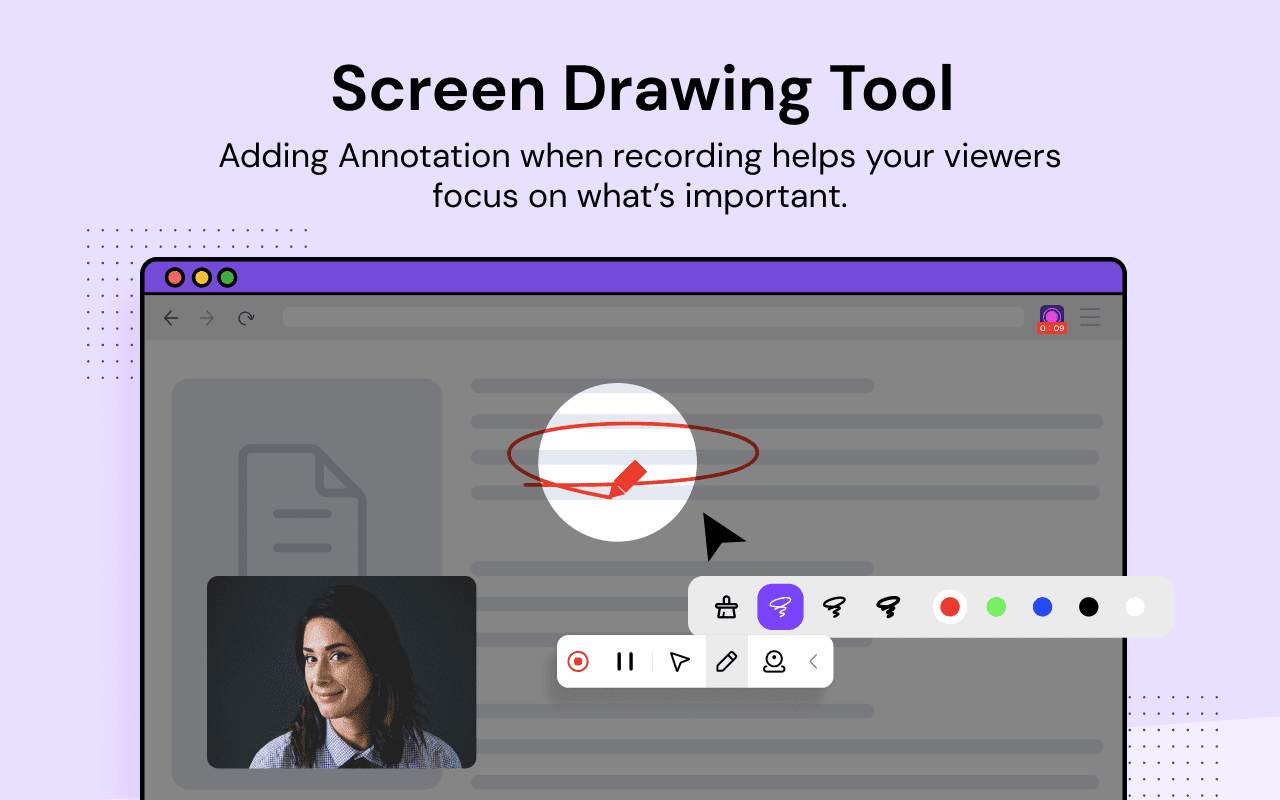
Also, users can turn on a “Drawing Tool” feature that would let them draw anything while recording their screens, focus on any components, or highlight mouse clicks.
- Free and Online
DemoAir is an online screen recording tool that can be accessed as a Google Chrome extension without downloading anything on your computer. Also, the basic version of DemoAir is available for free that can record videos of up to 5 minutes.
- Integration with Other Platforms
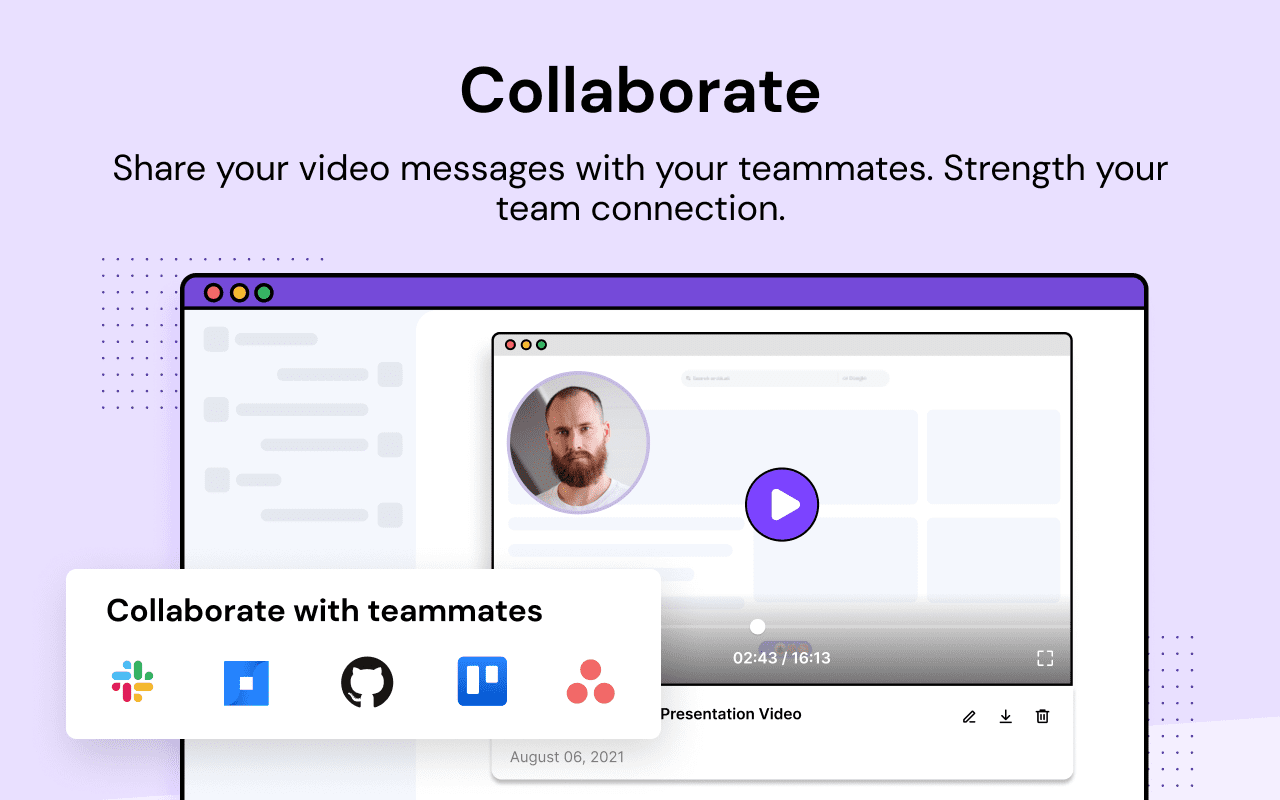
Apart from recording your videos, you can also directly share them on numerous platforms like YouTube, Gmail, Google Drive, and Google Classroom. You can also generate shareable embedded codes and integrate DemoAir with several other platforms such as Slack, Trello, Jira, GitHub, Asana, and more.
How to Record your Screen and Webcam with DemoAir?
Now when you know the major features of Wondershare DemoAir as a screen recorder for Chrome, let’s quickly learn how to use it. Ideally, with the help of DemoAir, you can record your system’s webcam, browser, or desktop activities – all in one place. Here are some basic steps that you can take to start recording your videos with DemoAir:
Step 1: Add DemoAir to Chrome and Access it
To start with, you need to add the DemoAir extension to your Chrome account. To do that, you can just go to the website of DemoAir and choose to integrate it with Chrome.
Alternatively, you can directly go to the Web Store of Google Chrome, look for DemoAir, and add the extension.
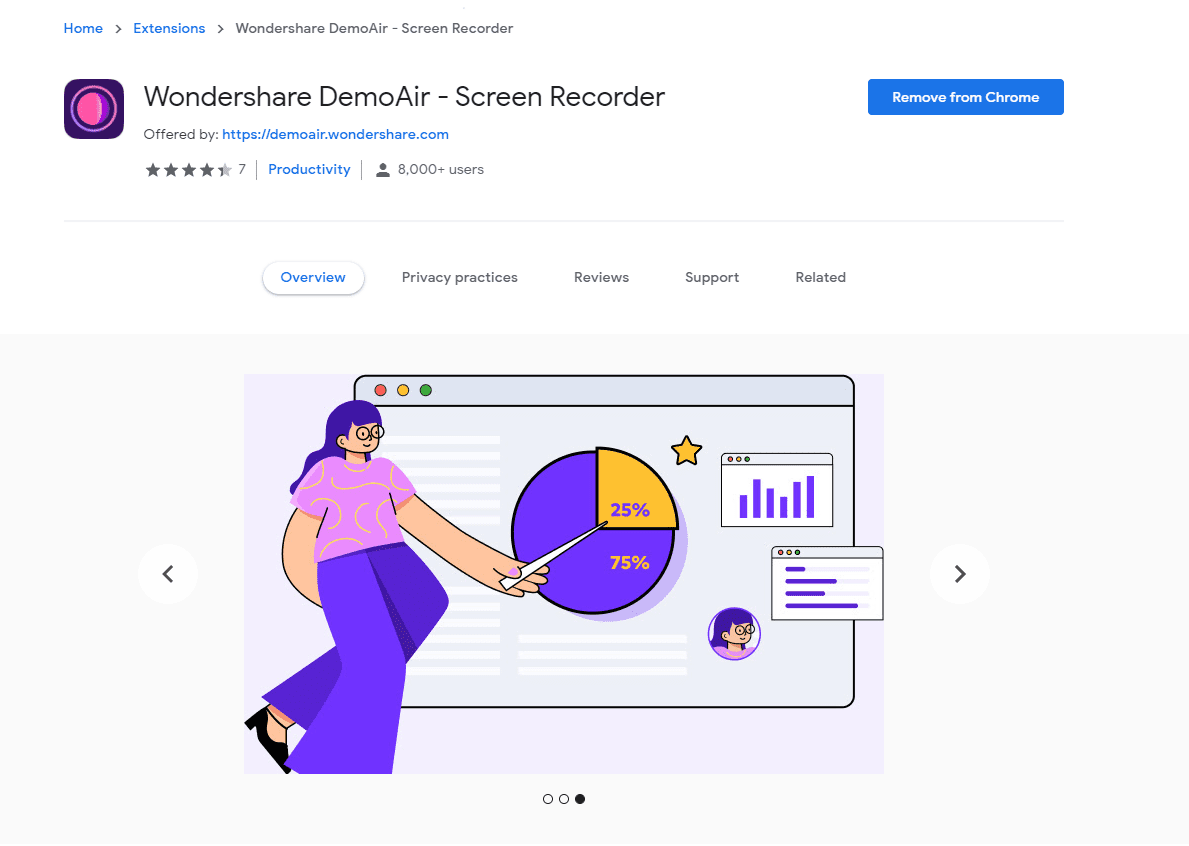
Simply add the DemoAir extension by completing its installation and restart Chrome. Now, you can find the DemoAir icon on the extension bar of Chrome (on the top-right corner of the interface).
Step 2: Go to DemoAir and Select a Recording Mode
Great! Now you are all set to start recording your screen or webcam with DemoAir. Whenever you want to record anything, just launch Chrome, and click on the DemoAir icon from the extension tab.
Here, you can first select a recording mode to record your browser, desktop, or webcam activities. You can also choose to enable or disable inputs from your microphone, camera, or system’s sound.

Besides that, there is also an option to include a drawing toolbar while recording your videos with DemoAir.
Step 3: Start Recording your Screen with DemoAir
After selecting an appropriate mode, you can just click on the “Start Recording” button on DemoAir. To proceed, you need to grant all the relevant permission to DemoAir to record the screen or access your system’s sound or webcam.
Let’s assume that we have selected the “Desktop” mode of DemoAir to record your system’s screen. Now, you can choose to record the entire screen or simply select any specific application that is already running on your computer.
In case you have decided to record a specific application, then you can go to the Window tab, and just select the running application.
Now, DemoAir will display a countdown that would let you know that the video recording has been started.
Step 4: Draw anything on your screen while recording
As I have listed above that Wondershare DemoAir also provides a drawing tool while recording the screen. If you have enabled the option, then you can find the drawing toolbar at the bottom panel.
Using it, you can simply draw anything on the screen or focus on any specific area. There is also an option to highlight mouse clicks that can be used while recording any informative guide or a how-to tutorial.
Step 5: Stop or Pause the DemoAir Recording
Following this basic approach, you can record anything on your screen with DemoAir. You can always go to Chrome and click on the DemoAir icon to pause the recording in between or stop it altogether.
Step 6: Download or Share your Videos via DemoAir
That’s it! Once you have stopped the recording, you can go to your DemoAir dashboard on Chrome to access your videos. From here, you can directly download your videos on your system or share them via generating their links or embedding URLs.
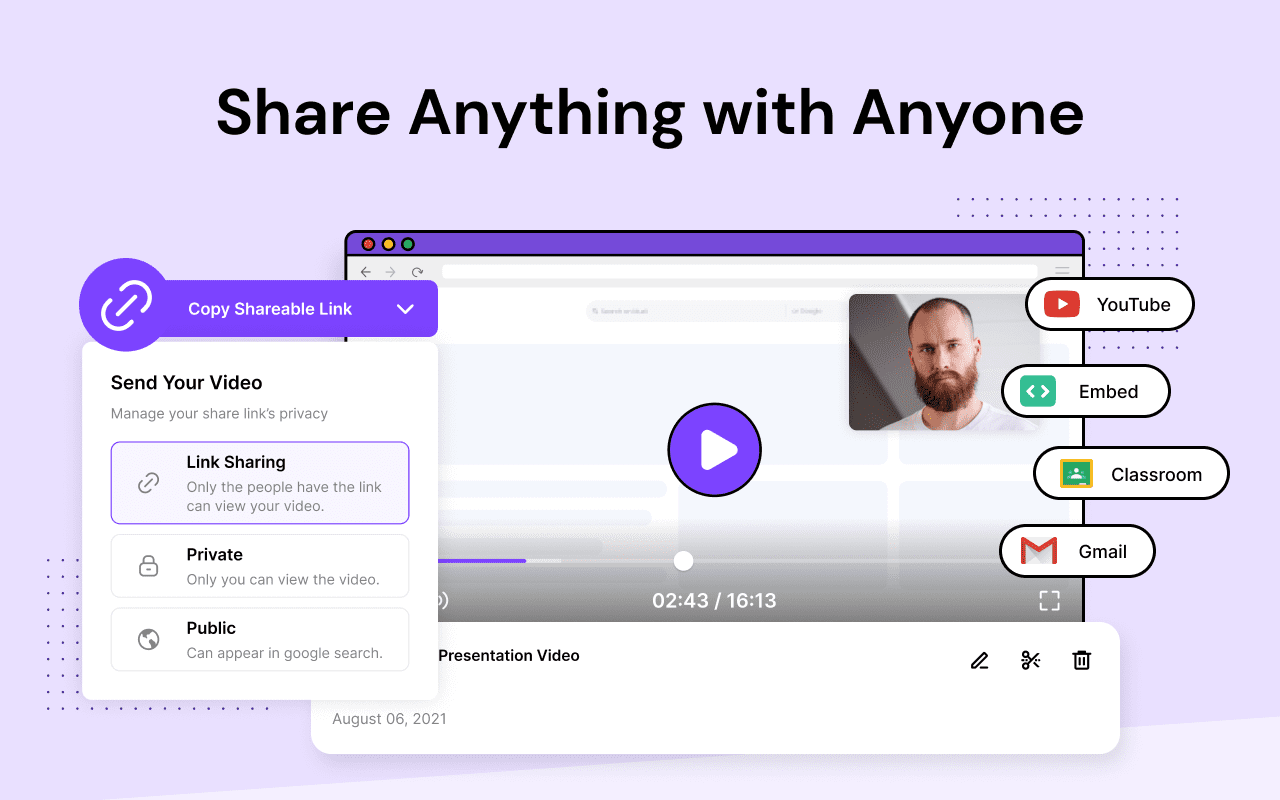
Furthermore, you can also find tons of options to directly share your videos on platforms like Google Drive, Gmail, Google Classroom, and YouTube. You can even integrate other productivity platforms like Slack, Trello, Jira, GitHub, Asana, and more from here.
By following this simple approach, anyone can take the assistance of DemoAir to record their system’s screen or browser activities on the go.
Conclusion
As you can see, a screen recording tool can certainly help you promote your products online and even resolve the doubts of your customers. From creating demo videos to making informative content, there can be so many ways of using a screen recording solution. Though, if you are looking for one of the best screen recording tools, then you can explore Wondershare DemoAir. It is a freely available Chrome extension that would let you record your videos in different modes and share them on popular platforms – all in one place.